Rapport d'optimisation des coûts
Pour générer le rapport d'optimisation des coûts, j'ai besoin d'accéder à au moins 2 exports de données de votre compte racine.
Le rapport d'optimisation des coûts par e-mail fournit un résumé détaillé et exploitable des opportunités de réduction des coûts AWS. Envoyé automatiquement tous les mois ou tous les deux mois, il donne à votre équipe une vision claire des postes où l'argent est gaspillé, de ce qui a déjà été corrigé et des nouveautés de ce mois, sans aucun effort manuel.
Ce que comprend le rapport
Synthèse : Un aperçu en une seule phrase montrant le nombre total de résultats actifs, les économies mensuelles potentielles totales en dollars et le pourcentage de vos dépenses cloud mensuelles que cela représente — pour que les décideurs aient immédiatement l'essentiel.
Résumé par compte : Un tableau classé de tous les comptes avec leur nombre de résultats, les économies potentielles, les dépenses mensuelles estimées et un score d'économies. Le score d'économies vous indique en un coup d'œil dans quelle mesure chaque compte est optimisé par rapport à sa taille. Pour les rapports avancés, vous bénéficiez également d'une comparaison mensuelle, d'un score de balisage et d'un score d'allocation.
Résumé par type d'optimisation : Répartition des résultats regroupés par catégorie d'optimisation (par exemple, arrêt EC2 le week-end, redimensionnement RDS, classes de stockage S3), avec un niveau de difficulté et économies potentielles par catégorie. Les opportunités bonus sont affichées séparément et ne sont pas prises en compte dans le total global - de sorte que les chiffres sur lesquels vous agissez sont toujours prudents et honnêtes.
Détection des anomalies de coûts : Deux tableaux dédiés mettant en évidence les pics de coûts quotidiens détectés au cours des 30 derniers jours : un au niveau du service, un au niveau des ressources individuelles. Chaque anomalie affiche le coût précédent, le coût actuel, le delta et la variation en pourcentage, ce qui rend les surprises de facturation inattendues immédiatement visibles.
Résultats détaillés : Une répartition complète organisée par type d'optimisation, répertoriant chaque ressource affectée avec son compte, sa région, son ID de ressource, sa configuration actuelle, sa configuration recommandée, ses économies mensuelles estimées et son état actuel. Chaque type d'optimisation est lié à une présentation vidéo et à des instructions écrites pour l'identification et la résolution, afin que les développeurs puissent commencer à économiser immédiatement.
Pourquoi ce rapport est précieux
Chiffres honnêtes. Les totaux d'économies ne comptent que les résultats encore ouverts. Les gains réalisés et les exceptions sont suivis et affichés, mais ne gonflent jamais le chiffre global.
Aucun travail manuel. Le rapport s'exécute automatiquement, interroge directement vos données de facturation et arrive dans votre boîte de réception : rien à exporter, aucun tableau de bord à vérifier, aucune donnée à filtrer.
Visibilité des anomalies. Les pics de coûts d'un jour à l'autre apparaissent dans le même rapport, ce qui vous permet de détecter les surprises de facturation le lendemain de leur apparition plutôt qu'à la fin du mois.
Suivi des progrès. Les transitions de statut de NEW → NOT ACTIONED → ACHIEVED donnent à votre équipe un enregistrement clair de ce qui a été trouvé, de ce qui a été ignoré et de ce qui a été corrigé au fil du temps.
La colonne Statut est calculée sur 3 mois de données (mois précédent, en cours et suivant) pour chaque résultat, à partir de son ID de ressource (ARN). Les statuts sont évalués dans cet ordre :
EXCEPTION : les ressources portant la balise Exception sont automatiquement classées comme telles.
ONE TIME : Résultats qui apparaissent uniquement dans le mois en cours et sont absents le mois précédent et le mois suivant. Exemple : Une ressource créée et supprimée au cours du même mois. Cas limite : Si le mois en cours est le mois le plus récent de l’ensemble de données et que le résultat n’est pas apparu au cours des 2 derniers jours, il est également classé comme ONE TIME.
ACHIEVED : Résultats présents dans le mois en cours mais absents le mois suivant. Interprétation : Représente de véritables économies (par exemple, un problème résolu). Cas limite : Si le mois en cours est le mois le plus récent de l’ensemble de données et que le résultat n’est pas apparu au cours des 2 derniers jours, il est classé comme ACHIEVED.
NEW : Résultats qui n’existaient pas le mois précédent mais sont présents dans le mois en cours.
NOT ACTIONED : Résultats présents au cours des trois mois (précédent, actuel et suivant). Interprétation : Aucune mesure n’a été prise pour répondre à ces résultats.
BONUS : Optimisations de coûts non obligatoires, telles que des coûts futurs informatifs ou des économies facultatives. Remarque : Consultez la page de détails pour connaître le contexte de chaque résultat.
- Score d'économies : % de vos dépenses cloud qui ne constituent pas des opportunités d'optimisation ouvertes (plus il est élevé, moins il reste de gaspillage). Le × 2 sur le score d'économies signifie qu'il atteint 0 dès que 50 % des dépenses sont optimisables – volontairement exigeant pour pousser à l'action.
- 100 − 2 × (économies potentielles restantes / coût total amorti) × 100
- Score de balisage : % de vos ressources balisables qui possèdent vos balises requises
- (ressources balisées / ressources balisables) × 100
- Score d'allocation : % de vos dépenses cloud attribuées à vos balises requises
- (dépenses allouées par balise / dépenses totales allouées) × 100
1. Création du bucket S3
- Depuis votre compte racine, accédez au service Amazon S3 dans la console AWS, puis cliquez sur Créer un bucket. Choisissez un nom, laissez les paramètres par défaut et cliquez sur Créer.

2. Création d'exports de données
- Accédez au service Facturation et gestion des coûts > section Exportations de données et cliquez sur Créer. Vous allez créer 2 exports :
- Sélectionnez FOCUS avec colonnes AWS dans Paramètres, puis la dernière version (ici FOCUS 1.2). Sélectionnez un nom pour l'exportation, comme FOCUS 1_2, et choisissez Quotidien comme granularité temporelle.
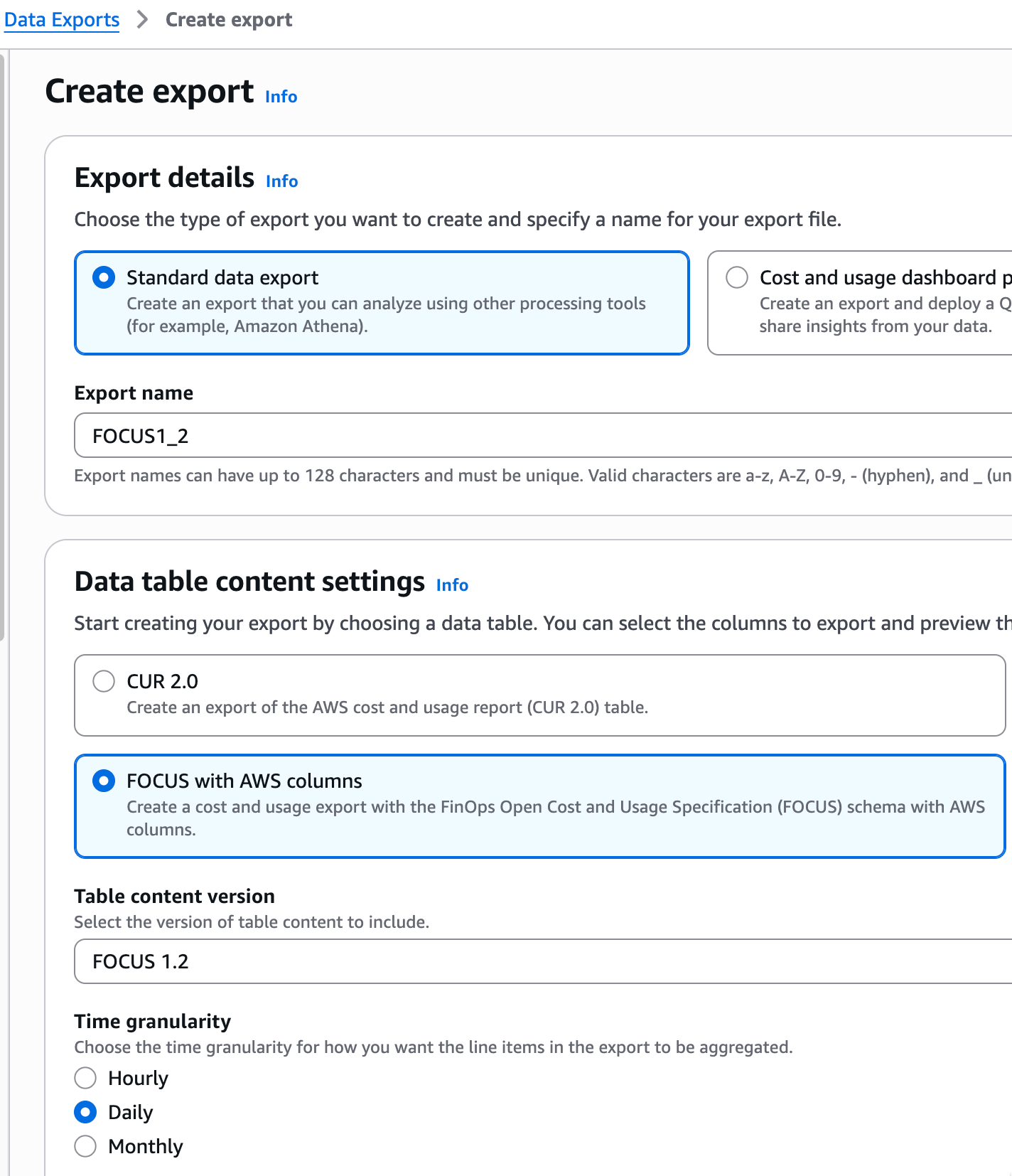
Laissez les autres options par défaut : Compression et format de fichier = Parquet et Versionnage du fichier = Écraser le fichier d'exportation de données existant.
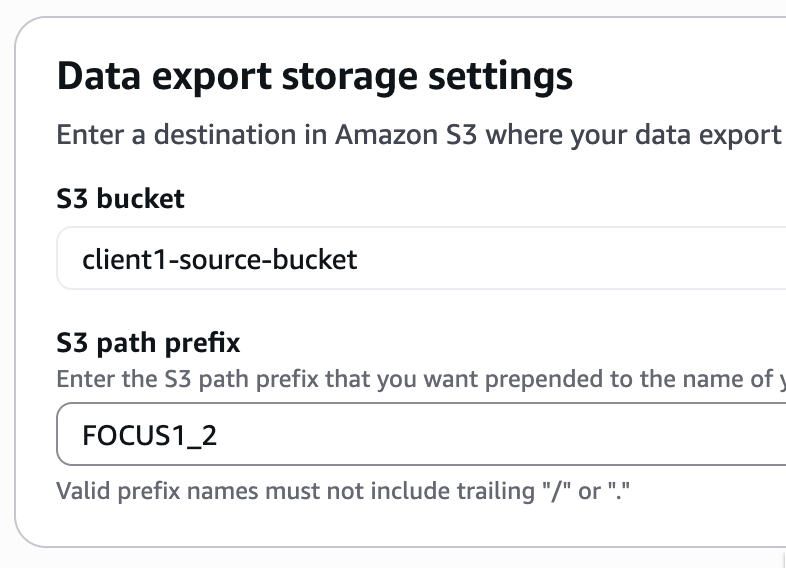
Dans Paramètres de stockage de l'exportation de données, sélectionnez votre nouveau bucket et cochez "J'accepte d'écraser ma stratégie de bucket S3" afin que le service d'exportation de données dispose des autorisations d'écriture nécessaires sur votre bucket. Cliquez sur Sélectionner un bucket.

Choisissez ensuite un préfixe de chemin S3 (ici FOCUS1_2) et cliquez sur Créer.
- 2. Pour la deuxième exportation, sélectionnez Recommandations d'optimisation des coûts dans les paramètres du tableau de données.
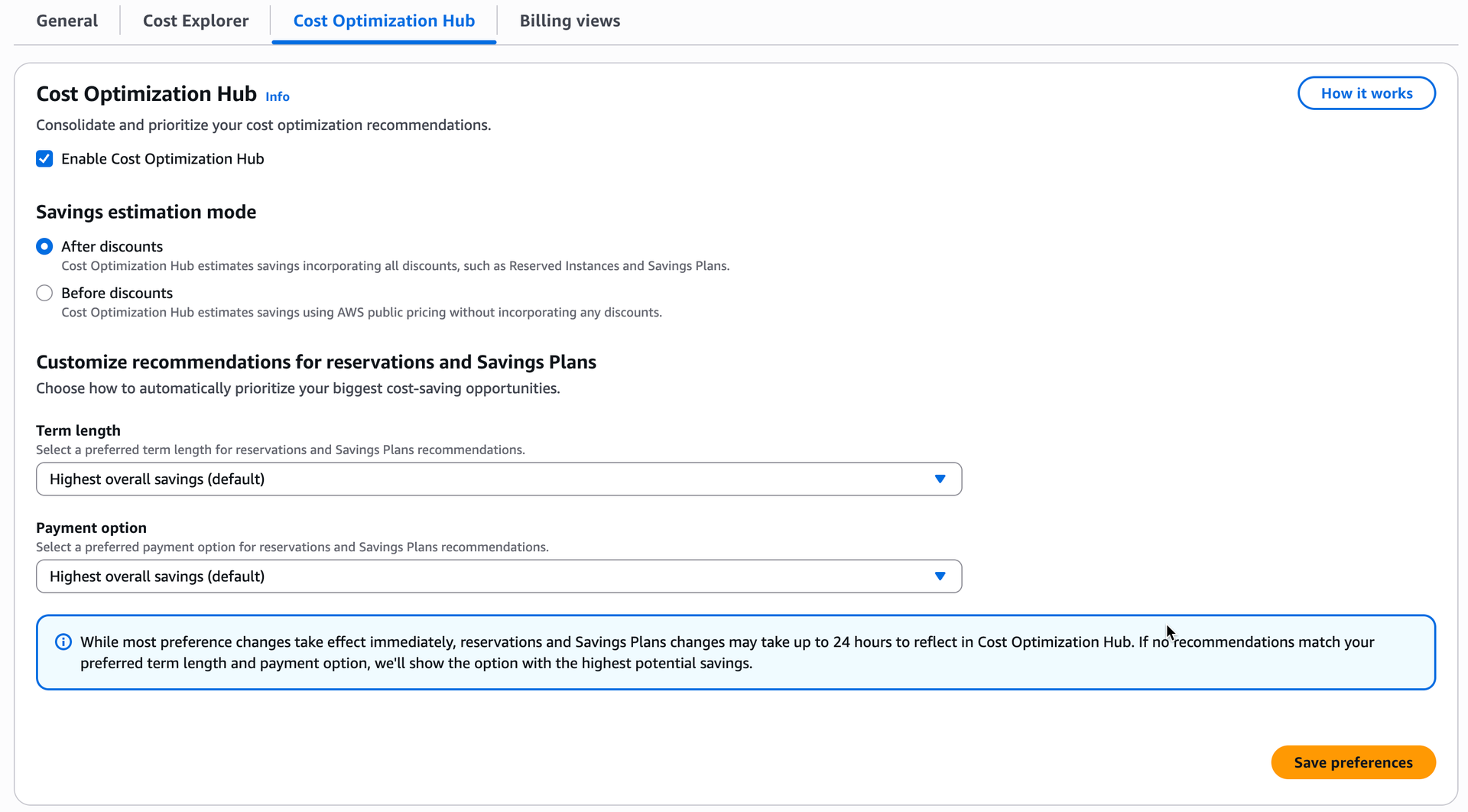
Si vous recevez le message d'erreur Cost Optimization Hub non activé, cliquez d'abord sur le lien pour l'activer.

Cliquez ensuite sur Activer le Cost Optimization Hub, puis sur Enregistrer les préférences.
Revenez à l'onglet précédent et cliquez sur Actualiser. Vous devez maintenant créer un rôle lié au service (SLR) pour accorder les autorisations nécessaires.

Cliquez simplement sur le bouton pour créer instantanément votre rôle.

Choisissez un nom pour l'exportation, par exemple COH, puis cliquez sur Inclure toutes les recommandations dans Configurations de la table de données.
Comme pour le premier export, laissez les autres options par défaut : Compression et format de fichier = Parquet et Versionnage du fichier = Écraser le fichier d'exportation de données existant.
Dans Paramètres de stockage de l'exportation de données, sélectionnez votre nouveau bucket et cochez "J'accepte d'écraser ma stratégie de bucket S3" afin que le service d'exportation de données dispose des autorisations d'écriture nécessaires sur votre bucket. Cliquez sur Sélectionner un bucket.
Choisissez ensuite un préfixe de chemin S3 (comme COH) et cliquez sur Créer.
Votre première livraison d'exportation vers Amazon S3 sera effectuée dans les prochaines 24 heures, puis quotidiennement. Vous pouvez quitter la page et revenir après 24 heures pour accéder à votre première livraison d'export.
Des rapports supplémentaires sont disponibles, utiles pour les tests comparatifs.

Si vous exportez CUR 2.0, sélectionnez tout le contenu d'export supplémentaire.

Remarque : La première exportation sera disponible dans S3 dans 24 heures, puis mise à jour quotidiennement.
- La réplication S3 standard s'applique uniquement aux nouveaux objets ajoutés après la création de la règle.
- Pour copier des objets existants, utilisez S3 Batch Replication (facultatif pour les nouvelles exportations).
a. Création d'un rôle IAM
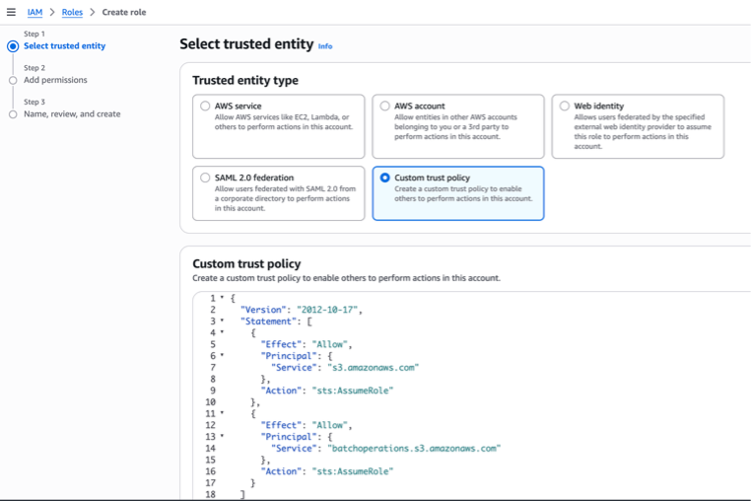
- Accédez à IAM > Rôles.
- Cliquez sur "Créer un rôle".
- Sélectionnez "Politique de confiance personnalisée" et remplacez le contenu par :
{
"Version": "2012-10-17",
"Statement": [
{
"Effect": "Allow",
"Principal": {
"Service": "s3.amazonaws.com"
},
"Action": "sts:AssumeRole"
},
{
"Effect": "Allow",
"Principal": {
"Service": "batchoperations.s3.amazonaws.com"
},
"Action": "sts:AssumeRole"
}
]
}
4. Cliquez deux fois sur "Suivant" et ajoutez un nom au rôle, par exemple, s3-replication-to-cost-optimization-report.
5. Cliquez sur "Créer", puis cliquez sur le rôle créé et notez l'ARN.
6. Cliquez sur "Créer une stratégie", puis sélectionnez JSON et remplacez le contenu par :
{
 "Version": "2012-10-17",
 "Statement": [
  {
   "Sid": "PermissionsOnSourceBucket",
   "Effect": "Allow",
   "Action": [
    "s3:GetReplicationConfiguration",
    "s3:ListBucket",
    "s3:GetInventoryConfiguration",
    "s3:PutInventoryConfiguration"
   ],
   "Resource": "arn:aws:s3:::<YOUR_SOURCE_BUCKET>"
  },
  {
   "Sid": "PermissionsOnObjectsSource",
   "Effect": "Allow",
   "Action": [
    "s3:GetObjectVersionForReplication",
    "s3:GetObjectVersionAcl",
    "s3:GetObjectVersionTagging",
    "s3:GetObject",
    "s3:GetObjectVersion",
    "s3:InitiateReplication"
   ],
   "Resource": "arn:aws:s3:::<YOUR_SOURCE_BUCKET>/*"
  },
  {
   "Sid": "PermissionsBatchReports",
   "Effect": "Allow",
   "Action": [
    "s3:PutObject",
    "s3:PutObjectAcl"
   ],
   "Resource": "arn:aws:s3:::<YOUR_SOURCE_BUCKET>/completion-reports/*"
  },
  {
   "Sid": "PermissionsOnDestinationBucket",
   "Effect": "Allow",
   "Action": [
    "s3:ReplicateObject",
    "s3:ReplicateDelete",
    "s3:ReplicateTags",
    "s3:PutObject",
    "s3:InitiateReplication",
    "s3:ObjectOwnerOverrideToBucketOwner"
   ],
   "Resource": "arn:aws:s3:::<OUR_DESTINATION_BUCKET>/*"
  },
  {
   "Sid": "VersioningDestinationBucket",
   "Effect": "Allow",
   "Action": [
    "s3:GetBucketVersioning",
    "s3:PutBucketVersioning"
   ],
   "Resource": "arn:aws:s3:::<OUR_DESTINATION_BUCKET>"
  }
 ]
}
7. Remplacez <YOUR_SOURCE_BUCKET> par le nom de votre bucket source et <OUR_DESTINATION_BUCKET> par le nom du bucket de destination fourni.
8. Ajoutez un nom à la stratégie, puis cliquez sur "Créer une stratégie".
b. Configuration de la réplication S3
Activez le contrôle de version sur votre bucket source :
- Accédez à S3 > Sélectionnez votre bucket > Onglet Propriétés > Gestion des versions du bucket > Modifier > Activer.
Créez la règle de réplication :
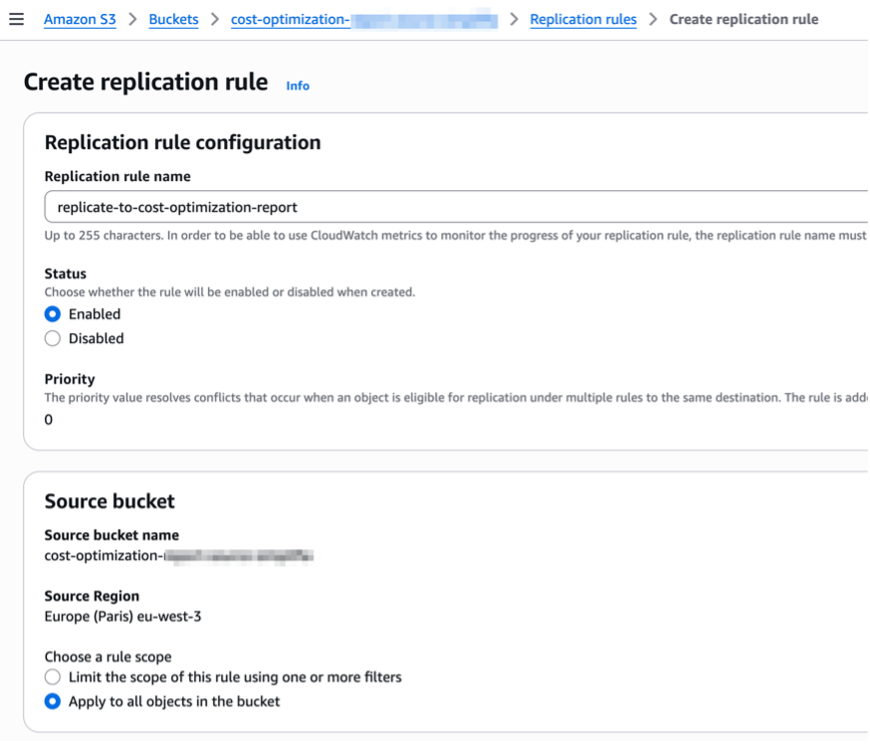
- Accédez à l'onglet "Gestion", faites défiler jusqu'à "Réplication" > "Créer une règle de réplication".
- Nom de la règle : replicate-to-cost-optimization-report.
- Statut : Activé.
- Portée : choisissez "Appliquer à tous les objets du bucket" (ou spécifiez un préfixe si nécessaire).
Destination :
- Sélectionnez "Spécifier un bucket dans un autre compte AWS".
- ID du compte de destination : tel que fourni.
- Bucket de destination : tel que fourni.
- Rôle IAM : sélectionnez le rôle que vous venez de créer (s3-replication-to-cost-optimization-report ou le nom que vous avez choisi).
- Classe de stockage : Standard.
- Cliquez sur "Enregistrer".
c. Réplication d'objets existants (réplication par lots – uniquement si les exportations de données existent déjà)
Contactez-moi pour les étapes.
Veuillez fournir :
- Votre ID de compte racine AWS
- L'ARN du rôle IAM créé
N'hésitez pas à me contacter si vous avez des questions !
Notions FinOps
Le passage au cloud computing a apporté des changements significatifs dans la manière dont les développeurs et les organisations gèrent l'infrastructure, notamment dans la manière dont ils gèrent la tarification et l'allocation des ressources.
Les sous-titres sont disponibles en anglais, français et espagnol. Cliquez ici pour obtenir la masterclass complète.
Modèle CapEx

Avant le cloud computing, les organisations suivaient généralement un modèle de dépenses en capital (CapEx), dans lequel elles achetaient et entretenaient leurs propres matériels et logiciels. Cela nécessitait des investissements initiaux et des engagements à long terme.
Les développeurs et les équipes informatiques avaient une meilleure compréhension des coûts puisqu'ils étaient directement impliqués dans l'approvisionnement et la maintenance.
Les coûts étaient souvent liés à des licences matérielles et logicielles spécifiques, et les développeurs devaient travailler avec un ensemble fixe de ressources.
L'infrastructure était moins flexible, ce qui rendait difficile une adaptation rapide à l'évolution des demandes. Cela conduisait souvent à une sous-utilisation ou à un surapprovisionnement des ressources.
Modèle OpEx

Le cloud computing suit un modèle de dépenses opérationnelles (OpEx), dans lequel les organisations paient les ressources sur la base d'un abonnement ou d'un paiement à l'utilisation. Cela réduit les coûts initiaux et permet des dépenses plus flexibles.
Les développeurs peuvent facilement augmenter ou diminuer les ressources en fonction de la demande. Cette mise à l'échelle dynamique permet d'optimiser les coûts et de garantir que les ressources sont utilisées efficacement.
Avec le cloud, la tarification peut être complexe. Les développeurs ne sont pas toujours conscients des coûts exacts associés au lancement d'un serveur ou à l'utilisation de services spécifiques.
Le besoin de FinOps (Financial Operations) est apparu pour gérer et optimiser les dépenses cloud. Les pratiques FinOps aident les organisations à gagner en visibilité sur les coûts du cloud, à optimiser l'utilisation des ressources et à garantir la responsabilité financière.
FinOps est un cadre opérationnel et une pratique culturelle qui maximisent la valeur commerciale du cloud et de la technologie, permettent une prise de décision rapide basée sur les données et créent une responsabilité financière grâce à la collaboration entre les équipes d'ingénierie, financières et commerciales.
Les sous-titres sont disponibles en anglais, français et espagnol. Cliquez ici pour obtenir la masterclass complète.

Niveau de maturité FinOps
Une approche « Crawl, Walk, Run » pour pratiquer le FinOps permet aux organisations de démarrer modestement, puis de croître en termes d'échelle, de portée et de complexité, à mesure que la valeur commerciale justifie la maturation d'une activité fonctionnelle.


Avantages FinOps
Optimisation des coûts : permet d'obtenir une valeur commerciale maximale grâce à des dépenses cloud optimisées.
Visibilité : fournit une vue détaillée des coûts, des budgets, des prévisions et de l'utilisation des ressources du cloud.
Responsabilité partagée : favorise une culture dans laquelle chacun est responsable des dépenses cloud.
Agilité : permet des ajustements rapides aux processus financiers cloud en fonction de l'évolution des besoins.
Décisions basées sur les données : facilite les décisions basées sur des mesures et des données quantifiables.
Chargeback et Showback sont deux façons très différentes de gérer les coûts au sein d'une organisation.
Les deux méthodes sont utilisées depuis des décennies pour aider les organisations à suivre leurs coûts et à contrôler leurs dépenses.
Showback se contente de rapporter le coût de l'utilisation du cloud par souci de transparence, tandis que le chargeback implique de facturer les utilisateurs ou les services pour leur consommation réelle.
Les sous-titres sont disponibles en anglais, français et espagnol. Cliquez ici pour obtenir la masterclass complète.
Showback
Showback est le processus de reporting des coûts des services cloud aux utilisateurs réels, sans les facturer.
Il sensibilise aux dépenses cloud et encourage une utilisation plus efficace des ressources.

Chargeback
Le chargeback est le processus consistant à facturer les coûts réels des services cloud aux utilisateurs.
Cette approche traite les départements ou les équipes internes comme des clients, les facturant pour leur consommation de ressources AWS.

Soutenu par la FinOps Foundation, FOCUS™ réduit la complexité pour les praticiens FinOps afin qu'ils puissent prendre des décisions basées sur les données et maximiser la valeur commerciale du cloud.

FOCUS normalise les données de facturation de coût et d'utilisation provenant de différentes sources, réduisant ainsi la quantité de travail nécessaire pour commencer l'analyse FinOps et permettant aux entreprises de recentrer cette énergie sur des activités plus stratégiques et plus rentables.
Les sous-titres sont disponibles en anglais, français et espagnol. Cliquez ici pour obtenir la masterclass complète.
FOCUS Adoption

Avant FOCUS, les données de facturation des fournisseurs de cloud, mais également des fournisseurs PaaS et SaaS, utilisaient une terminologie, une taxonomie et des métriques uniques dans leur fichier de facturation (comme le CUR pour AWS).
Cette complexité ralentissait les praticiens FinOps, qui devaient passer un temps précieux à ingérer et normaliser toutes ces données avant même de pouvoir commencer l'analyse.
FOCUS 1.0 a été annoncé en juin 2024 et est désormais pris en charge par tous les fournisseurs de cloud. FOCUS 1.1 a été ratifié en novembre 2024 et FOCUS 1.2 en novembre 2025.

Requêtes FOCUS
Vous pouvez interroger les mêmes données qu'avec le fichier CUR, mais vous disposez également de nouvelles colonnes, telles que Nom du compte AWS.
L'exportation AWS FOCUS 1.0 contient le CUR formaté avec FOCUS 1.0, ainsi que cinq colonnes supplémentaires d'AWS qui contiennent des données de facturation propriétaires : x_CostCategories, x_Discount, x_Operation, x_ServiceCode et x_UsageType.

Vous pouvez récupérer la liste complète ici : FOCUS 1.0 avec colonnes AWS - Exportations de données AWS
FOCUS 1.2
AWS a annoncé la disponibilité générale des exportations de données pour FOCUS 1.2 en novembre 2025. Cette mise à jour de la spécification FinOps Open Cost and Usage introduit 14 nouvelles colonnes pour un rapprochement amélioré des factures, la prise en charge des fournisseurs SaaS et le suivi des réservations de capacité, permettant des rapports plus précis sur les coûts et l'utilisation.
Il y a quelques changements importants : Migration de FOCUS 1.0 vers FOCUS 1.2 - Exportations de données AWS
Outils FinOps
AWS propose un ensemble de solutions pour vous aider à gérer et à optimiser les coûts. Cela comprend des services, des outils et des ressources pour organiser et suivre les données de coût et d'utilisation, améliorer le contrôle grâce à la facturation consolidée et aux autorisations d'accès. Avec cette puissance, vous pouvez permettre une meilleure planification grâce à la budgétisation et aux prévisions, et réduire encore les coûts grâce à des optimisations de ressources et de tarification.
AWS Bills vous permet de…
Comprenez facilement vos frais mensuels AWS, vos remises, vos crédits, vos remboursements et vos taxes.
Consultez et téléchargez les documents de facturation.
Suivez les frais consolidés sur tous les comptes membres au sein d'une organisation AWS, avec des détails au niveau du compte.
Détecter les ressources inactives, possibilités de mise à niveau…
Détecter les anomalies (Coûts des services/régions inutilisés).

Les sous-titres sont disponibles en anglais, français et espagnol. Cliquez ici pour obtenir la masterclass complète.
Compute Optimizer vous permet de…
Obtenez des recommandations pour optimiser les performances et le coût de vos ressources AWS, pour réaliser des économies de redimensionnement et sur les ressources inactives.
Réduire les dépenses cloud en nettoyant les ressources inutilisées.
Optimiser le coût des licences grâce à des recommandations d'optimisation des licences automatisées.

Les sous-titres sont disponibles en anglais, français et espagnol. Cliquez ici pour obtenir la masterclass complète.
Un exemple : Instance EC2


Cost Optimization Hub vous permet de…
Identifiez plus de 15 types de recommandations d'optimisation des coûts AWS.
Accédez à un tableau de bord unique et filtrez par compte AWS, région, type de ressource, action recommandée…

Priorisez les opportunités d'optimisation en quantifiant les économies estimées en intégrant vos tarifs et remises AWS.
Exportez les recommandations dans S3.
Les sous-titres sont disponibles en anglais, français et espagnol. Cliquez ici pour obtenir la masterclass complète.
Liste des types de ressources et actions recommandées :


Trusted Advisor vous permet de…
Identifiez les ressources inutilisées et les opportunités pour réduire vos coûts → Optimisation des coûts.
Améliorez la rapidité et la réactivité de vos applications → Performances.
Obtenez des recommandations qui peuvent améliorer la sécurité de votre solution AWS → Sécurité.
Mettez en évidence les déficits de redondance, les limites de service actuelles et les ressources surutilisées → Tolérance aux pannes.
Soyez averti lorsque votre compte approche ou dépasse vos limites de service → Limites de service.
Obtenez des recommandations pour vous aider à exploiter efficacement votre environnement AWS à grande échelle → Excellence opérationnelle.
Les sous-titres sont disponibles en anglais, français et espagnol. Cliquez ici pour obtenir la masterclass complète.
Liste de contrôles d'optimisation des coûts


Un exemple : Load Balancers inactifs


Suivez vos coûts, votre utilisation, ainsi que l'utilisation et la couverture des Instances Réservées et SP grâce à des budgets personnalisés. Soyez alerté lorsque vous dépassez votre budget. Créez des actions personnalisées pour éviter les dépassements, l'utilisation inefficace des ressources ou le manque de couverture.
Les sous-titres sont disponibles en anglais, français et espagnol. Cliquez ici pour obtenir la masterclass complète.

AWS Budgets vous permet de…
Suivez vos coûts, votre utilisation, ainsi que l'utilisation et la couverture des Instances Réservées et SP avec des budgets personnalisés.

Soyez alerté lorsque vous dépassez votre budget.

Créez des actions personnalisées pour éviter les dépassements, l'utilisation inefficace des ressources ou le manque de couverture.

Le calculateur de tarification AWS vous permet de…
Estimez le coût des produits et services AWS.
Comprenez la tarification des services en configurant les options.
Partagez et exportez vos estimations.

Les sous-titres sont disponibles en anglais, français et espagnol. Cliquez ici pour obtenir la masterclass complète.
4 étapes pour démarrer
Connectez-vous à https://calculatrice.aws.
Créez une estimation et sélectionnez votre service.
Configurez les options pour votre service.
Vérifiez l'estimation et partagez/exportez.

Identifiez les dépenses anormales et leurs causes profondes, créez des moniteurs de coûts et soyez alerté !
Les sous-titres sont disponibles en anglais, français et espagnol. Cliquez ici pour obtenir la masterclass complète.
AWS Cost Anomaly Detection vous permet de…
Réduisez les surprises en matière de coûts grâce aux technologies avancées de Machine Learning.
Identifiez les dépenses anormales et leurs causes profondes afin de pouvoir agir rapidement.

Créez des moniteurs de coûts par service/compte/catégorie de coûts/balise de répartition des coûts.
Soyez alerté par e-mail quotidiennement ou hebdomadairement lorsqu'une dépense anormale est détectée


AWS Cost Explorer vous permet de…
Visualisez, comprenez et gérez vos coûts et votre utilisation AWS au fil du temps.
Créez et enregistrez des rapports personnalisés qui analysent les données de coût et d'utilisation avec des vues préconfigurées.
Analysez vos données à un niveau élevé ou approfondissez vos données de coûts et d'utilisation pour identifier les tendances, identifier les facteurs de coûts et détecter les anomalies.
Créez une prévision de coût et d'utilisation pour une période future pour votre rapport.
Les sous-titres sont disponibles en anglais, français et espagnol. Cliquez ici pour obtenir la masterclass complète.
Économisez en s'engageant
Les engagements AWS sont un modèle de tarification qui peut vous aider à réduire votre facture jusqu'à 72 % en échange d'un engagement de 1 ou 3 ans.
Engagements AWS…
Un modèle tarifaire qui peut vous aider à réduire votre facture jusqu'à 72 % en échange d'un engagement de 1 ou 3 ans.
Peut être optimisé en s'engageant sur un terme plus long (3 ans), en payant tout d'avance et en étant précis dans la définition des services/ressources couverts.
Peut être partagé avec un ensemble de comptes AWS au sein de la même organisation.
Peut être consulté via AWS Billing dans la section Économies et engagements.
Les sous-titres sont disponibles en anglais, français et espagnol. Cliquez ici pour obtenir la masterclass complète.
Types d'engagement et services concernés
- Instances réservées (RI) : RDS, EC2 (ancienne méthode), Redshift, ElastiCache, OpenSearch, MemoryDB, DynamoDB.
- Savings Plans (SP) : EC2, Fargate, Lambda, SageMaker.

Exemple d'économies pour un Savings Plan de calcul sur 3 ans.

AWS Organizations…
Vous aide à gérer votre environnement de manière centralisée à mesure que vous développez et faites évoluer vos charges de travail sur AWS.
Provisionner de manière centralisée les comptes et les ressources.
Sécurisez et auditez la conformité de leur environnement en appliquant des politiques communes.
Contrôlez l'accès aux comptes, aux régions et aux services.
Optimisez les coûts et simplifiez la facturation à partir du compte de gestion grâce à la Facturation consolidée.

Les sous-titres sont disponibles en anglais, français et espagnol. Cliquez ici pour obtenir la masterclass complète.
Facturation consolidée
Vous pouvez utiliser la fonctionnalité de facturation consolidée dans AWS Organizations pour consolider la facturation et le paiement de plusieurs comptes AWS, avec les avantages suivants :
- Une seule facture : vous recevez une seule facture pour plusieurs comptes dans la même organisation.
- Suivi facile : vous pouvez suivre les frais sur plusieurs comptes et télécharger les données combinées de coût et d'utilisation.
- Utilisation combinée : vous pouvez combiner l'utilisation de tous les comptes de l'organisation pour partager les remises sur les prix de volume, les remises sur les Instances Réservées et les Savings Plans.

Comment les engagements s'appliquent-ils à votre utilisation ?
Dans une famille de facturation consolidée, les engagements sont appliqués d'abord à l'utilisation du compte propriétaire, puis à l'utilisation des autres comptes. Cela se produit uniquement si le partage est activé.
Les Savings Plans s'appliquent d'abord à l'utilisation offrant le pourcentage d'économies le plus élevé.
S'il existe plusieurs utilisations avec des pourcentages d'économies égaux, les Savings Plans sont appliqués à la première utilisation avec le taux de Savings Plans le plus bas.
Les Savings Plans continuent de s'appliquer jusqu'à ce qu'il n'y ait plus d'utilisations restantes ou que votre engagement soit épuisé.

AWS vous propose une approche de paiement à l'utilisation pour la tarification de la grande majorité de nos services cloud. Avec AWS, vous payez uniquement pour les services individuels dont vous avez besoin, aussi longtemps que vous les utilisez, et sans nécessiter de contrats à long terme ni de licences complexes. La tarification AWS est similaire à la façon dont vous payez des services publics comme l'eau et l'électricité. Vous ne payez que pour les services que vous consommez, et une fois que vous cessez de les utiliser, il n'y a aucun coût supplémentaire ni frais de résiliation.
Les sous-titres sont disponibles en anglais, français et espagnol. Cliquez ici pour obtenir la masterclass complète.

Savings Plans
Pour AWS Compute et AWS Machine Learning, les Savings Plans offrent des économies par rapport aux tarifs à la demande en échange d'un engagement à utiliser un montant spécifique (mesuré en $/heure) d'un service AWS ou d'une catégorie de services, pendant une période d'un ou trois ans.
Instances réservées
Avec les Instances réservées, vous pouvez économiser jusqu'à 75 % par rapport à la capacité à la demande équivalente. Les Instances Réservées sont disponibles en 3 options : tout paiement initial (AURI), paiement initial partiel (PURI) ou aucun paiement initial (NURI).
Instances Spot
Les instances Spot EC2 d'Amazon vous permettent de profiter de la capacité EC2 inutilisée dans le cloud AWS et sont disponibles avec une réduction allant jusqu'à 90 % par rapport aux prix à la demande. Vous pouvez utiliser les instances Spot pour diverses applications sans état, tolérantes aux pannes ou flexibles telles que le Big Data, les charges de travail conteneurisées, le CI/CD, les serveurs Web, le calcul haute performance (HPC) ainsi que les charges de travail de test et de développement.

Offre gratuite
- Avec le nouveau niveau gratuit (comptes créés après le 15/07/2025), les nouveaux clients AWS peuvent démarrer sans frais avec le niveau gratuit AWS. Bénéficiez de 100 USD de crédits lors de votre inscription et jusqu'à 100 USD de plus à gagner en explorant les services AWS clés. Testez les services AWS avec le forfait gratuit pendant 6 mois maximum. Vous ne serez facturé que si vous choisissez le forfait payant, qui vous permet de faire évoluer vos opérations et d'accéder à plus de 150 services AWS.

- L'ancien niveau gratuit (comptes créés avant le 15/07/2025) est l'occasion d'essayer de nouveaux services. Disponible pendant 1 an uniquement pour les nouveaux clients AWS. Plus de 100 produits AWS sont aujourd'hui disponibles avec l'offre gratuite AWS. Trois types différents d'offres gratuites sont disponibles en fonction du produit utilisé.

Savings Plans…
Il s'agit d'un modèle de tarification flexible qui permet d'économiser jusqu'à 72 % par rapport aux prix à la demande.
Incluent les Compute SP, les SP d'instance EC2 et les SP SageMaker.
Offre des économies significatives en échange d'un engagement à utiliser une quantité spécifique de puissance de calcul mesurée en $/heure.


Les sous-titres sont disponibles en anglais, français et espagnol. Cliquez ici pour obtenir la masterclass complète.
Différence entre les Savings Plans
|
Fonctionnalité |
AWS Compute Savings Plan |
Savings Plan d'instance EC2 |
Savings Plan SageMaker |
|
Portée |
EC2, Lambda, Fargate |
EC2 |
Service d'apprentissage automatique |
|
Économies de coûts |
Jusqu'à 66 % |
Jusqu'à 72 % |
Jusqu'à 64 % |
|
Flexible sur |
Famille, taille, région, OS, location |
Taille, système d'exploitation, location |
Famille, taille, région, OS, location |
|
Engagement |
1 ou 3 ans |
1 ou 3 ans
|
1 ou 3 ans
|
|
Idéal pour |
Charges de travail dynamiques et évolutives |
Utilisation prévisible des instances EC2 |
Flux de travail d'apprentissage automatique |
Les SP de calcul offrent la plus grande flexibilité.
Les SP d'instance EC2 offrent les remises les plus importantes, mais vous devez spécifier une région et une famille d'instances (par exemple c5).
Rapport sur l'utilisation et la couverture
Allez dans Service de facturation > Économies et engagements > Savings Plans.
Le rapport d'utilisation indique le pourcentage de vos engagements Savings Plans que vous utilisez pour votre utilisation AWS applicable.
Idéalement, vous souhaitez que ce chiffre soit à 100 % pour vous assurer de ne gaspiller aucune de vos dépenses engagées.

Le rapport de couverture indique quel pourcentage de vos coûts d'utilisation AWS éligibles sont couverts par vos SP pendant la période sélectionnée.
Idéalement, vous souhaitez que ce chiffre se situe autour de 80 à 100 % pour garantir que vous couvrez la plupart des économies potentielles.

Recommandations

Acheter un Savings Plan
- Consultez les services non couverts dans le rapport de couverture.

- Confirmez que vos instances sont nécessaires et correctement dimensionnées.
- Consultez les recommandations et la tarification des Compute Savings Plans.
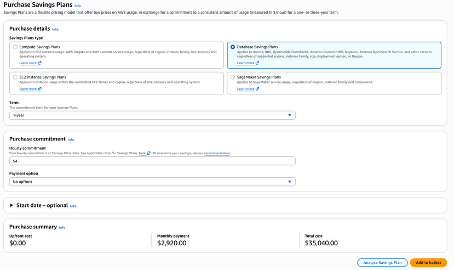
- Achetez le Savings Plan : dans le service de facturation, cliquez sur Acheter des Savings Plans, choisissez un type, une durée, une option de paiement et un engagement horaire (+ région et famille pour les SP d'instance EC2). Cliquez sur Ajouter au panier, puis sur Soumettre la commande.

Savings Plans de base de données…
Un modèle de tarification flexible qui réduit les coûts de votre base de données jusqu'à 35 % par rapport aux prix à la demande
ont été introduits en décembre 2025 et incluent de nombreux services
Actuellement disponible uniquement pour une durée d'un an et sans paiement initial
Offrent moins d'économies que les Instances Réservées, mais s'appliquent à l'utilisation d'instances serverless et provisionnées éligibles quels que soient le moteur, la famille d'instances, la taille, l'option de déploiement ou la région AWS

Les sous-titres sont disponibles en anglais, français et espagnol. Cliquez ici pour obtenir la masterclass complète.
Scénarios clés pour les Savings Plans de bases de données
Vous ne pouvez pas combiner une Instance Réservée avec un Savings Plan de base de données
Besoin de flexibilité : vous envisagez de modifier des familles d'instances (par exemple, passer de R5 à R7g), de modifier des moteurs de base de données (par exemple, MySQL vers Aurora) ou des régions.
Modernisation : vous adoptez des configurations serverless ou passez d'une configuration provisionnée à une configuration serverless.
Réduction des frais opérationnels : vous souhaitez éviter les efforts manuels liés à la modification ou à la gestion des Instances Réservées.
Rapport sur l'utilisation et la couverture
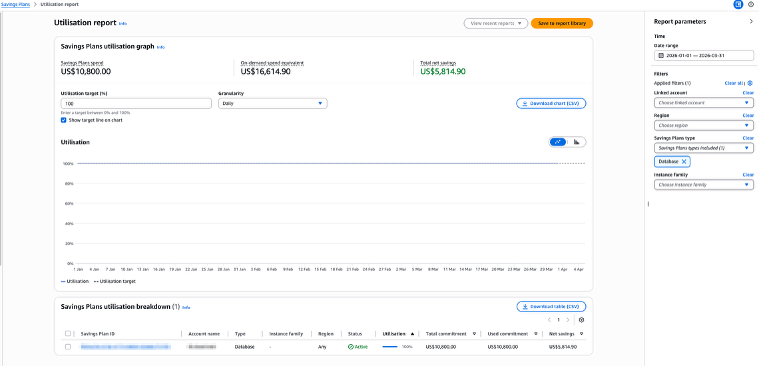
Allez dans Service de facturation > Économies et engagements > Savings Plans > Rapport d'utilisation. Sélectionnez le type de Savings Plan = Base de données
Le rapport d'utilisation indique le pourcentage de vos engagements Savings Plans que vous utilisez pour votre utilisation AWS applicable.
Idéalement, vous souhaitez que ce chiffre soit à 100 % pour vous assurer de ne gaspiller aucune de vos dépenses engagées.
Couverture : Allez dans Service de facturation > Économies et engagements > Savings Plans > Rapport de couverture. Exclure tous les services inclus dans les Savings Plans classiques (EC2, ECS, EKS, Lambda, SageMaker)
Le rapport de couverture indique quel pourcentage de vos coûts d'utilisation AWS éligibles sont couverts par vos SP pendant la période sélectionnée.
Idéalement, vous souhaitez que ce chiffre se situe autour de 80 à 100 % pour garantir que vous couvrez la plupart des économies potentielles.
Recommandations
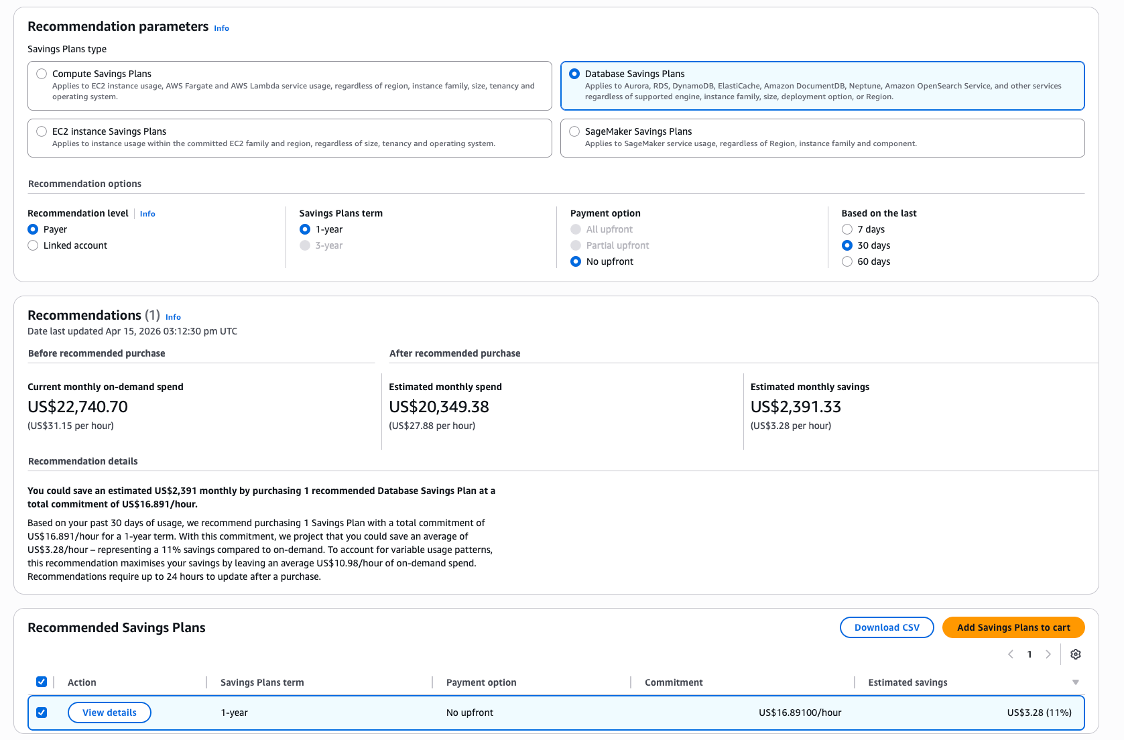
Allez dans Service de facturation > Économies et engagements > Savings Plans > Recommandations.
Sélectionnez Savings Plans de base de données.
Consultez les Savings Plans recommandés et réduisez le taux d’engagement recommandé.
Ne vous engagez pas trop en ayant une couverture > 100%.
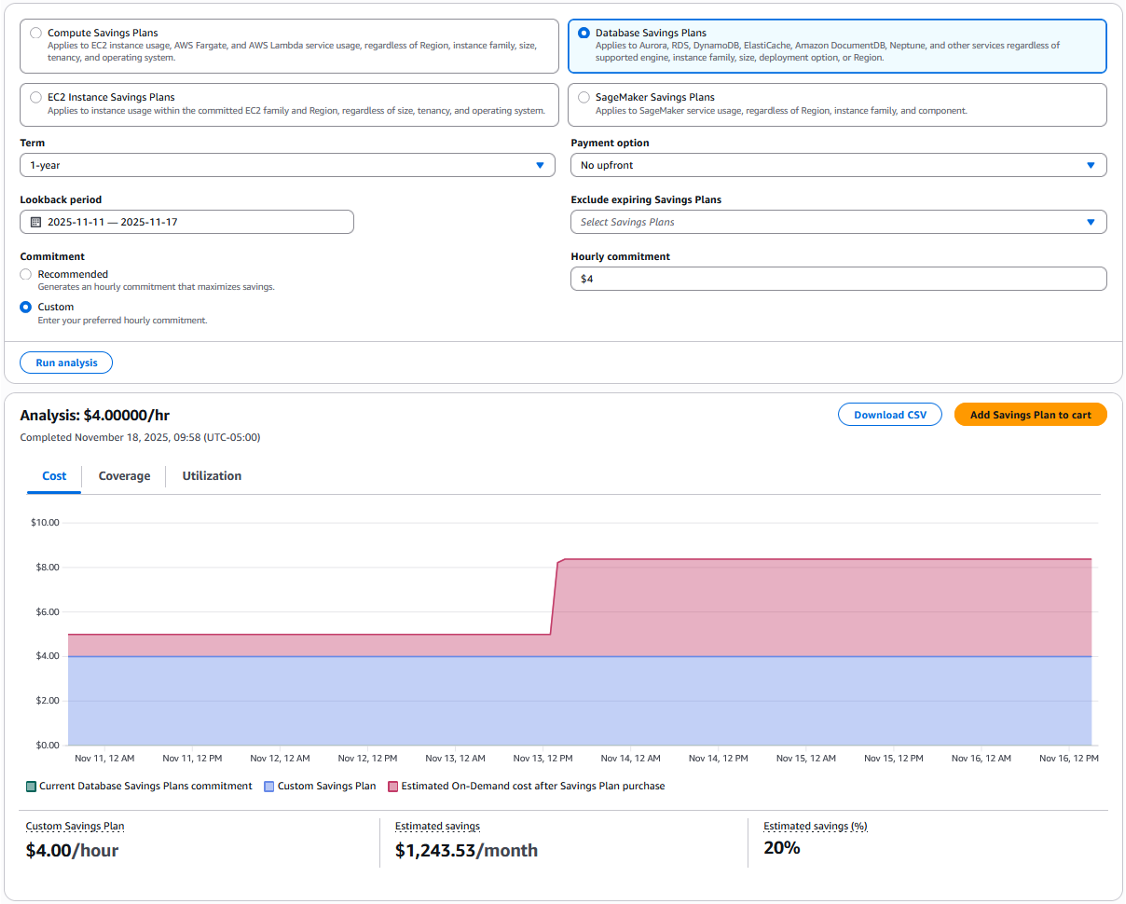
Accédez à Analyseur d'achats.
Sélectionnez Savings Plans de base de données et configurez la Période d'analyse et l'Engagement horaire pour simuler d'autres niveaux d'engagement et voir l'impact projeté sur le coût, la couverture et l'utilisation.
Acheter un Savings Plan
- Consultez les services non couverts dans le rapport de couverture.
- Confirmez que vos instances sont nécessaires et correctement dimensionnées.
- Examinez la recommandation et choisissez un engagement horaire inférieur, par exemple 50 %.
- Achetez le Savings Plan.
Réservations…
Il s'agit d'un modèle de tarification qui permet d'économiser jusqu'à 75 % par rapport aux prix à la demande.
Disponible en 3 options : paiement initial total, partiel ou sans paiement initial.
Offre des économies significatives en échange d'un engagement de 1 ou 3 ans à utiliser un produit spécifique.


Les sous-titres sont disponibles en anglais, français et espagnol. Cliquez ici pour obtenir la masterclass complète.
Quelles Instances Réservées offrent une remise plus importante ?

Instances réservées RDS
• Peut vous faire économiser jusqu'à 69 % par rapport aux tarifs à la demande lorsqu'il est utilisé en régime permanent (disponible 24h/24 et 7j/7).
• N'exige aucun changement dans la façon dont vous utilisez Amazon RDS.
• Sont disponibles pour tous les moteurs de base de données pris en charge.
• Offrent une flexibilité en matière de taille d'instance pour les moteurs de base de données MySQL, MariaDB, PostgreSQL et Amazon Aurora ainsi que pour l'édition « Bring your own licence » (BYOL) du moteur de base de données Oracle.
Exemple de tarification MySQL en Île-de-France.

Flexibilité de la taille de l'instance
Lorsque vous achetez une instance de base de données réservée, vous spécifiez une classe d'instance, par exemple db.r5.large, mais également une taille, par exemple large.
La plupart des plates-formes RDS offrent une flexibilité de taille. Des instances de base de données réservées à taille flexible sont disponibles pour les instances de base de données avec la même région AWS et le même moteur de base de données ; et ne peuvent évoluer que dans leur type de classe d'instance.
Par exemple, une instance de base de données réservée pour un db.t2.medium peut s'appliquer à un db.t2.large, mais pas à un db.r6g.large.


Fonctionnement de la facturation
Lors de la facturation, l'utilisation de l'instance de base de données en cours d'exécution est d'abord comparée à vos Instances Réservées actives afin de minimiser les coûts.
Chaque heure, si le nombre d'instances en cours d'exécution est inférieur ou égal au nombre total d'Instances Réservées que vous avez achetées, toutes les instances de base de données en cours d'exécution seront facturées au tarif des Instances Réservées.
Toute utilisation d'instances de base de données en cours d'exécution qui dépasse le nombre d'Instances Réservées applicables que vous avez achetées sera facturée au tarif à la demande.

Rapport sur l'utilisation et la couverture
Allez dans Service de facturation > Économies et engagements > Réservations.
Le rapport d'utilisation indique le pourcentage de vos engagements de réservations que vous utilisez pour votre utilisation AWS applicable.
Idéalement, vous souhaitez que ce chiffre soit à 100 % pour vous assurer de ne gaspiller aucune de vos dépenses engagées.

Le rapport de couverture indique quel pourcentage de vos coûts d'utilisation AWS éligibles sont couverts par vos Instances Réservées pendant la période sélectionnée.
Idéalement, vous souhaitez que ce montant se situe autour de 80 à 100 % pour chaque service afin de garantir que vous couvrez la plupart des économies potentielles.

Comment acheter une Instance Réservée ?
- Dans chaque service dédié (ex. RDS, ElastiCache, MemoryDB, OpenSearch, …) cliquez sur la section Instances réservées ou Réservation, puis Acheter.
- Choisissez un type de moteur, une durée, une classe d'instance, une option de paiement et un engagement horaire dans votre région actuelle.
- Cliquez sur Acheter une Instance Réservée.

Diversifier les engagements
Mélangez EC2 et Compute SP.

Toujours redimensionner et mettre à niveau avant de vous engager.
Achetez plusieurs engagements au fil du temps (chaque trimestre) au lieu d'un seul achat massif.

Les sous-titres sont disponibles en anglais, français et espagnol. Cliquez ici pour obtenir la masterclass complète.
Mesurer le risque par rapport aux remises
Les risques financiers liés à l'engagement dans un Savings Plan AWS peuvent être importants si les prévisions d'utilisation sont inexactes.
N'achetez pas d'engagement de 3 ans pour les anciens types d'instances.
Ne vous engagez pas trop : gardez une marge de sécurité pour le redimensionnement.
N’achetez pas à l’avance – soyez toujours un peu en retard.
Instance Linux M5.large EC2

Autres bonnes pratiques…
Économisez davantage lorsque vous achetez à partir du Compte de gestion.
Surveillez régulièrement les rapports de couverture et d'utilisation (le dernier jour est crucial).
Si l'utilisation est inférieure à 100 %, examinez les instances non couvertes et voyez si vous pouvez modifier le type d'instance pour qu'il corresponde à l'engagement inutilisé.
Soyez alerté lorsque les engagements expirent. Ils peuvent être renouvelés automatiquement.
Si vous souscrivez un engagement erroné, contactez immédiatement le support AWS.

Économisez en supprimant des ressources inactives
Les ressources inactives peuvent être des ressources non associées/non allouées/non attachées/inutilisées/inactives, et représentent un gaspillage total (suppression = 100 % d'économies), elles représentent généralement entre 5 et 20 % de vos opportunités totales et sont faciles à corriger (effort minimal).
 Volumes EBS inutilisés
— que ce soit dans un état inactif (moins d'une opération IOPS par jour) ou non connecté/disponible — entraînent un coût mensuel. Vérifiez toujours qu'un volume n'est plus nécessaire avant de le supprimer.
Volumes EBS inutilisés
— que ce soit dans un état inactif (moins d'une opération IOPS par jour) ou non connecté/disponible — entraînent un coût mensuel. Vérifiez toujours qu'un volume n'est plus nécessaire avant de le supprimer.

Les sous-titres sont disponibles en anglais, français et espagnol. Cliquez ici pour obtenir la masterclass complète.
Comment identifier ?
Vous pouvez identifier les volumes EBS inutilisés à l'aide des méthodes suivantes :
- Dans le Rapport d'optimisation des coûts , regardez la section EBS - Volumes inactifs.
Dans la console AWS, accédez au service EC2, puis sélectionnez la section Volumes. Filtrez par État du volume pour identifier les volumes non connectés ou inactifs. Des volumes plus importants entraînent généralement des coûts plus élevés.

Un volume en état d'inactivité est également un volume connecté avec moins de 1 IOPS/jour. Dans la console AWS, accédez au service EC2, puis à la section Volume. Cliquez sur un ID de volume, puis sur la section Surveillance. Vérifiez les opérations de lecture et d'écriture ainsi que le temps passé en inactivité sur les diagrammes au cours du mois dernier.

Dans la console AWS, visitez le Cost Optimization Hub et filtrez les résultats par Volume EBS pour identifier les ressources inutilisées.

Comment corriger ?
Avant de supprimer un Volume EBS, assurez-vous qu'il n'est plus nécessaire. Vérifiez la date de création pour évaluer sa pertinence.
En cas de doute, créez un instantané du volume par mesure de précaution.
Dans la console AWS, accédez au service EC2 et sélectionnez la section Volumes.
Filtrez par Type de volume, sélectionnez le volume que vous souhaitez supprimer, puis cliquez sur Actions > Supprimer le volume. Confirmez la suppression.
Si la ressource est provisionnée automatiquement via IaC (comme CloudFormation ou Terraform), mettez à jour le code correspondant pour refléter les modifications.
 Instantanés Amazon EBS
coûtent 50 % de moins que les Volumes EBS, mais les coûts peuvent s'accumuler rapidement, en particulier avec les instantanés automatiques. Nous vous recommandons d'archiver ou de supprimer les instantanés datant de plus d'un an. Les instantanés archivés coûtent 75 % de moins, mais la récupération entraîne un coût supplémentaire.
Instantanés Amazon EBS
coûtent 50 % de moins que les Volumes EBS, mais les coûts peuvent s'accumuler rapidement, en particulier avec les instantanés automatiques. Nous vous recommandons d'archiver ou de supprimer les instantanés datant de plus d'un an. Les instantanés archivés coûtent 75 % de moins, mais la récupération entraîne un coût supplémentaire.
Les sous-titres sont disponibles en anglais, français et espagnol. Cliquez ici pour obtenir la masterclass complète.
Comment identifier ?
Dans le Rapport d'optimisation des coûts , regardez la section EBS - Anciens Snapshots.
Dans la console AWS, accédez au service EC2, puis sélectionnez la section Instantanés. Filtrez par Date de création pour identifier les instantanés les plus anciens. Filtrez par Taille du volume pour donner la priorité aux instantanés plus volumineux (coût : 5 $/mois pour 100 Go stockés).
Dans la console AWS, accédez à Facturation et gestion des coûts, puis sélectionnez la section Factures. Cliquez sur Elastic Compute Cloud (EC2), choisissez votre région, puis EBS et recherchez "instantané". S'il existe des instantanés, vous verrez une ligne de facturation comme celle-ci :

Dans l'exemple ci-dessus, environ 800 $ ont été dépensés en instantanés pour la période et la région sélectionnées. La suppression de tous les instantanés (le cas échéant) pourrait permettre d'économiser 100 % de ce coût (800 $) en quelques clics seulement.
Comment corriger ?
Pour l'archivage :
Si vous souhaitez conserver l'instantané, pensez à l'archiver. Référez-vous au guide officiel : Archiver les instantanés Amazon EBS - Amazon EBS.
Période d'archivage minimale : 90 jours.
Durée de restauration : jusqu'à 72 heures, en fonction de la taille de l'instantané.
Remarque : N'archivez pas d'instantanés incrémentiels quotidiens.

Dans la console AWS, accédez au service EC2, puis sélectionnez la section Instantanés. Filtrez par Date de création pour trouver les instantanés les plus anciens. Sélectionnez les instantanés que vous souhaitez archiver, puis cliquez sur Actions > Archivage > Archiver l'instantané.

Accédez à Lifecycle Manager pour consulter vos stratégies de cycle de vie pour les instantanés automatiques.

Pour suppression :
Assurez-vous que l'instantané n'est plus nécessaire avant de le supprimer. Dans la console AWS, accédez au service EC2, puis sélectionnez la section Instantanés. Filtrez par Date de création, sélectionnez un ou plusieurs instantanés, puis cliquez sur Actions > Supprimer l'instantané. Confirmez la suppression dans la fenêtre contextuelle.

Remarque : Si les instantanés sont provisionnés automatiquement (par exemple, via CloudFormation ou Terraform), mettez à jour votre infrastructure en tant que code (IaC) pour refléter ces modifications.
 Les instances EC2 inactives ont une utilisation du CPU inférieure à 2 % et il est recommandé de les supprimer.
Les sous-titres sont disponibles en anglais, français et espagnol. Cliquez ici pour obtenir la masterclass complète.
Comment identifier ?
- Dans le Rapport d'optimisation des coûts , consultez la section EC2 - Instances inactives.
Dans la console AWS, accédez au service EC2, puis sélectionnez la section Instances.
Cliquez sur une instance, puis accédez à Surveillance. Définissez la plage de données sur au moins les quatre dernières semaines (6 mois recommandés).
- Vérifiez que le diagramme Utilisation du CPU (%) est très faible.

Vérifiez d'autres mesures telles que l'Utilisation de la mémoire pour déterminer si l'instance doit être supprimée. Consultez votre équipe avant toute suppression.
Dans Cost Optimization Hub, affichez le graphique par type de ressource.

Cliquez sur Afficher les opportunités, filtrez par Instance EC2 et vérifiez que l'Action recommandée = Arrêter.

Comment corriger ?
Assurez-vous que l'instance EC2 n'est plus nécessaire avant de la supprimer.
Dans la console AWS, accédez au service EC2, puis sélectionnez la section Instances.
En cas de doute, cliquez sur État de l'instance > Mettre l'instance en veille prolongée ou Arrêter l'instance pour suspendre temporairement l'instance.
Si vous en êtes certain, cliquez sur État de l'instance > Terminer l'instance. Pensez à supprimer le volume EBS connecté s'il n'est plus nécessaire.
Si la protection contre la résiliation est activée, désactivez-la via Actions > Paramètres de l'instance > Modifier la protection contre la résiliation et décochez la case Activer.
Si la ressource est provisionnée automatiquement via IaC (comme CloudFormation ou Terraform), mettez à jour le code correspondant pour refléter les modifications.

Les Instances RDS inactives (c'est-à-dire sans connexions ni sessions actives) entraînent toujours des frais mensuels.
Les sous-titres sont disponibles en anglais, français et espagnol.
Cliquez ici pour obtenir la masterclass complète.
Comment identifier ?

Vous pouvez identifier les instances RDS inactives à l'aide des méthodes suivantes :
Dans le Rapport d'optimisation des coûts , consultez la section RDS - Instances inactives.
Dans la console AWS, accédez au Cost Optimization Hub et filtrez par Instance de base de données RDS avec l'action recommandée définie sur Arrêter :

Dans la console AWS, accédez à Trusted Advisor, puis sélectionnez la section Optimisation des coûts. Cliquez sur Instances de base de données inactives Amazon RDS pour afficher la liste :

Dans la console AWS, accédez au service RDS, puis sélectionnez la section Bases de données. Recherchez les instances avec Activité actuelle = 0 session ou connexion (ces informations peuvent ne pas toujours être visibles). Cliquez sur Surveillance et examinez les données des 4 dernières semaines au moins (6 mois recommandés). Vérifiez que le diagramme DatabaseConnections est vide, comme indiqué dans l'exemple ci-dessous :

Consultez d'autres diagrammes de surveillance pour déterminer si la base de données RDS peut être supprimée. Consultez votre équipe avant de procéder à toute suppression.
Comment corriger ?
Arrêtez temporairement la base de données :
Assurez-vous que la base de données RDS n'est plus nécessaire avant de la supprimer. Dans la console AWS, accédez au service RDS, puis sélectionnez la section Bases de données. Choisissez la base de données que vous souhaitez arrêter.
En cas de doute, cliquez sur Actions > Arrêter temporairement. Cela arrêtera la base de données pendant 7 jours et la redémarrera automatiquement, permettant à votre équipe de vérifier si la base de données est toujours requise.

Supprimer définitivement la base de données :
Si vous êtes certain que la base de données n'est plus nécessaire, cliquez sur Actions > Supprimer. Conservez les options par défaut pour créer un instantané final, que vous pourrez supprimer ultérieurement si cela n'est pas nécessaire.
Remarque : Si les instances RDS sont provisionnées automatiquement (par exemple, via CloudFormation ou Terraform), mettez à jour votre infrastructure en tant que code (IaC) pour refléter ces modifications.
Un cluster DocumentDB en cours d'exécution génère des frais d'heures d'instance, même lorsqu'aucune application ne l'utilise. L'arrêter supprime ces frais, mais les frais de stockage et de sauvegarde continuent. Vérifiez les dépendances applicatives et les besoins de sauvegarde avant de l'arrêter, et ne le supprimez que lorsqu'il n'est plus nécessaire.
Comment identifier ?
Vous pouvez identifier les clusters DocumentDB inactifs à l'aide des méthodes suivantes :
Depuis notre Rapport d'optimisation des coûts, consultez la section DocumentDB - Idle Clusters.
Dans la console AWS, accédez au Cost Optimization Hub et filtrez par type de ressource DocumentDBCluster avec l'action recommandée définie sur Arrêter.
Dans la console AWS, accédez au service Amazon DocumentDB, puis sélectionnez la section Clusters. Vérifiez les applications, les connexions, les besoins de sauvegarde et le rôle de reprise après sinistre du cluster avant d'agir.
Comment corriger ?
Assurez-vous que le cluster DocumentDB n'est plus nécessaire à une application, une intégration ou un processus de reprise après sinistre.
Pour les environnements temporaires hors production : dans la console AWS, accédez au service Amazon DocumentDB, sélectionnez le cluster, puis cliquez sur Actions > Arrêter.
Pour un cluster définitivement inutilisé, conservez une sauvegarde appropriée (snapshot final), puis supprimez-le en suivant votre processus de suppression validé.
Remarque : DocumentDB redémarre automatiquement les clusters arrêtés au bout de 7 jours. Pendant l'arrêt, les frais d'instance s'arrêtent, mais les frais de stockage et de sauvegarde continuent. Plus d'informations dans la documentation AWS.
Remarque : Si les clusters DocumentDB sont provisionnés automatiquement (par exemple, via CloudFormation ou Terraform), mettez à jour votre infrastructure en tant que code (IaC) pour qu'ils ne soient pas recréés.
Une table DynamoDB inactive ne sert plus aucune charge de travail mais peut encore générer des frais de stockage, de capacité provisionnée ou d'index. Vérifiez l'activité récente en lecture/écriture et les dépendances applicatives, et conservez une sauvegarde si nécessaire avant de la supprimer.
Comment identifier ?
Vous pouvez identifier les tables DynamoDB inactives à l'aide des méthodes suivantes :
Depuis notre Rapport d'optimisation des coûts, consultez la section DynamoDB - Idle Tables.
Dans la console AWS, accédez au Cost Optimization Hub et filtrez par type de ressource DynamoDBTable avec l'action recommandée définie sur Supprimer.
Dans la console AWS, accédez au service DynamoDB, puis sélectionnez la section Tables. Vérifiez les applications, les streams, les index secondaires globaux (GSI), les sauvegardes et les références dans l'infrastructure en tant que code.
Comment corriger ?
Assurez-vous que la table DynamoDB n'est plus nécessaire : aucune application, fonction Lambda, tâche ETL, règle EventBridge ou consommateur en aval ne doit l'utiliser.
Créez une sauvegarde à la demande, ou vérifiez que la table est couverte par la restauration à un instant dans le passé (PITR) ou par AWS Backup.
Dans la console AWS, accédez au service DynamoDB, puis sélectionnez la section Tables. Choisissez la table, cliquez sur Supprimer, puis confirmez la suppression.
Remarque : Si les tables DynamoDB sont provisionnées automatiquement (par exemple, via CloudFormation ou Terraform), mettez à jour votre infrastructure en tant que code (IaC) pour qu'elles ne soient pas recréées.
Plus d'informations sur la sauvegarde et la restauration DynamoDB.
Un cluster MemoryDB génère des frais tant qu'il est disponible, même lorsqu'aucune charge de travail ne l'utilise. Vérifiez les connexions clientes et l'activité récentes, les dépendances applicatives et les exigences de conservation des données avant de le supprimer.
Comment identifier ?
Vous pouvez identifier les clusters MemoryDB inactifs à l'aide des méthodes suivantes :
Depuis notre Rapport d'optimisation des coûts, consultez la section MemoryDB - Idle Clusters.
Dans la console AWS, accédez au Cost Optimization Hub et filtrez par type de ressource MemoryDBCluster avec l'action recommandée définie sur Supprimer.
Dans la console AWS, accédez au service MemoryDB, puis sélectionnez la section Clusters. Vérifiez les consommateurs du point de terminaison, les applications, la configuration multi-Région et les besoins en snapshots.
Comment corriger ?
Assurez-vous qu'aucune application ne dépend du cluster MemoryDB ni de son point de terminaison.
Si une restauration peut être nécessaire, créez un snapshot final avant la suppression.
Dans la console AWS, accédez au service MemoryDB, puis sélectionnez la section Clusters. Choisissez le cluster, cliquez sur Actions > Supprimer, indiquez si vous souhaitez créer un snapshot final, puis confirmez la suppression.
Remarque : la suppression d'un cluster MemoryDB arrête sa facturation. Les snapshots automatiques sont supprimés avec le cluster ; les snapshots manuels sont conservés. Plus d'informations dans la documentation AWS.
Remarque : Si les clusters MemoryDB sont provisionnés automatiquement (par exemple, via CloudFormation ou Terraform), mettez à jour votre infrastructure en tant que code (IaC) pour qu'ils ne soient pas recréés.
Un cluster ElastiCache disponible génère des frais même sans charge de travail active. Vérifiez les connexions et l'activité récentes du cache, les dépendances applicatives et les besoins de sauvegarde avant de le supprimer. Les réservations existantes (nœuds réservés) peuvent rester dues.
Comment identifier ?
Vous pouvez identifier les clusters ElastiCache inactifs à l'aide des méthodes suivantes :
Depuis notre Rapport d'optimisation des coûts, consultez la section ElastiCache - Idle Clusters.
Dans la console AWS, accédez au Cost Optimization Hub et filtrez par type de ressource ElastiCacheCluster avec l'action recommandée définie sur Supprimer.
Dans la console AWS, accédez au service ElastiCache et sélectionnez le cache Valkey, Redis OSS ou Memcached concerné. Vérifiez les métriques CloudWatch récentes de connexions et d'activité du cache, identifiez les applications qui utilisent ses points de terminaison, et vérifiez les dépendances éventuelles à un groupe de réplication ou à un cache serverless.
Comment corriger ?
Assurez-vous qu'aucune application ne dépend du cache ni de ses points de terminaison.
Pour Valkey ou Redis OSS, créez un snapshot final si les données peuvent être nécessaires à une restauration.
Dans la console AWS, accédez au service ElastiCache, sélectionnez le cache ou le groupe de réplication, cliquez sur Actions > Supprimer, vérifiez l'option de snapshot final si elle est disponible, puis confirmez la suppression.
Remarque : la facturation s'arrête dès que le cache n'apparaît plus dans la liste. Les snapshots automatiques ne sont pas conservés après la suppression ; les snapshots manuels sont conservés. Les réservations existantes peuvent continuer à être facturées. Consultez la documentation AWS sur la suppression d'un cache et la création de sauvegardes manuelles.
Remarque : Si les clusters ElastiCache sont provisionnés automatiquement (par exemple, via CloudFormation ou Terraform), mettez à jour votre infrastructure en tant que code (IaC) pour qu'ils ne soient pas recréés.
 Un point de terminaison d'un VPC est considéré comme inactif lorsqu'il n'a pas ou peu de trafic, mais continue de générer des frais horaires. Ces points de terminaison doivent être supprimés pour éviter des coûts inutiles.
Les sous-titres sont disponibles en anglais, français et espagnol. Cliquez ici pour obtenir la masterclass complète.
Comment identifier ?
Vous pouvez identifier les points de terminaison d'un VPC inactifs à l'aide des méthodes suivantes :
Dans le Rapport d'optimisation des coûts, vérifiez la section VPC_Idle_Endpoints.
Dans la console AWS, accédez à Trusted Advisor, puis sélectionnez la section Optimisation des coûts. Cliquez sur Points de terminaison de l'interface VPC inactifs :

Dans la console AWS, accédez au service VPC, puis sélectionnez la section Points de terminaison. Cliquez sur un Point de terminaison d'un VPC de type Interface, puis accédez à l'onglet Surveillance. Examinez les données des quatre dernières semaines au moins (12 mois recommandés). Si vous voyez « Aucune donnée disponible », le point de terminaison est inutilisé.

Dans la console AWS, accédez à Facturation et gestion des coûts, puis sélectionnez la section Factures. Cliquez sur Virtual Private Cloud (VPC), suivi de votre région. Si vous avez des points de terminaison de VPC inactifs, vous verrez une ligne pour les heures du point de terminaison de VPC mais aucune ligne pour les données traitées. Dans l'exemple ci-dessous, les points de terminaison VPC ont été activement utilisés dans l'Ohio, tandis que 7 points de terminaison inactifs dans l'Oregon ont entraîné 149 $ de coûts inutiles :

Comment corriger ?
Assurez-vous que le point de terminaison du VPC n'est plus nécessaire avant de le supprimer. Il peut être inactif pour une raison spécifique, telle qu'une stratégie de basculement.
Dans la console AWS, accédez au service VPC, puis sélectionnez la section Points de terminaison. Choisissez le point de terminaison que vous souhaitez supprimer, puis cliquez sur Actions > Supprimer le point de terminaison d'un VPC. Confirmez la suppression.
Si vous ne pouvez pas voir les points de terminaison, utilisez le service EC2 Global View :


Remarque : Si les points de terminaison d'un VPC sont provisionnés automatiquement (par exemple, via CloudFormation ou Terraform), mettez à jour votre infrastructure en tant que code (IaC) pour refléter ces modifications.

Un Load Balancer est considéré comme inactif lorsqu'il ne traite aucun trafic mais continue de générer des frais horaires. Un Load Balancer inutilisé coûte 18 $ par mois et il est recommandé de le supprimer pour éviter des dépenses inutiles.
Les sous-titres sont disponibles en anglais, français et espagnol. Cliquez ici pour obtenir la masterclass complète.
Comment identifier ?
Vous pouvez identifier les Load Balancers inactifs à l'aide des méthodes suivantes :
Dans le Rapport d'optimisation des coûts , consultez la section ELB_Idle_Load_Balancers.
Dans la console AWS, accédez au service EC2, puis sélectionnez la section Load Balancers. Cliquez sur chaque Load Balancer pour afficher ses détails :
Pour les Load Balancers classiques, vérifiez l'État. Si vous voyez un 0, le Load Balancer n'est pas connecté à un groupe Auto Scaling (ASG) ou à une instance.

Pour les autres types, accédez à la section Surveillance et examinez les diagrammes sur une longue période (par exemple, 6 mois) pour confirmer l'inactivité :

Dans la console AWS, accédez à Facturation et gestion des coûts, puis sélectionnez la section Factures. Cliquez sur Elastic Load Balancing, suivi de votre région, pour consulter les détails de facturation de tous les types de Load Balancers (Application, Classique, Réseau) :

Comment corriger ?
Assurez-vous que le Load Balancer n'est plus nécessaire avant de le supprimer.
Dans la console AWS, accédez au service EC2, puis sélectionnez la section Load Balancers. Choisissez le Load Balancer que vous souhaitez supprimer, puis cliquez sur Actions > Supprimer le Load Balancer.
Remarque : Si les Load Balancers sont provisionnés automatiquement (par exemple, via CloudFormation ou Terraform), mettez à jour votre infrastructure en tant que code (IaC) pour refléter ces modifications.

Lorsque vous supprimez une Instance EC2, son Adresse IP élastique peut rester allouée. Chaque IP Elastic inutilisée coûte 0,005 $ par heure, soit 3,60 $ par mois. Vérifiez toujours qu'une IP Elastic n'est pas utilisée avant de la libérer.

Les sous-titres sont disponibles en anglais, français et espagnol. Cliquez ici pour obtenir la masterclass complète.
Comment identifier ?
Vous pouvez identifier les adresses IP élastiques inactives à l'aide des méthodes suivantes :
Dans le Rapport d'optimisation des coûts , consultez la section VPC_Idle_Elastic_Ips.
Dans la console AWS, accédez au service EC2, puis sélectionnez la section IP élastiques. Filtrer par ID d'association. Les adresses IP élastiques sans aucun ID d'association, aucun ID d'instance associé, aucune adresse IP privée et aucun ID de compte de propriétaire d'interface réseau sont considérées comme inactives.

Dans la console AWS, accédez à Facturation et gestion des coûts, puis sélectionnez la section Factures. Cliquez sur Virtual Private Cloud, suivi de votre région, puis sur Adresses IPv4 publiques Amazon Virtual Private Cloud. Si vous avez des adresses IP inactives, vous verrez une ligne de facturation pour le coût. Dans l'exemple ci-dessous, environ 25 $ ont été dépensés en adresses IP inactives pour la période et la région sélectionnées. Comparez ce coût aux adresses IP en cours d'utilisation pour estimer le nombre d'adresses inactives :

Dans la console AWS, accédez à Trusted Advisor, puis sélectionnez la section Optimisation des coûts. Cliquez sur Adresses IP Elastic non associées pour afficher la liste :

Comment corriger ?
Assurez-vous de libérer les bonnes adresses IP Elastic. Ne dissociez pas les adresses IP en cours d'utilisation.
Dans la console AWS, accédez au service EC2, puis sélectionnez la section Elastic IPs. Filtrer par ID d'association. Sélectionnez une IP élastique sans association, puis cliquez sur Actions > Libérez les adresses IP élastiques. Cliquez sur Libérer. Si vous recevez un avertissement, l’adresse IP est peut-être toujours utilisée – ne la libérez pas.
Remarque : Si les IP élastiques sont provisionnées automatiquement (par exemple, via CloudFormation ou Terraform), mettez à jour votre infrastructure en tant que code (IaC) pour refléter ces changements.

Un Kinesis Data Stream est considéré comme inactif lorsqu'il n'a aucun trafic mais continue de générer des frais horaires. Ces flux devraient être supprimés pour éviter des coûts inutiles.
Les sous-titres sont disponibles en anglais, français et espagnol. Cliquez ici pour obtenir la masterclass complète.
Comment identifier ?
Vous pouvez identifier les Kinesis Data Streams inactifs à l'aide des méthodes suivantes :
Dans le Rapport d'optimisation des coûts , consultez la section KINESIS_Idle_Data_Streams.
Dans la console AWS, accédez au service Kinesis, puis sélectionnez la section Flux de données. Cliquez sur chaque flux pour afficher ses détails, puis accédez à l'onglet Surveillance. Examinez les diagrammes sur une longue période (par exemple, 6 mois). Si vous voyez "Aucune donnée disponible", le flux n'est pas utilisé :

Comment corriger ?
Assurez-vous que Kinesis Data Stream n'est plus nécessaire avant de le supprimer.
Dans la console AWS, accédez au service Kinesis, puis sélectionnez la section Flux de données. Choisissez le flux que vous souhaitez supprimer, puis cliquez sur Actions > Supprimer.

Remarque : Si les Kinesis Data Streams sont provisionnés automatiquement (par exemple, via CloudFormation ou Terraform), mettez à jour votre infrastructure en tant que code (IaC) pour refléter ces changements.

Les NAT Gateways inutilisées entraînent des coûts importants et doivent être supprimées lorsqu'elles ne sont plus nécessaires.
Les sous-titres sont disponibles en anglais, français et espagnol. Cliquez ici pour obtenir la masterclass complète.
Comment identifier ?
Pour déterminer si vous êtes concerné par des NAT Gateways inutilisées, utilisez les méthodes suivantes :
Dans la console AWS, accédez au service VPC, puis sélectionnez la section NAT Gateways. Cliquez sur chaque NAT Gateway pour afficher ses détails, puis accédez à l'onglet Surveillance. Examinez les diagrammes sur une longue période (par exemple, 6 mois). Une NAT Gateway inutilisée affichera une activité minime, voire inexistante, comme illustré ci-dessous :

Dans la console AWS, accédez à Facturation et gestion des coûts, puis sélectionnez la section Factures. Cliquez sur Elastic Compute Cloud (EC2), suivi de votre région, pour consulter les détails de facturation liés à vos NAT Gateways.

Dans la console AWS, ouvrez Trusted Advisor et accédez à la section Optimisation des coûts. Recherchez les NAT Gateways inactives pour identifier les ressources inutilisées.

Comment corriger ?
Assurez-vous que la NAT Gateway n'est plus requise avant la suppression.
Dans la console AWS, accédez au service VPC et sélectionnez la section NAT Gateways. Choisissez la NAT Gateway que vous souhaitez supprimer, puis cliquez sur Actions > Supprimer la NAT Gateway.
Remarque : Si les NAT Gateways sont provisionnées automatiquement (par exemple, via CloudFormation ou Terraform), mettez à jour votre infrastructure en tant que code (IaC) pour empêcher de futures recréations.

AWS CloudTrail prend en charge plusieurs trails, y compris des trails qui surveillent les mêmes événements. L'équipe de sécurité crée généralement un trail d'événements de gestion dans chaque compte AWS à des fins d'audit ; ce trail est gratuit. Toutefois, la création de trails d'événements de gestion supplémentaires qui dupliquent les événements enregistrés entraîne des frais.


Les sous-titres sont disponibles en anglais, français et espagnol. Cliquez ici pour obtenir la masterclass complète.
Comment identifier ?
Vous pouvez identifier les trails CloudTrail en double à l'aide des méthodes suivantes :
Dans le Rapport d'optimisation des coûts , consultez la section CLOUDTRAIL_Duplicate_Trails.
Dans la console AWS, accédez au service Cost Explorer. Filtrer par Type d'utilisation =<Region>-PaidEventsRecorded. Cela indique que des événements en double sont enregistrés.
Dans la console AWS, accédez à Facturation et gestion des coûts, puis sélectionnez la section Factures. Cliquez sur CloudTrail, suivi de votre région. Si vous voyez PaidEventsRecorded, vous avez des trails en double :

Comment corriger ?
Examinez vos trails CloudTrail pour identifier et éviter les trails d'événements de gestion en double. Analysez l'activité de l'API pour confirmer la redondance :

Dans la console AWS, accédez au service CloudTrail, puis sélectionnez la section Trails. Choisissez le trail que vous souhaitez supprimer et cliquez sur Supprimer ou sur arrêter l'enregistrement si le trail n'est plus nécessaire.
Remarque : Si les trails CloudTrail sont provisionnés automatiquement (par exemple, via CloudFormation ou Terraform), mettez à jour votre infrastructure en tant que code (IaC) pour refléter ces modifications.

Un secret dans AWS Secrets Manager est considéré comme inutilisé lorsqu'il n'est plus nécessaire mais continue de générer des frais mensuels. La suppression des secrets inutilisés permet de réduire les coûts et d'améliorer la sécurité.
Les sous-titres sont disponibles en anglais, français et espagnol. Cliquez ici pour obtenir la masterclass complète.
Comment identifier ?
Vous pouvez identifier les secrets Secrets Manager inutilisés à l'aide des méthodes suivantes :
- Depuis notre Rapport d'optimisation des coûts, consultez la section Unused_Secrets.
Dans la console AWS, accédez au service Secrets Manager. Vérifiez la colonne Dernière récupération pour chaque secret. Les secrets sans activité de récupération récente peuvent être inutilisés :

Dans la console AWS, accédez à Facturation et gestion des coûts, puis sélectionnez la section Factures. Cliquez sur Secrets Manager, suivi de votre région. S'il n'y a aucune requête API dans une région pour un mois donné, les secrets de cette région n'ont pas été utilisés :

Dans AWS Config ou Security Hub, créez la règle gérée secretsmanager-secret-unused. Modifiez le paramètre unusedForDays pour spécifier le nombre de jours pendant lesquels un secret peut rester inutilisé (par défaut : 90 jours) :


Comment corriger ?
Assurez-vous que le secret ne sera plus nécessaire à l'avenir avant de le supprimer.
Dans la console AWS, accédez au service Secrets Manager. Cliquez sur le secret que vous souhaitez supprimer, puis sélectionnez Actions > Supprimer le secret :

Définissez le délai d'attente sur 7 jours et cliquez sur Planifier la suppression :

Remarque : Si les secrets sont provisionnés automatiquement (par exemple, via CloudFormation ou Terraform), mettez à jour votre infrastructure en tant que code (IaC) pour refléter ces modifications.
Les instantanés automatisés sont préférés aux instantanés manuels pour plusieurs raisons :
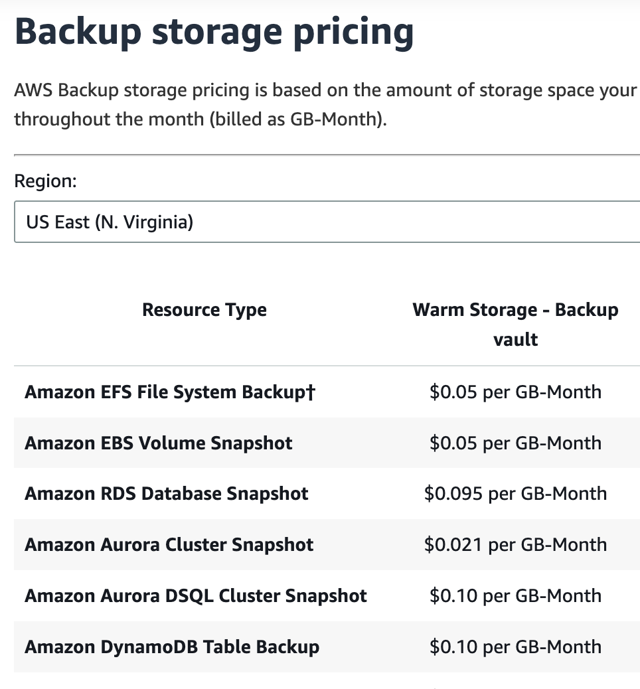
Allocation de stockage de sauvegarde gratuite : AWS fournit un stockage de sauvegarde gratuit équivalent à 100 % du stockage total de votre base de données pour chaque région. Si votre base de données fait 100 Go, vous bénéficiez gratuitement de 100 Go de stockage de sauvegarde automatique. En revanche, les instantanés manuels sont facturés en fonction de leur taille totale (0,095 $ par Go-mois dans la plupart des régions), quelle que soit cette allocation.
Gestion automatique du cycle de vie : les instantanés automatisés sont supprimés une fois qu'ils dépassent la période de conservation (1 à 35 jours), évitant ainsi le « prolifération des instantanés » où les anciens instantanés oubliés s'accumulent et entraînent des frais. Les instantanés manuels sont conservés indéfiniment jusqu'à ce que vous les supprimiez explicitement.
Efficacité incrémentielle : les instantanés automatisés et manuels sont incrémentiels, ce qui signifie qu'ils stockent uniquement les modifications de données. Cependant, étant donné que les sauvegardes automatisées sont gérées à l'échelle du système pour l'instance, elles sont plus efficaces pour conserver uniquement les données nécessaires dans la fenêtre de conservation, évitant ainsi les coûts associés aux instantanés manuels de sauvegarde complète redondants.
Aucun coût pour les journaux de transactions : les sauvegardes automatisées incluent des journaux de transactions, qui permettent une récupération à un moment donné (PITR) sans frais supplémentaires, alors que la réplication de ce niveau de récupération avec des instantanés manuels nécessiterait de les prendre très fréquemment, ce qui entraînerait des coûts de stockage plus élevés.
Coûts réduits lors de la suppression : lorsqu'une base de données est supprimée, vous pouvez choisir de supprimer ses instantanés automatisés, tandis que les instantanés manuels restent souvent et continuent d'accumuler des frais de stockage jusqu'à ce qu'ils soient nettoyés manuellement.
Comment identifier ?
Vous pouvez identifier les instantanés manuels RDS inutilisés à l'aide des méthodes suivantes :
Depuis notre Rapport d'optimisation des coûts, consultez la section RDS_Manual_Snapshots.
Dans la console AWS, accédez au service Aurora et RDS, puis sélectionnez la section Instantanés et la section Manuel. Filtrez par Heure de création de l'instantané pour identifier les instantanés les plus anciens. Filtrez par Stockage pour donner la priorité aux instantanés plus volumineux.
Dans la console AWS, accédez à Facturation et gestion des coûts, puis sélectionnez la section Factures. Cliquez sur Service de base de données relationnelle, choisissez votre région, puis recherchez « stockage de sauvegarde dépassant l'allocation gratuite ». Si des instantanés existent, vous verrez une ligne de facturation comme celle-ci :

Dans l'exemple ci-dessus, environ 530 $ ont été dépensés en instantanés pour la période et la région sélectionnées. La suppression de tous les instantanés (le cas échéant) pourrait permettre d'économiser 100 % de ce coût (530 $) en quelques clics seulement.
Comment corriger ?
Pour l'archivage :
Vous pouvez archiver des instantanés manuels RDS dans un bucket S3 au format Apache Parquet, ce qui est efficace pour le stockage et permet d'interroger via Athena. Mais dans ce cas, vous ne pouvez pas restaurer directement une base de données RDS à partir d'un fichier Parquet exporté dans S3 : c'est uniquement pour accéder aux données d'archives.
Pour suppression :
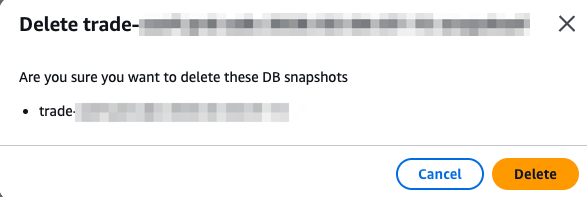
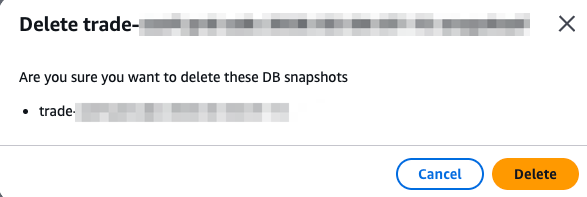
Assurez-vous que l'instantané n'est plus nécessaire avant de le supprimer. Dans la console AWS, accédez au service Aurora et RDS, puis sélectionnez la section Instantanés. Filtrez par Date de création, sélectionnez un ou plusieurs instantanés, puis cliquez sur Actions > Supprimer l'instantané. Confirmez la suppression dans la fenêtre contextuelle.
Remarque : Si les instantanés sont provisionnés automatiquement (par exemple, via CloudFormation ou Terraform), mettez à jour votre infrastructure en tant que code (IaC) pour refléter ces modifications.
Économisez en mettant à jour
La mise à niveau signifie modifier la génération d'une instance / d'un moteur de base de données / d'un système d'exploitation / d'une application / d'un service vers un nombre plus élevé. Les versions plus récentes peuvent offrir de meilleures performances et potentiellement des coûts inférieurs. Elles représentent généralement entre 5 et 20 % de vos opportunités totales et nécessitent un effort minimal ou intermédiaire.

Le coût AWS de la prise en charge des anciens clusters Kubernetes est six fois plus élevé que le prix standard. Kubernetes évolue rapidement, avec de nouvelles fonctionnalités, des mises à jour de conception et des corrections de bugs publiées tous les quatre mois en moyenne.
Les sous-titres sont disponibles en anglais, français et espagnol. Cliquez ici pour obtenir la masterclass complète.
Support standard : 14 mois à compter de la date de sortie dans Amazon EKS.
Support étendu : 12 mois après la fin du support standard, mais à un coût plus élevé (0,60 $ par cluster et par heure contre 0,10 $).
|
Version Kubernetes |
Version amont |
Sortie d'Amazon EKS |
Fin du support standard |
Fin du support étendu |
|---|---|---|---|---|
|
1.32 |
11 décembre 2024 |
23 janvier 2025 |
23 mars 2026 |
23 mars 2027 |
|
1.31 |
13 août 2024 |
26 septembre 2024 |
26 novembre 2025 |
26 novembre 2026 |
|
1.30 |
17 avril 2024 |
23 mai 2024 |
23 juillet 2025 |
23 juillet 2026 |
|
1.29 |
13 décembre 2023 |
23 janvier 2024 |
23 mars 2025 |
23 mars 2026 |
|
1.28 |
15 août 2023 |
26 septembre 2023 |
26 novembre 2024 |
26 novembre 2025 |
|
1.27 |
11 avril 2023 |
24 mai 2023 |
24 juillet 2024 |
24 juillet 2025 |
|
1.26 |
9 décembre 2022 |
11 avril 2023 |
11 juin 2024 |
11 juin 2025 |
|
1.25 |
23 août 2022 |
22 février 2023 |
1er mai 2024 |
1er mai 2025 |
|
1.24 |
3 mai 2022 |
15 novembre 2022 |
31 janvier 2024 |
31 janvier 2025 |
Le coût d'exécution d'un cluster Amazon EKS est basé sur la version mineure Kubernetes du plan de contrôle du cluster. Le support étendu est activé par défaut.
Des mises à niveau régulières sont fortement recommandées pour éviter des dépenses inutiles et garantir l'accès aux dernières fonctionnalités et correctifs de sécurité.
|
Type d'assistance |
Durée |
Prix (par cluster et par heure) |
|
Standard |
14 mois à compter de la date de disponibilité générale d'une version sur Amazon EKS |
$0.10 |
|
Prolongé |
12 mois à compter de la date à laquelle une version atteint la fin du support standard dans Amazon EKS |
$0.60 |
Vous pouvez trouver plus d'informations à ce sujet Documentation AWS ou ça Article de blog AWS .
Comment identifier ?
Vous pouvez identifier les clusters exécutés sur le Support étendu à l'aide des méthodes suivantes :
Dans le Rapport d'optimisation des coûts , consultez la section EKS_Extended_Support ou Future_EKS_Extended_Support .
Dans la console AWS, accédez au service EKS, puis sélectionnez la section Clusters. Examinez la version Kubernetes de chaque cluster et comparez-la avec le calendrier de support ci-dessus.
Dans la console AWS, accédez à Facturation et gestion des coûts, puis sélectionnez la section Factures. Cliquez sur Elastic Container Service for Kubernetes, suivi de votre région. Recherchez « ExtendedSupport ». Si vous voyez une ligne de facturation pour ce coût, votre cluster bénéficie d'un support étendu :

Comment corriger ?
Mettez à niveau vos clusters vers une version mineure prise en charge.
Remarque : Vous ne pouvez pas rétrograder la version de Kubernetes.
Dans la console AWS, accédez au service EKS, puis sélectionnez la section Clusters. Cliquez sur Mettre à niveau maintenant à côté de la version Kubernetes du cluster que vous souhaitez mettre à jour.
Mettez à niveau les versions une par une pour garantir la compatibilité et la stabilité.


Remarque : Si vos clusters EKS sont provisionnés automatiquement (par exemple, via CloudFormation ou Terraform), mettez à jour votre infrastructure en tant que code (IaC) pour refléter la nouvelle version.

Le coût AWS de la prise en charge des anciennes versions de bases de données peut être considérablement plus élevé que le prix du calcul. Des mises à niveau régulières sont essentielles pour éviter des dépenses inutiles, garantir la sécurité et accéder aux dernières fonctionnalités.

Pour les calendriers de publication, reportez-vous à :
Les sous-titres sont disponibles en anglais, français et espagnol. Cliquez ici pour obtenir la masterclass complète.
Comment identifier ?
Vous pouvez identifier les bases de données qui vont passer ou sont déjà passées en support étendu à l'aide des méthodes suivantes :
Dans le Rapport d'optimisation des coûts , consultez la section RDS_Extended_Support ou Future_RDS_Extended_Support .
Dans la console AWS, accédez au service RDS, puis sélectionnez la section Bases de données. Accédez aux paramètres (⚙️) et ajoutez les colonnes Version du moteur et Support étendu RDS :
La colonne Support étendu RDS indique si une base de données est inscrite au support étendu, mais n'en engage pas encore nécessairement le coût. Comparez la version du moteur avec les calendriers de publication ci-dessus pour déterminer si une mise à niveau est nécessaire :

Dans la console AWS, accédez à Facturation et gestion des coûts, puis sélectionnez la section Factures. Cliquez sur Service de base de données relationnelle (RDS), suivi de votre région. Recherchez « Support étendu ». Si vous voyez une ligne de facturation pour ce coût, votre base de données bénéficie d'un support étendu :


Comment corriger ?
Mettez à niveau vos bases de données avant le début du support étendu. Les mises à niveau peuvent être complexes et longues, surtout si le code existant nécessite des mises à jour pour des raisons de compatibilité.
Dans la console AWS, accédez au service RDS, puis sélectionnez la section Bases de données.

Choisissez la base de données que vous souhaitez mettre à niveau, puis cliquez sur Actions > Mettre à niveau maintenant ou Mettre à niveau à la fenêtre suivante :

Remarque : Si vos bases de données RDS sont provisionnées automatiquement (par exemple, via CloudFormation ou Terraform), mettez à jour votre infrastructure en tant que code (IaC) pour refléter la nouvelle version.
Avec le support étendu d'ElastiCache, vous pouvez continuer à exécuter votre cache sur une version majeure du moteur après la date de fin de support standard moyennant un coût supplémentaire. Si vous n'effectuez pas de mise à niveau après la date de fin de support standard, vous serez facturé.
Le support étendu fournit les mises à jour et le support technique suivants :
Mises à jour de sécurité pour les CVE critiques et élevées pour votre cache et votre moteur de cache
Corrections de bugs et correctifs pour les problèmes critiques
La possibilité d'ouvrir des dossiers de support et de recevoir une aide au dépannage dans le cadre de l'accord de niveau de service ElastiCache standard
Les sous-titres sont disponibles en anglais, français et espagnol. Cliquez ici pour obtenir la masterclass complète.
Pour les instances provisionnées sur ElastiCache pour Redis OSS, le tarif du support étendu est :
80 % supplémentaires pour les années 1 et 2
160 % supplémentaires pour la troisième année.
La tarification du support étendu dépend également de la région AWS et de la date civile :
|
Version majeure du moteur |
Fin du support standard |
Début de la prime de support étendu (année 1) |
Début de la prime de support étendu (année 2) |
Début de la prime de support étendu (année 3) |
Fin du support étendu et version EOL |
|---|---|---|---|---|---|
|
Redis OSS v4 |
31/01/2026 |
01/02/2026 |
01/02/2027 |
01/02/2028 |
31/01/2029 |
|
Redis OSS v5 |
31/01/2026 |
01/02/2026 |
01/02/2027 |
01/02/2028 |
31/01/2029 |
|
Redis OSS v6 |
31/01/2027 |
01/02/2027 |
01/02/2028 |
01/02/2029 |
31/01/2030 |
Vous pouvez trouver plus d'informations dans cette documentation AWS.
Comment identifier ?
Vous pouvez identifier les clusters Redis en passe de bénéficier d'un support étendu à l'aide des méthodes suivantes :
Dans le Rapport d'optimisation des coûts , consultez la section Redis_Extended_Support ou Future_Redis_Extended_Support .
- Dans la console AWS, accédez au service ElastiCache, puis à la section Redis OSS. Examinez la version du moteur de chaque cache et comparez-la avec le calendrier de support ci-dessus.
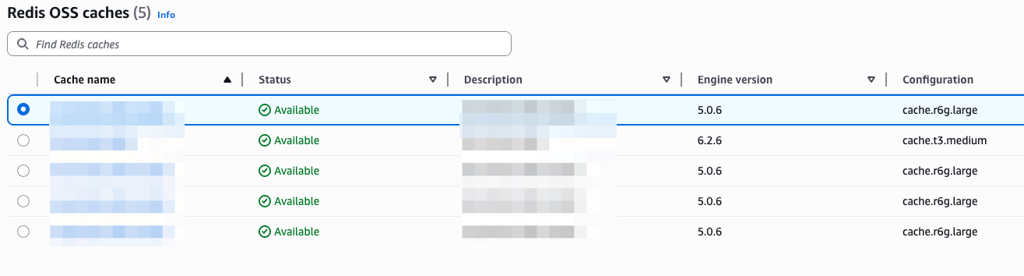
- Dans la console AWS, accédez à Billing and Cost Management, puis sélectionnez la section Cost Explorer. Filtrer par service = ElastiCache et type d'utilisation = tous les types contenant « Extended ». Regroupez par type d'utilisation ou compte lié.
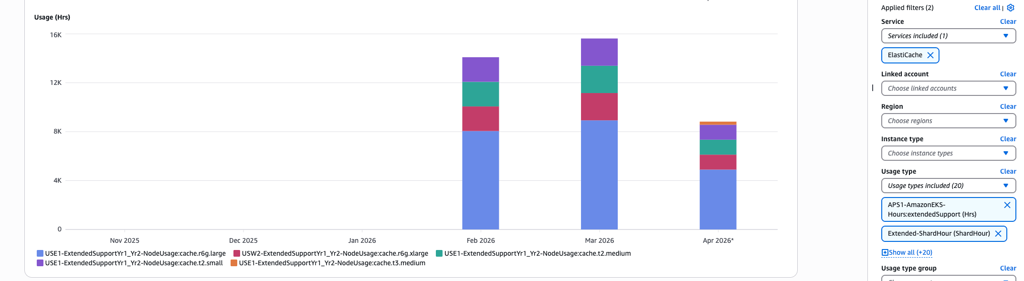
Dans la console AWS, accédez à Facturation et gestion des coûts, puis sélectionnez la section Factures. Cliquez sur Elasticache, suivi de votre région. Recherchez « ExtendedSupport ». Si vous voyez une ligne de facturation pour ce coût, votre cluster bénéficie d'un support étendu :

Comment corriger ?
Mettez à niveau vos clusters vers une version prise en charge. Les mises à niveau sont généralement simples, mais consultez toujours la Documentation de mise à niveau AWS pour obtenir des conseils.
Dans la console AWS, accédez au service ElastiCache, puis à la section Redis. Sélectionnez un moteur, cliquez sur Actions > Modifier pour changer de moteur.
Mettez à niveau les versions une par une pour garantir la compatibilité et la stabilité.

Remarque : Si vos moteurs Redis sont provisionnés automatiquement (par exemple, via CloudFormation ou Terraform), mettez à jour votre infrastructure en tant que code (IaC) pour refléter la nouvelle version.
Exemple de calcul :
Si vous exécutez une instance cache.m5.large sur ElastiCache version 5 pour Redis OSS dans la région USA Est (Ohio), le support standard a pris fin le 31 janvier 2026.
Pour les deux premières années de support étendu (du 1er février 2026 au 31 janvier 2028), vos frais horaires comprendront le prix à la demande de 0,1560 $ plus une prime de support étendu de 80 % (calculée comme suit : 0,1560 $ × 80 % = 0,1248 $), pour un total de 0,2808 $ par heure d'instance.
Pour la troisième année de support étendu (du 1er février 2028 au 31 janvier 2029), alors que le prix à la demande reste à 0,1560 $, la prime de support étendu passe à 160 % (calculée comme suit : 0,1560 $ × 160 % = 0,2496 $), ce qui porte le coût horaire total à 0,4056 $ par heure d'instance.
- Amazon OpenSearch Service est un service géré qui facilite le déploiement, l'exploitation et la mise à l'échelle des clusters OpenSearch dans le cloud AWS.
- Lorsque vous exécutez une version avec Support étendu, des frais forfaitaires par heure d'instance normalisée (NIH) vous seront facturés en plus du coût de l'instance standard.
|
Version du logiciel |
Fin du support standard |
Fin du support étendu |
|---|---|---|
|
Versions OpenSearch 1.0 à 1.2 |
7 novembre 2025 |
7 novembre 2026 |
|
Version OpenSearch 1.3 |
Non annoncé |
Non annoncé |
|
Versions OpenSearch 2.3 à 2.9 |
7 novembre 2025 |
7 novembre 2026 |
|
Versions OpenSearch 2.11 et supérieures |
Non annoncé |
Non annoncé |
NIH est calculé en fonction du facteur de la taille de l'instance (par exemple moyenne, grande) et du nombre d'heures d'instance.
Les sous-titres sont disponibles en anglais, français et espagnol. Cliquez ici pour obtenir la masterclass complète.
Vous pouvez trouver plus d'informations dans cette documentation AWS.
Comment identifier ?
Vous pouvez identifier les clusters Redis en passe de bénéficier d'un support étendu à l'aide des méthodes suivantes :
Dans le Rapport d'optimisation des coûts , consultez la section OpenSearch_Extended_Support ou Future_OpenSearch_Extended_Support.
Dans la console AWS, accédez au service OpenSearch, puis au tableau de bord Managed Clusters. Examinez la version de chaque cluster et comparez-la avec le calendrier de support ci-dessus.
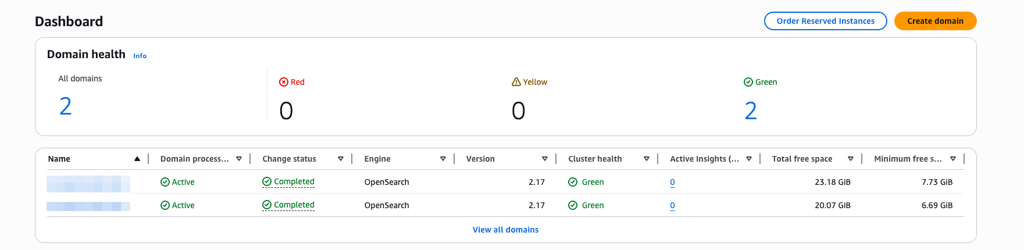
Dans la console AWS, accédez à Billing and Cost Management, puis sélectionnez la section Cost Explorer. Filtrez par service = OpenSearch et type d'utilisation = tous les types contenant « Extended ». Regroupez par type d'utilisation ou compte lié.
Dans la console AWS, accédez à Facturation et gestion des coûts, puis sélectionnez la section Factures. Cliquez sur OpenSearch, suivi de votre région. Recherchez « ExtendedSupport ». Si vous voyez une ligne de facturation pour ce coût, votre cluster bénéficie d'un support étendu.
Comment corriger ?
Mettez à niveau vos clusters vers une version prise en charge. Les mises à niveau sont généralement simples, mais consultez toujours la Documentation de mise à niveau AWS pour obtenir des conseils.
Dans la console AWS, accédez au service OpenSearch, puis au Tableau de bord des clusters gérés. Sélectionnez un moteur, cliquez sur Actions > Upgrade pour modifier le moteur.
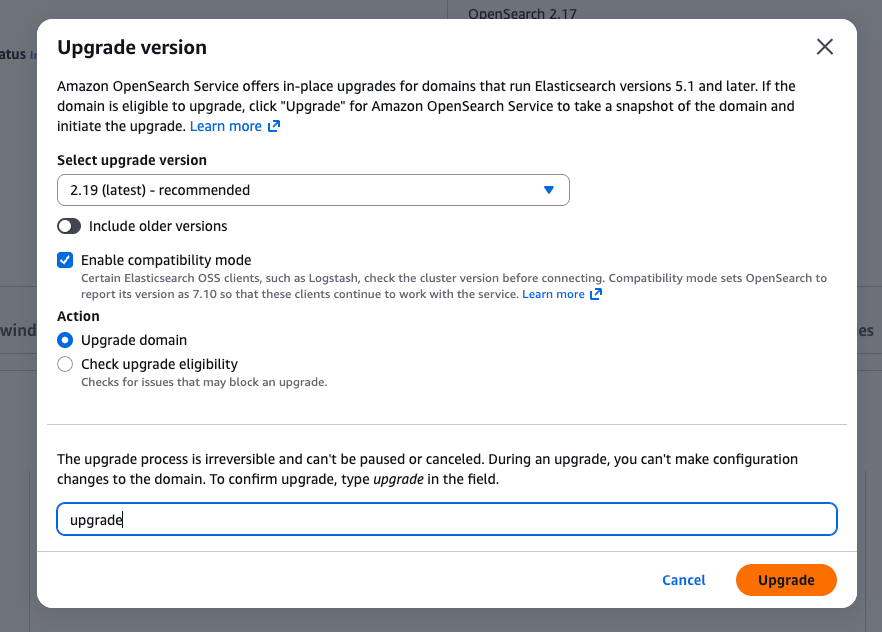
Remarque : Si vos moteurs OpenSearch sont provisionnés automatiquement (par exemple, via CloudFormation ou Terraform), mettez à jour votre infrastructure en tant que code (IaC) pour refléter la nouvelle version.
Exemple de calcul :
Par exemple, si vous exécutez une instance m7g.medium.search pendant 24 heures dans la région USA Est (Virginie du Nord), au prix de 0,068 $/heure d'instance (à la demande), vous paierez généralement 1,632 $ (0,068 $ x 24).
Si vous exécutez une version bénéficiant d'un support étendu, vous paierez 0,0065 $/NIH supplémentaire, calculé comme suit : 0,0065 $ x 24 (nombre d'heures d'instance) x 2 (facteur de normalisation de la taille ; 2 pour les instances de taille moyenne), ce qui revient à 0,312 $ pour un support étendu de 24 heures. Le montant total que vous paierez pour 24 heures sera la somme du coût d'utilisation de l'instance standard et du coût du support étendu, soit 1,944 $ (1,632 $ + 0,312 $) [19,12 % de plus].

Le coût AWS de la prise en charge des instances EC2 de génération précédente peut être considérablement plus élevé que celui des options plus récentes, plus efficaces et plus rentables. Les instances de la génération précédente incluent les familles et les types plus anciens qui ont été progressivement supprimés :
t1, t2
m1, m2, m3, m4
c1, c2, c3, c4
r1, r2, r3, r4
i2
a1
d2
Documentation des instances de génération précédente
Vous pouvez passer aux nouvelles générations (par exemple, t4g, m7, c7, r7) : Voir tous les types d'instances et devrait toujours envisager de migrer vers les instances Graviton à la première occasion.


Les sous-titres sont disponibles en anglais, français et espagnol. Cliquez ici pour obtenir la masterclass complète.
Comment identifier ?
Vous pouvez identifier les instances de génération précédente à l'aide des méthodes suivantes :
Dans le Rapport d'optimisation des coûts , consultez la section EC2_Rightsize.
Dans la console AWS, accédez au service EC2, puis sélectionnez la section Instances. Filtrez par Type d'instance et comparez avec la liste ci-dessus.
Dans la console AWS, accédez au Cost Optimization Hub et filtrez par Instance EC2 avec l'action recommandée définie sur Mise à niveau :

Dans la console AWS, accédez à Facturation et gestion des coûts, puis sélectionnez la section Factures. Cliquez sur Elastic Compute Cloud (EC2), suivi de votre région, puis sur "Amazon Elastic Compute Cloud exécutant [Instance Type]" et recherchez les types d'instances à comparer avec la liste.
Pour estimer les économies, utilisez le https://calculatrice.aws/. Par exemple, la mise à niveau d'une instance EC2 (c4.4xlarge vers c5.4xlarge dans l'Oregon) peut vous faire économiser 85 $ par mois, soit 15 % :

Comment corriger ?
Mettez à niveau vos instances vers des générations plus récentes. Le processus peut être simple ou complexe, selon la compatibilité avec le code existant.
Arrêtez l'instance avant de modifier son type. Pour les environnements de production, envisagez d'utiliser EC2 Auto Scaling ou de créer une nouvelle instance et de migrer les données.
Dans la console AWS, accédez au service EC2, puis sélectionnez la section Instances. Choisissez une instance arrêtée, puis cliquez sur Actions > Paramètres de l'instance > Modifier le type d'instance :

Remarque : Si vos instances EC2 sont provisionnées automatiquement (par exemple, via CloudFormation ou Terraform), mettez à jour votre infrastructure en tant que code (IaC) pour refléter le nouveau type d'instance.

Les volumes GP2 doivent être mis à niveau vers les volumes GP3 pour économiser jusqu'à 20 % sur les coûts. GP3 vous permet également de provisionner les IOPS et le débit indépendamment de la taille du volume, offrant ainsi une meilleure flexibilité des performances.

Les sous-titres sont disponibles en anglais, français et espagnol. Cliquez ici pour obtenir la masterclass complète.


Comment identifier ?
Vous pouvez identifier les volumes GP2 éligibles à la mise à niveau à l'aide des méthodes suivantes :
Dans le Rapport d'optimisation des coûts , consultez la section EBS_Upgrades.
Dans la console AWS, accédez au Cost Optimization Hub et filtrez par Volume EBS avec l'action recommandée définie sur Mise à niveau :

Dans la console AWS, accédez à Compute Optimizer pour obtenir des recommandations supplémentaires.
Dans la console AWS, accédez au service EC2, puis sélectionnez la section Volumes. Filtrez par Type de volume pour identifier les volumes GP2.

Dans la console AWS, accédez à Facturation et gestion des coûts, puis sélectionnez la section Factures. Cliquez sur Elastic Compute Cloud (EC2), suivi de votre région, puis sur EBS, et recherchez "gp2". Si vous disposez de volumes GP2, vous verrez une ligne de facturation pour le coût. Dans l'exemple ci-dessous, environ 2 000 $ ont été dépensés en volumes GP2 pour la période et la région sélectionnées. La mise à niveau vers GP3 pourrait permettre d'économiser 20 %, ou 400 $, avec un minimum d'effort :


Comment corriger ?
Mettez à niveau les volumes GP2 vers GP3 sans interruption : aucun temps d'arrêt n'est requis et le risque est minime.
Dans la console AWS, accédez au service EC2, puis sélectionnez la section Volumes. Filtrez par Type de volume, sélectionnez un Volume GP2, puis cliquez sur Actions > Modifier le volume. Remplacez le type de volume par GP3 et cliquez sur Modifier :

Vous pouvez également mettre à niveau les volumes io1 vers io2 pour potentiellement économiser sur les coûts IOPS.

Remarques :
Si les volumes EBS sont provisionnés automatiquement (par exemple, via CloudFormation ou Terraform), mettez à jour votre infrastructure en tant que code (IaC) pour refléter le nouveau type de volume.
Si un volume est à l'état « Disponible » et n'est plus nécessaire, envisagez de le supprimer.
Les volumes EBS ne sont pas uniquement utilisés par EC2, découvrez ici avec un exemple RDS :


Le coût AWS de la prise en charge des instances de base de données de génération précédente peut être considérablement plus élevé que celui des options plus récentes, plus efficaces et plus rentables. Les instances de la génération précédente incluent les familles et les types plus anciens qui ont été progressivement supprimés dans plusieurs services :
RDS - ÉlastiCache - RedShift - DocumentDB - Neptune
Les types d'instances de génération précédente incluent :
t1, t2
m1, m2, m3, m4
c1, c2, c3, c4
r1, r2, r3, r4
ds
dw
dc1
Vous pouvez passer aux nouvelles générations (par exemple, t4g, m7, c7, r7) : Voir tous les types d'instances
Pensez toujours à migrer vos instances vers Graviton dès que possible.
Les sous-titres sont disponibles en anglais, français et espagnol. Cliquez ici pour obtenir la masterclass complète.
Comment identifier ?
Vous pouvez identifier les instances de base de données de génération précédente à l'aide des méthodes suivantes :
Dans le Rapport d'optimisation des coûts , consultez la section RDS_Rightsize.
Dans la console AWS, accédez au service dédié (par exemple, RDS, ElastiCache). Filtrez par Type d'instance et comparez avec la liste ci-dessus.
Dans la console AWS, accédez au Cost Optimization Hub et filtrez par Instance RDS avec l'action recommandée définie sur Mise à niveau ou Migrer vers Graviton :

Dans la console AWS, accédez à Facturation et gestion des coûts, puis sélectionnez la section Factures. Cliquez sur votre service (par exemple, RDS), suivi de votre région, et recherchez des types d'instances à comparer avec la liste.
- Pour estimer les économies, rendez-vous sur https://calculatrice.aws/ . Par exemple, la mise à niveau d'une instance RDS (m1.large vers m5.large dans l'Oregon) peut vous faire économiser 86 $ par mois, soit 22 %.

Comment corriger ?
La mise à niveau des familles d'instances est relativement simple. Cependant, vous devez arrêter l'instance de base de données avant de modifier son type.
La modification du type d'instance nécessite un redémarrage et entraînera un bref temps d'arrêt pour les déploiements Single-AZ. Ce temps d'arrêt est réduit avec Multi-AZ, mais existe toujours. Pour les environnements de production, prenez des précautions supplémentaires.
Dans la console AWS, accédez à votre service dédié (par exemple, RDS). Sélectionnez l'instance, puis cliquez sur Actions pour modifier le type d'instance. Cliquez sur Continuer, puis sur Appliquer immédiatement.

Et si vous passiez d'Intel (m6i, m7i) à ARM/Graviton (r6g, r7g, r8g) ?
L'avantage de RDS est qu'en tant que service géré, AWS prend en charge toutes les différences de pilotes et d'architecture entre x86 et ARM, pour que vous n'ayez à faire face à aucune incompatibilité.
Si vos instances de base de données sont provisionnées automatiquement (par exemple, via CloudFormation ou Terraform), mettez à jour votre infrastructure en tant que code (IaC) pour refléter le nouveau type d'instance.

Les instances AWS Graviton sont des instances EC2 alimentées par des CPUs ARM conçus par AWS. Elles offrent un meilleur rapport qualité-prix par rapport aux instances x86 traditionnelles (Intel et AMD), avec des économies potentielles de 15 à 19 %.


Utiliser Graviton avec RDS est simple, plus efficace et offre un meilleur rapport prix/performance.

Les sous-titres sont disponibles en anglais, français et espagnol. Cliquez ici pour obtenir la masterclass complète.
Comment identifier ?
Vous pouvez identifier les opportunités de migration vers Graviton en utilisant les méthodes suivantes :
Dans le Rapport d'optimisation des coûts , consultez les sections EC2 ou RDS Upgrade ou RightSize.
Dans la console AWS, accédez au Cost Optimization Hub et filtrez l'action recommandée Migrer vers Graviton :

Dans AWS Compute Optimizer, comparez plusieurs options d'instance pour la compatibilité et les performances de Graviton :

Comment corriger ?
EC2 :
Ne changez pas si votre logiciel ne prend pas en charge ARM (par exemple, les anciennes applications x86) ou si votre application est basée sur Windows.
Vérifiez la compatibilité : assurez-vous que votre application prend en charge ARM sur les serveurs de test (par exemple, t4g).
Utilisez des images Docker multi-Arch si vous exécutez des conteneurs.
RDS :
RDS est un service géré, donc AWS gère tous les problèmes de compatibilité liés à l'architecture ARM. Vous n'avez pas à vous soucier des problèmes de pilotes de bas niveau.
Remarque : la modification des types d'instances RDS entraînera des temps d'arrêt. Planifiez ce changement pendant votre fenêtre de maintenance en prévoyant 30 minutes pour le changement d'instance.
RDS (console)
Connectez-vous à la console.
Choisissez Bases de données, puis choisissez l'instance de base de données que vous souhaitez modifier.
Choisissez Modifier. La page Modifier l'instance de base de données s'affiche.
Modifiez la taille de l'instance en une instance Graviton (par exemple db.m6g.large), en suivant les conseils de Compute Optimizer ou de Trusted Advisor.
Choisissez Continuer.
Choisissez Appliquer immédiatement pour appliquer les modifications immédiatement (pour plus d'informations, voir Utilisation du paramètre Appliquer immédiatement ).
Sur la page de confirmation, choisissez Modifier l'instance de base de données.
L'instance doit passer à un état Modification. Attendez que l'instance soit disponible, puis validez et démarrez vos applications. Il ne devrait y avoir aucun autre impact.


RDS (Terraform)
Dans votre configuration Terraform, recherchez votre ressource RDS aws_db_instance.
Modifiez le paramètre instance_class en classe d'instance Graviton souhaitée (par exemple, db.m6g.large) :
Exécutez votre plan Terraform et confirmez.
Exécutez terraform apply via votre CI/CD, en commençant par les environnements de développement / hors production.
Graviton - Historique
En 2018, AWS a publié le premier Graviton (famille d'instances A1).
En 2020, la deuxième génération, Graviton2, a été lancée, AWS promettant une amélioration du rapport prix/performances de 40 % par rapport aux instances Intel et AMD de 5e génération et une réduction moyenne de 72 % de la consommation d'énergie (M6g, C6g, R6g, T4g, X2gd, G5g, Im4gn, Is4gen, I4g).
En 2022, AWS a mis à disposition des CPUs Graviton3 dans le cadre de ses instances EC2 de 7e génération, offrant des performances de calcul 25 % supérieures par rapport à Graviton2.
Instances EC2 : C7g, M7g, R7g.
Instances RDS : db.r7g, db.m7g.
En 2024, AWS a publié Graviton4 et affirme qu'il est 40 % plus rapide pour les bases de données, 30 % plus rapide pour les applications Web et 45 % plus rapide pour les grandes applications Java que Graviton3.
Instances EC2 : R8g, X8g, C8g, M8g, I8g.
Instances RDS : db.r8g, db.m8g.
Lors de la création d'un cluster ElastiCache dans AWS, vous disposez de 2 options de déploiement principales – Serverless ou Basé sur un nœud (provisionné) – et de 3 options de moteur – Redis OSS, Memcached ou Valkey publié fin 2024.
ElastiCache pour Valkey introduit des améliorations significatives à Redis tout en conservant ses fonctionnalités de base, le rendant plus puissant et plus polyvalent.
ElastiCache à la demande pour Valkey Serverless est proposé à un prix 33 % inférieur à celui de Redis OSS Serverless.
ElastiCache à la demande pour les nœuds Valkey est proposé à un prix 20 % inférieur par rapport à celui basé sur des nœuds Redis.
Les sous-titres sont disponibles en anglais, français et espagnol. Cliquez ici pour obtenir la masterclass complète.
Leviers d'optimisation des coûts secondaires
Stockage minimum réduit : ElastiCache Serverless pour Valkey dispose d'un stockage de données minimum de 100 Mo, ce qui est 90 % inférieur au minimum de 1 Go pour Redis OSS.
Efficacité mémoire et redimensionnement : les versions Valkey 8.x réduisent l'utilisation de la mémoire d'environ 20 à 40 % par clé par rapport à Redis OSS. Cette amélioration vous permet souvent de réduire la taille de vos types de nœuds (par exemple, de r7g.xlarge à r7g.large), ce qui peut potentiellement générer jusqu'à 60 % d'économies totales.
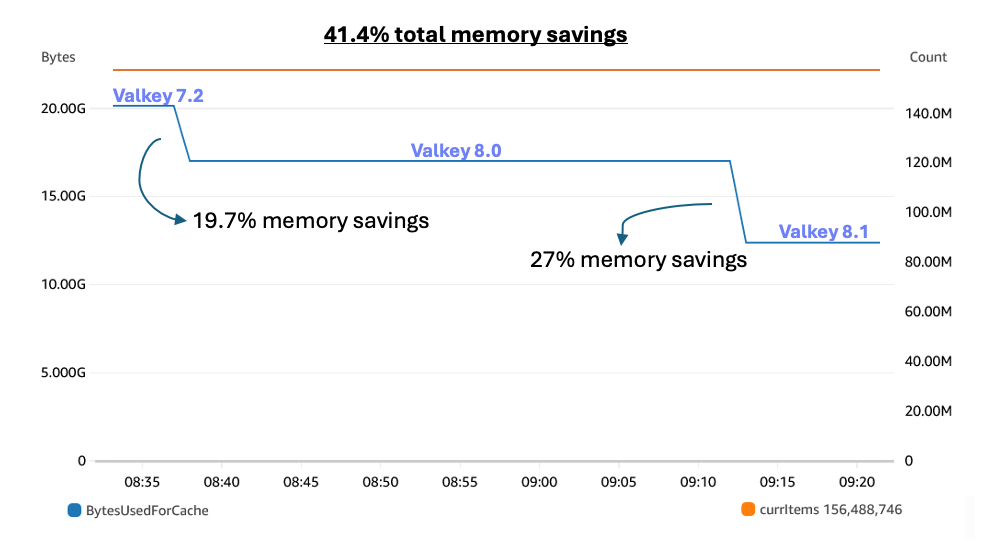
Portabilité des Instances Réservées (RI) : les nœuds réservés Redis OSS existants s'appliquent automatiquement aux nœuds Valkey au sein de la même famille d'instances et de la même région.
Comment identifier ?
Vous pouvez identifier les opportunités de migration vers Valkey en utilisant les méthodes suivantes :
Dans le Rapport d'optimisation des coûts , consultez la section ELASTICACHE_Redis_To_Valkey.
- Dans la console AWS, accédez à ElastiCache pour voir quel moteur vous utilisez actuellement.
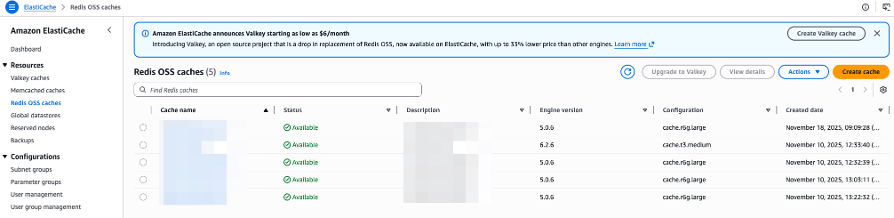
Comment corriger ?
Étape 1 : Créer un cluster Valkey
Accédez à la Console AWS ElastiCache.
Cliquez sur Créer un cluster.
Sélectionnez Valkey comme moteur.
Configurez le cluster avec les mêmes paramètres que votre cluster Redis (type de nœud, nombre de nœuds, etc.).
Cliquez sur Créer.
Étape 2 : Migrer les données
Utiliser la réplication Redis (si les deux clusters se trouvent dans la même région) :
redis-cli -h <REDIS_ENDPOINT> --replicaof <VALKEY_ENDPOINT> <VALKEY_PORT>
Attendez la fin de la synchronisation.
Vérifiez l'intégrité des données en comparant les clés entre Redis et Valkey.
Étape 3 : Mettre à jour la configuration de l'application
Mettez à jour votre application pour pointer vers le point de terminaison Valkey au lieu de Redis.
Testez minutieusement pour garantir la compatibilité.
Étape 4 : Supprimer l'ancien cluster Redis
Une fois confirmé que Valkey fonctionne correctement, vous pouvez supprimer l'ancien cluster Redis pour éviter la double facturation.
Économisez en redimensionnant
Le redimensionnement (rightsizing) est le processus consistant à faire correspondre les types et les tailles d'instance aux exigences de performances et de capacité de votre charge de travail au coût le plus bas possible. Cela représente généralement 30 à 60 % de vos opportunités totales d’optimisation des coûts.

Les instances EC2 surprovisionnées ont un coût élevé et peuvent ne pas nécessiter la quantité de ressources provisionnées pour exécuter la charge de travail. Vous pouvez les redimensionner (réduire le CPU/RAM) sans interrompre l'utilisation normale.
Le Rightsizing implique d'ajuster le type d'instance pour mieux répondre aux exigences de votre charge de travail. Par exemple, vous pouvez passer d'une instance 4xlarge à une instance xlarge.
Opter pour les dernières technologies d'instance, telles que AWS Graviton, peut également réduire les coûts, même si des contrôles de compatibilité peuvent être nécessaires.
Les sous-titres sont disponibles en anglais, français et espagnol. Cliquez ici pour obtenir la masterclass complète.
Comment identifier ?
Dans le Rapport d'optimisation des coûts , consultez la section EC2_Rightsize.
Dans la console AWS : accédez au service EC2, puis sélectionnez la section Instances. Cliquez sur une instance, puis accédez à l'onglet Surveillance. Ajustez la plage de données sur au moins les 4 dernières semaines (6 mois sont recommandés). Vérifiez que le graphique Utilisation du CPU (%) est faible, par exemple :

Si l'utilisation maximale du CPU est de 15 % pendant cette période, vous pouvez réduire en toute sécurité le CPU provisionné d'un facteur 4. Cependant, vous devez également vérifier la Mémoire. Si mem_used_percent atteint 90 %, vous ne pouvez pas réduire la Mémoire, mais vous pouvez toujours optimiser le CPU en passant à une classe d'instance différente avec la même allocation de Mémoire.
Pour ce faire, vérifiez votre type ou votre classe d'instance, puis reportez-vous à https://aws.amazon.com/ec2/instance-types/ pour comparer votre vCPU et votre mémoire actuels avec d'autres classes.
Assurez-vous que le redimensionnement n’aura pas d’impact sur les performances du réseau. Si nécessaire, examinez les métriques réseau de votre instance.
- Dans la console AWS, accédez au service AWS Compute Optimizer, puis sélectionnez la section Instances EC2 pour obtenir des recommandations personnalisées.

- Dans AWS, accédez au Cost Optimization Hub et filtrez les opportunités d'économies par Instance EC2 avec l'action recommandée définie sur Rightsize.

Remarque : ces recommandations sont basées sur les 10 derniers jours. Confirmez toujours avec une période plus longue dans la console AWS. Cependant, cela donne un bon aperçu du type d'instance recommandé et de son impact sur le CPU.
Les métriques Mémoire ne sont souvent pas signalées par défaut dans AWS. Étant donné que la Mémoire est essentielle au bon dimensionnement, connectez-vous à l'instance pour vérifier l'utilisation de la Mémoire ou activez les Mesures de mémoire EC2 dans CloudWatch.
Utilisez le calculateur de tarification AWS pour estimer les économies. https://calculatrice.aws/, sélectionnez le service EC2 et comparez les prix. Par exemple, le redimensionnement d'une instance c6a.8xlarge en une instance r6g.2xlarge pourrait permettre d'économiser 602 $ par mois (réduction de 67 %).

Comment corriger ?
Si les serveurs sont en production, planifiez une fenêtre de maintenance et prenez un instantané par mesure de précaution. Vous devez arrêter l'instance avant de modifier son type. Pour les environnements de production, envisagez d'utiliser EC2 Auto Scaling ou de créer une nouvelle instance et de migrer les données.
Dans la console AWS :
Accédez au service EC2, puis sélectionnez la section Instances.
Choisissez une instance, puis cliquez sur État de l'instance > Arrêter l'instance.
Une fois l'instance arrêtée, accédez à Actions > Paramètres de l'instance > Changer le type d'instance.
Sélectionnez le nouveau type d'instance, examinez la comparaison et cliquez sur Appliquer.


Si les ressources sont créées automatiquement (par exemple, via CloudFormation ou Terraform), mettez à jour votre code pour refléter le nouveau type d'instance.

Les instances ECS surprovisionnées ont un coût élevé et peuvent ne pas nécessiter la quantité de ressources allouées pour exécuter la charge de travail. Vous pouvez redimensionner (réduire le CPU/RAM) sans interrompre l'utilisation normale.
Le Rightsizing signifie modifier le type d'instance pour répondre aux besoins réels. Par exemple, vous pouvez passer d'une instance 4xlarge à une instance xlarge.
Le passage aux dernières technologies d'instance, telles que AWS Graviton, peut également réduire les coûts, même si vous devrez peut-être garantir la compatibilité.
Les sous-titres sont disponibles en anglais, français et espagnol. Cliquez ici pour obtenir la masterclass complète.
Types de lancement ECS

EC2 :
Vous gérez les instances EC2 sous-jacentes dans votre cluster ECS.
Adaptez les types et les tailles de vos instances en fonction du CPU, de la mémoire, des performances du réseau et des besoins de stockage.
Fargate :
AWS gère le provisionnement et la mise à l'échelle des ressources de calcul.
Vous payez pour la quantité exacte de ressources vCPU et mémoire utilisées par vos applications conteneurisées.
Vous pouvez redimensionner vos définitions de tâches.
Pour déterminer votre type de lancement :
Accédez à ECS, sélectionnez un cluster et accédez à la section Tâches. Regardez la colonne Type de lancement.

Déploiement Fargate
Par défaut, ECS utilise une stratégie de déploiement de mises à jour progressives.
Il remplace une tâche à la fois, en attendant que la nouvelle tâche soit saine avant de remplacer la suivante.
Cela garantit l'absence de temps d'arrêt et si le déploiement échoue, ECS peut automatiquement revenir à la version stable précédente.

Comment identifier ?
Vous pouvez identifier les instances ECS surprovisionnées à l'aide des méthodes suivantes :
Dans le Rapport d'optimisation des coûts , consultez la section ECS_Rightsize .
Dans la console AWS :
Accédez au service ECS. Cliquez sur un service et consultez la section Santé pour déterminer s'il est surprovisionné.

Vérifiez votre type ou classe d'instance, puis reportez-vous à Instances Cloud Compute – Types d'instances Amazon EC2 – AWS pour comparer votre vCPU et votre mémoire actuels avec d'autres classes.
Assurez-vous que le réseau ne sera pas affecté lors de son redimensionnement. Si nécessaire, examinez les métriques réseau de votre instance.
Accédez au service AWS Compute Optimizer, puis sélectionnez la section Instances EC2 pour obtenir des recommandations personnalisées.

Accédez au Cost Optimization Hub et filtrez les opportunités d'économies par Type de ressource = Service ECS et Action recommandée = Rightsize.

Remarque : Les économies mensuelles estimées peuvent s'afficher à 0 % / 0 $ si elles sont couvertes par des Savings Plans de calcul. Vous économiserez toujours de l’argent en redimensionnant, car ces Savings Plans couvriront d’autres services.
- Pour estimer les économies, rendez-vous sur Calculateur de tarifs AWS , sélectionnez le service ECS et comparez les prix. Par exemple, le redimensionnement d'une instance EC2 c6a.8xlarge en r6g.2xlarge pourrait permettre d'économiser 602 $ par mois (réduction de 67 %).

Comment corriger ?
Pour Type de lancement = EC2, accédez à Rightsize EC2.
Pour le type de lancement = Fargate :
Dans la console AWS, accédez au service ECS, puis sélectionnez la section Définitions de tâches.
Choisissez une tâche, puis cliquez sur Créer une nouvelle révision.

Modifiez le type de lancement, le système d'exploitation/l'architecture, le CPU et la mémoire de la tâche.

Par défaut, il n'y a pas de temps d'arrêt.
Si la ressource est provisionnée automatiquement via IaC (comme CloudFormation ou Terraform), mettez à jour le code correspondant pour refléter les modifications.

Lorsque vous créez un volume, il peut être surprovisionné.
Dans les types de volumes GP3 et IO1/IO2, vous êtes facturé pour les IOPS et/ou le Débit s'ils dépassent les valeurs minimales (3 000 IOPS / 125 Mo/s).
Les IOPS (Input/Output Operations Per Second) mesurent la vitesse à laquelle les données peuvent être lues et écrites sur le périphérique de stockage. Des IOPS plus élevés indiquent des performances plus rapides.
Le Débit fait référence à la quantité de données (mesurée en mégaoctets par seconde) qui peuvent être transférées vers ou depuis un périphérique de stockage dans un laps de temps donné.


Les sous-titres sont disponibles en anglais, français et espagnol. Cliquez ici pour obtenir la masterclass complète.
Comment identifier ?
Vous pouvez identifier les volumes EBS surprovisionnés à l'aide des méthodes suivantes :
Dans le Rapport d'optimisation des coûts , consultez la section EBS_Rightsize .
Dans la console AWS : accédez au service EC2, puis sélectionnez la section Volumes. Sélectionnez des volumes de type gp3 ou io1 ou io2. Cliquez sur un volume et accédez à la section Surveillance. Examinez les IOPS (souvent définis sur 3 000) et comparez-les aux graphiques Opérations de lecture et d'écriture sur une période de 6 mois.

Dans le Cost Optimization Hub, vous pouvez voir un graphique par type de ressource.

Si vous voyez un volume EBS, cliquez sur Afficher les opportunités.
Filtrez par Volume EBS et vérifiez que l'Action recommandée = Rightsize

Dans Compute Optimizer, consultez les recommandations de mise à niveau EBS.

Comment corriger ?
Dans la console AWS, accédez au service EC2, puis sélectionnez la section Volumes. Sélectionnez un volume, puis cliquez sur Modifier. Modifiez le volume IOPS. Confirmez la modification.

Remarque : Aucun temps d'arrêt ne se produit pendant ce changement ; la migration est gérée en arrière-plan.
Si la ressource est provisionnée automatiquement via IaC (comme CloudFormation ou Terraform), mettez à jour le code correspondant pour refléter les modifications.

Lorsque vous créez une fonction Lambda, elle peut être surprovisionnée. Vous pouvez facilement modifier la mémoire allouée.
AWS Lambda est un service de calcul serverless qui vous permet d'exécuter du code sans provisionner ni gérer de serveurs.
Vous êtes principalement facturé en fonction du nombre de requêtes pour vos fonctions et de la durée d'exécution de votre code.
La Mémoire et le stockage éphémère peuvent également être redimensionnés.

Les sous-titres sont disponibles en anglais, français et espagnol. Cliquez ici pour obtenir la masterclass complète.
Comment identifier ?
Vous pouvez identifier les fonctions Lambda surprovisionnées à l'aide des méthodes suivantes :
Dans le Rapport d'optimisation des coûts , consultez la section Lambda_Rightsize.
Dans la console AWS, accédez au service Lambda, puis sélectionnez la section Fonctions. Sélectionnez une fonction et accédez à la section Surveiller. Consultez les CloudWatch Logs, en vous concentrant sur les appels récents. Comparez MemorySetInMB et MemoryUsedInMB.

Dans la console AWS, accédez au Cost Optimization Hub. Vous pouvez voir un graphique par type de ressource.

Si vous voyez une Fonction Lambda, cliquez sur Afficher les opportunités. Filtrez par Fonction Lambda et vérifiez que l'Action recommandée = Rightsize.

Dans la console AWS, accédez à Compute Optimizer. Cliquez sur Lambda rightsize pour obtenir des recommandations.

Comment corriger ?
Dans la console AWS, accédez au service Lambda, puis sélectionnez la section Fonctions. Choisissez une fonction, accédez à la section Configuration et cliquez sur Modifier. Modifiez les paramètres de Mémoire, de stockage éphémère et de Délai d'expiration.

Si la ressource est provisionnée automatiquement via IaC (comme CloudFormation ou Terraform), mettez à jour le code correspondant pour refléter les modifications.

En cas de surprovisionnement, les instances RDS peuvent coûter très cher. Voyons comment réduire les coûts sans perturber l’utilisation normale.
Le Rightsizing signifie modifier le type d'instance pour répondre aux besoins réels. Par exemple, vous pouvez passer d'une instance 4xlarge à une instance xlarge.
Adaptez les types et les tailles d'instance à votre charge de travail au moindre coût sans compromettre les performances.
Avant de redimensionner : envisagez de mettre à niveau le type de moteur :
- Publications PostgreSQL
- Sorties MySQL
Pensez également à mettre à niveau les volumes RDS GP2 vers GP3 pour obtenir davantage d'IOPS sans frais supplémentaires.
Les sous-titres sont disponibles en anglais, français et espagnol. Cliquez ici pour obtenir la masterclass complète.
Comment identifier ?
Vous pouvez identifier les instances RDS surprovisionnées à l'aide des méthodes suivantes :
Dans le Rapport d'optimisation des coûts , consultez la section RDS_Rightsize.
Dans la console AWS, accédez au service RDS, puis sélectionnez la section Bases de données. Cliquez sur le logo Paramètres et filtrez par CPU. Sélectionnez une base de données avec une faible utilisation du CPU. Accédez à l'onglet Surveillance et ajustez la chronologie au moins sur les 4 dernières semaines (6 mois sont recommandés). Vérifiez que le graphique Utilisation du CPU (%) est faible.

Avec un CPU maximum de 15 % sur cette période, vous pouvez diviser par 4 en toute sécurité le CPU provisionné.
Vérifiez également la Mémoire libérable.

Ensuite, vérifiez votre type ou classe d'instance et comparez votre vCPU et votre mémoire actuels avec d'autres classes.
Assurez-vous que le réseau ne sera pas affecté lors de son redimensionnement. Si nécessaire, examinez les métriques réseau de votre instance.
Dans la console AWS, accédez à AWS Compute Optimizer, puis sélectionnez la section Instances de base de données RDS pour obtenir des recommandations personnalisées.

Dans la console AWS, accédez au Cost Optimization Hub. Filtrez les opportunités d'économies par Instance de base de données RDS et Action recommandée = Rightsize.

Comment corriger ?
Remarque : Il y aura un bref temps d'arrêt lorsque la classe d'instance sera modifiée. Pensez à créer une sauvegarde ou un instantané au préalable.
Dans la console AWS, accédez au service RDS, puis sélectionnez la section Bases de données.
Choisissez une base de données, puis cliquez sur Modifier.
Accédez à la Configuration de l'instance et modifiez la Classe d'instance DB.
Dans Stockage, modifiez gp2 en gp3.
Cliquez sur Continuer. Si vous souhaitez appliquer les modifications immédiatement, sélectionnez Appliquer immédiatement, puis cliquez sur Modifier l'instance de base de données.

Si la ressource est provisionnée automatiquement via IaC (comme CloudFormation ou Terraform), mettez à jour le code correspondant pour refléter les modifications.

Nous vous recommandons d'appliquer une politique de cycle de vie (y compris un Intelligent-Tiering) pour les buckets S3 afin de limiter les coûts. Agissez avec prudence et assurez-vous de mettre en œuvre les politiques de cycle de vie appropriées.
Les sous-titres sont disponibles en anglais, français et espagnol. Cliquez ici pour obtenir la masterclass complète.
Comment identifier ?
Vous pouvez identifier les buckets S3 qui nécessitent des stratégies de cycle de vie à l'aide des méthodes suivantes :
Dans le Rapport d'optimisation des coûts , consultez la section S3_Storage_Classes . Les buckets répertoriés font plus de 1 To et utilisent principalement le niveau Standard le plus cher.
Dans la console AWS, accédez au service S3, puis sélectionnez la section Buckets. Cliquez sur "Afficher le tableau de bord Storage Lens" en haut.

Accédez à l'Aperçu Top N en bas et modifiez le nombre sur 10.

Passez en revue la liste de vos buckets, leur stockage total et leurs tendances.

Chaque bucket S3 de plus de 1 To doit faire l'objet d'une enquête.
Dans la console AWS, accédez au service Facturation, puis sélectionnez la section Factures. Choisissez Simple Storage Service et une région. Recherchez la ligne de demandes.

Comment corriger ?
Dans la console AWS, accédez au service S3, puis sélectionnez la section Buckets.
Cliquez sur un nom de bucket.
Identifiez les données de chaque dossier et filtrez par la colonne Dernière modification.
Accédez aux Propriétés pour vérifier si la Gestion des versions du bucket est activée.
Accédez à Metrics pour voir la tendance de votre bucket (taille du bucket et nombre d'objets).
Accédez à Gestion pour consulter les règles de cycle de vie et les règles de réplication existantes.
Posez-vous les questions suivantes :
1. Ai-je besoin de ces données ?
Si le bucket est totalement ou partiellement inutile, sa suppression est nécessaire.
Suppression totale :
Pour supprimer un bucket entier, videz-le d’abord. Dans la liste Buckets, sélectionnez le bucket, cliquez sur Vider et confirmez.
Revenez à la liste des Buckets, sélectionnez le bucket, cliquez sur Supprimer et confirmez.
Si la suppression prend trop de temps en raison du grand nombre d'objets, créez une politique de cycle de vie :
Cliquez sur le nom du bucket, accédez à Gestion, puis cliquez sur Créer une règle de cycle de vie.
Configurez la règle comme indiqué ci-dessous et cliquez sur Créer une règle.
La suppression prendra 1 à 2 jours. Surveillez les progrès dans la section Metrics.


Suppression partielle :
Pour supprimer des dossiers ou des objets spécifiques, sélectionnez-les et cliquez sur Supprimer.
Si la suppression prend trop de temps, créez une politique de cycle de vie avec un préfixe (par exemple, logs/2012/).

Cet exemple supprimera toutes les données du dossier 2012 dans le dossier logs de votre bucket. Veuillez créer une stratégie de cycle de vie par préfixe. Mais un préfixe peut être utilisé pour supprimer plusieurs dossiers. Si vous mettez logs/201 dans le préfixe, cela devrait supprimer les journaux de 2010 à 2019 (chaque dossier commençant par 201 dans le dossier logs).
Si vous souhaitez simplement supprimer toutes les autres versions des objets, vous pouvez également ajouter 1 dans Nombre de versions plus récentes à conserver.
Vous pouvez également automatiser ces politiques via CloudFormation, Terraform, etc.
La suppression de tous les objets devrait prendre 1 à 2 jours. Vous devriez voir la progression dans la section Métriques.

2. Si j’ai besoin de ces données, combien de temps ?
Déterminez la durée de conservation des données avec votre équipe (par exemple, 10 jours, 3 mois, 3 ans). Par exemple, le bucket de journaux doit avoir une politique d'expiration qui dépendra de votre politique de conservation des données. Cela pourrait être 10 jours, 3 mois, 3 ans ?
Créez une Politique de cycle de vie et ajustez la section Jours en conséquence. Pour 1 an de rétention, configurez-la ainsi :

3. Si j’ai besoin de ces données en permanence, à quelle fréquence dois-je y accéder ?
Si vous conservez des données à des fins d'archivage, envisagez des classes de stockage en fonction de la fréquence d'accès.
Veuillez n'archiver que les objets que vous n'êtes pas censé récupérer fréquemment, sinon cela coûtera plus cher et vous devrez peut-être attendre pour récupérer vos données.
Tu as de nombreuses classes différentes, mais la transition classique serait celle-ci :

Transférez les objets vers des classes de stockage rentables, en garantissant une taille minimale des objets pour éviter des coûts de transition inutiles.
Appliquez les mêmes transitions aux versions non actuelles.
En cas de doute sur l'utilisation des données, utilisez Hiérarchisation intelligente pour déplacer automatiquement les objets vers le type de stockage approprié.


Classes de stockage S3
S3 offre différents niveaux de fiabilité et de disponibilité grâce à ses classes de stockage.
Chaque classe de stockage a une structure de coûts différente et détermine la rapidité avec laquelle vous pouvez accéder à vos données. Certaines ont même une durée de stockage minimale.
S3 Standard : conçue pour les données fréquemment consultées.
S3 Intelligent-Tiering : données avec des modèles d'accès changeants ou inconnus.
S3 Standard-IA : conçue pour les données de longue durée et rarement consultées.
S3 One Zone-IA : conçu pour les données non critiques de longue durée, rarement consultées.
S3 Redondance réduite : données non critiques fréquemment consultées.
S3 Glacier Instant Retrieval : conçue pour les données d'archives consultées une fois par trimestre avec une récupération instantanée en millisecondes.
S3 Glacier Flexible Retrieval (anciennement Glacier) : conçu pour les données critiques archivées et rarement consultées.
S3 Glacier Deep Archive : archivage des données à long terme avec des délais de récupération dans les 12 heures.


Vous pouvez également analyser l'ensemble de votre bucket avec Analytics S3.
Si la ressource est provisionnée automatiquement via IaC (comme CloudFormation ou Terraform), mettez à jour le code correspondant pour refléter les modifications.

Les classes de stockage Amazon EFS Infrequent Access (IA) et EFS Archive offrent des options à coût optimisé pour les fichiers qui ne sont pas consultés quotidiennement ou fréquemment.
EFS Standard-IA et EFS One Zone-IA offrent des prix de stockage jusqu'à 85 % inférieurs par rapport à EFS Standard et EFS One Zone, ce qui les rend idéaux pour les fichiers consultés moins fréquemment. Vérifiez Accès peu fréquent à Amazon EFS .
EFS Archive est conçu pour les données de fichiers de longue durée consultées plusieurs fois par an ou moins, offrant des prix de stockage jusqu'à 50 % inférieurs à ceux d'EFS IA et jusqu'à 97 % de moins qu'EFS Standard. Notez que les frais de demande sont 3 fois plus élevés que ceux d'EFS IA, ce qui le rend mieux adapté aux cas d'utilisation d'archives où un accès instantané est occasionnellement nécessaire.
EFS Intelligent-Tiering utilise la gestion du cycle de vie pour transférer automatiquement les fichiers qui ne sont pas consultés pendant une durée spécifiée (par exemple, 30 jours) de EFS Standard ou EFS One Zone vers leur classe de stockage IA correspondante. Si les modèles d'accès changent, les fichiers sont automatiquement replacés vers la classe de stockage d'origine.

Les sous-titres sont disponibles en anglais, français et espagnol. Cliquez ici pour obtenir la masterclass complète.
Page de tarification EFS : Tarifs EFS

Conseils : Atelier Studio
Comment identifier ?
Dans le Rapport d'optimisation des coûts , consultez la section EFS_Storage_Classes.
Dans la console AWS, accédez à Cost Explorer > Filtrer par service → Elastic File System, type d'utilisation → Recherchez « TimedStorage- » et sélectionnez toutes les options, Regrouper par → Type d'utilisation.

Dans la console AWS, accédez à Amazon EFS > Afficher les détails sur un système de fichiers spécifique > Taille mesurée. Vérifiez le pourcentage de stockage Standard, IA et Archive.

Comment corriger ?
Pour modifier votre système de fichiers Amazon EFS de Standard à Accès peu fréquent (IA) ou Archive, activez la Gestion du cycle de vie Amazon EFS :
Dans la console AWS, accédez à Amazon EFS > Modifier pour afficher la gestion du cycle de vie.
Définir une politique de transition : choisissez une politique qui spécifie après combien de jours d'inactivité (par exemple, 1, 7, 14, 30, 60, 90, 180, 270 ou 365 jours) les fichiers doivent être automatiquement déplacés de Standard vers Accès peu fréquent ou Archive.

Transition automatique : une fois activé, EFS déplacera automatiquement et de manière transparente les fichiers auxquels vous n'avez pas accédé pendant la période spécifiée vers la nouvelle classe de stockage. Ce processus est transparent et ne nécessite aucune modification de vos applications ou flux de travail.
Remarque : Si les ressources sont provisionnées automatiquement (par exemple, via CloudFormation ou Terraform), mettez à jour votre infrastructure en tant que code (IaC) pour refléter ces changements.
Bonus : si votre système de fichiers est Multi-AZ, envisagez de le convertir en Single-AZ pour les comptes hors production afin de réduire davantage les coûts.
DynamoDB propose deux classes de table conçues pour vous aider à optimiser les coûts :
La classe de table par défaut est Standard, qui équilibre les coûts de stockage et le débit provisionné.
Standard-IA (Accès peu fréquent) peut réduire votre coût total de stockage de 60 % tout en conservant toutes vos données dans DynamoDB, sans aucun compromis en termes de performances. Les deux classes offrent les mêmes durabilité, disponibilité, performances et évolutivité.
Les sous-titres sont disponibles en anglais, français et espagnol. Cliquez ici pour obtenir la masterclass complète.
Quand utiliser chaque classe :
Standard DynamoDB
Des tarifs de stockage plus élevés, des tarifs de débit inférieurs.
Idéal pour les tables où le débit est le coût dominant.
Un bon choix si les coûts de stockage Standard-IA sont inférieurs à 13 % du total des coûts de débit Standard-IA.
DynamoDB Standard-IA
Tarifs de stockage inférieurs (60 % de moins), tarifs de débit supérieurs (25 % de plus).
Idéal pour les tables où le stockage est le coût dominant.
Un bon choix si les coûts de stockage standard dépassent 42 % du total des coûts de débit standard.
Documentation : Atelier Studio
Comment identifier ?
Dans le Rapport d'optimisation des coûts , consultez la section DYNAMODB_Storage_Classes.
Dans la console AWS, accédez à Billing and Cost Management, puis sélectionnez la section Cost Explorer.
Filtrez par Type d'utilisation pour déterminer si le débit ou le stockage constitue votre coût DynamoDB dominant.
Comment corriger ?
Confirmez que votre type d'utilisation ne changera pas à l'avenir.
Dans AWS, accédez au service DynamoDB. Cliquez sur une table DynamoDB, puis accédez à Actions > Mettre à jour la classe de table, sélectionnez DynamoDB Standard-IA et cliquez sur Enregistrer les modifications.
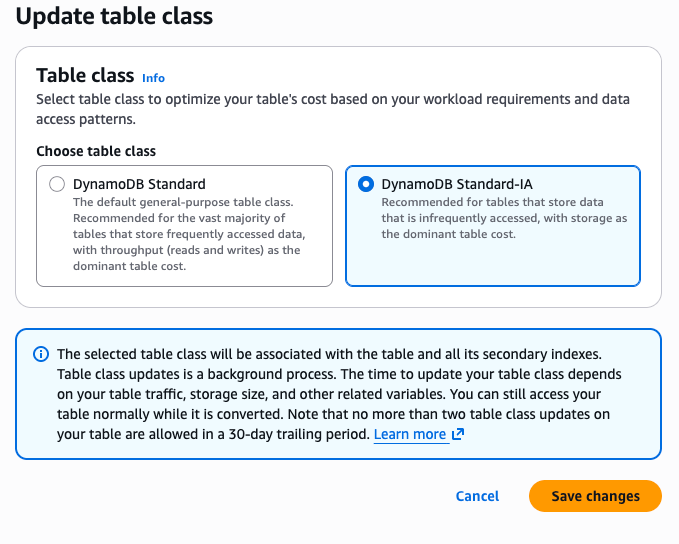
Si la ressource est provisionnée automatiquement via IaC (comme CloudFormation ou Terraform), mettez à jour le code correspondant pour refléter les modifications.
Aurora I/O-Optimized offre jusqu'à 40 % d'économies pour les applications gourmandes en E/S où les frais d'E/S dépassent 25 % des dépenses totales de la base de données Aurora.
Il existe 2 configurations disponibles :
Aurora Standard : économique pour les applications avec E/S faibles à modérées.
Aurora I/O-Optimized : Idéal pour les applications avec E/S élevées, fournissant :
Performances améliorées
Augmentation du débit
Latence réduite pour les charges de travail exigeantes
Prix prévisibles
Jusqu'à 40 % d'économies
Avec Aurora I/O-Optimized, il n'y a pas de frais pour les opérations d'E/S de lecture et d'écriture : vous ne payez que pour vos instances de base de données et votre utilisation du stockage.
Les sous-titres sont disponibles en anglais, français et espagnol. Cliquez ici pour obtenir la masterclass complète.
Comment identifier ?
Dans le Rapport d'optimisation des coûts , consultez la section Aurora_Storage_Classes.
Dans la console AWS, accédez au service Aurora et RDS, puis accédez à l'onglet Configuration.
Vérifiez la configuration du stockage du cluster
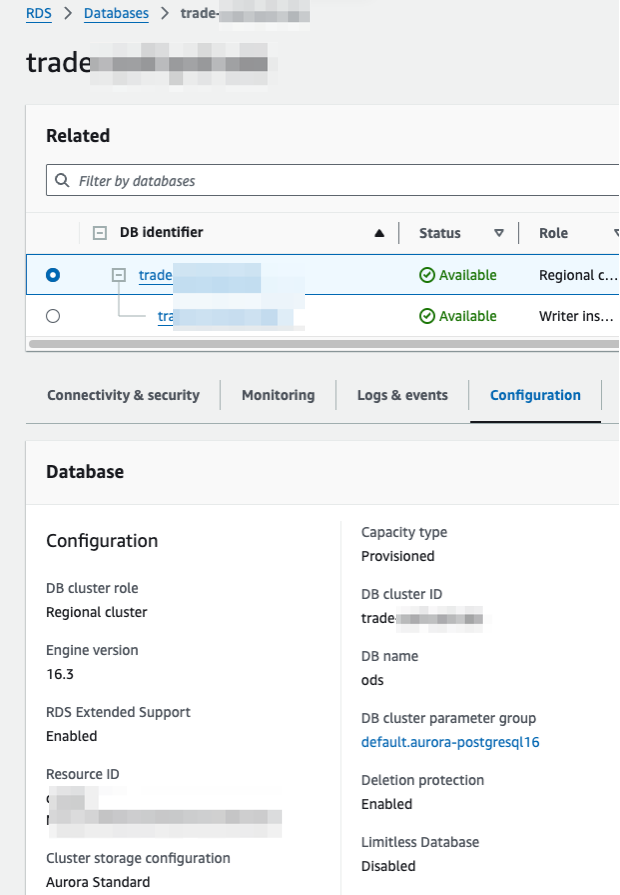
- Dans la console AWS, accédez à Compute Optimizer, puis sélectionnez la section Bases de données Aurora et RDS. Cliquez sur la section Stockage et sélectionnez votre base de données Aurora pour vérifier si elle est optimisée ou non.
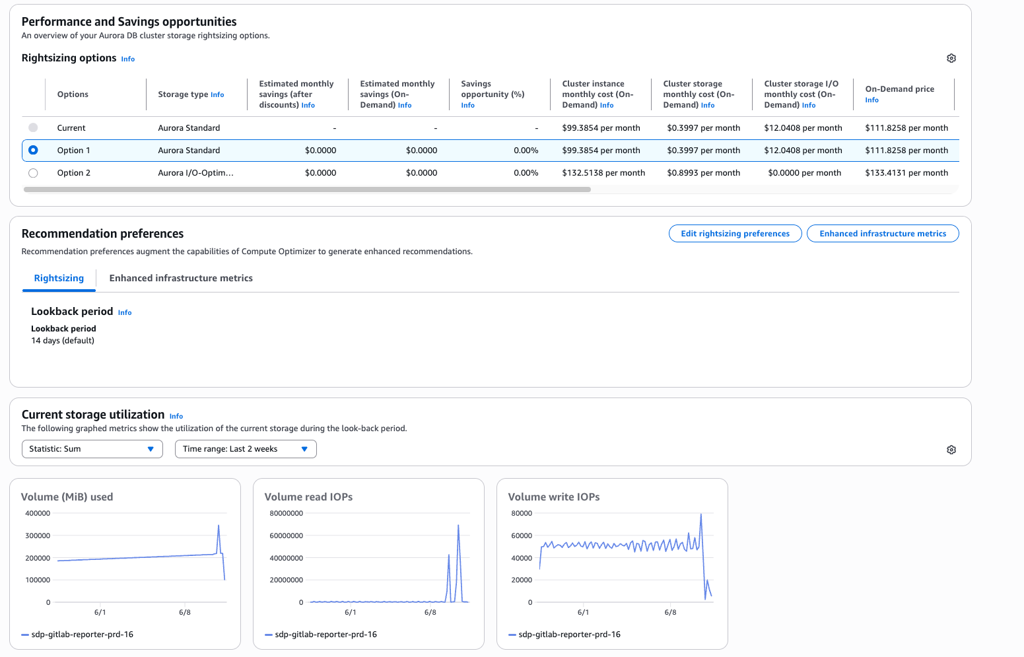
Dans la console AWS, accédez à Facturation et gestion des coûts, puis sélectionnez la section Factures. Cliquez sur Service de base de données relationnelle, puis sur votre région. Comparez votre montant de stockage et d'E/S Amazon Aurora avec le reste des coûts.
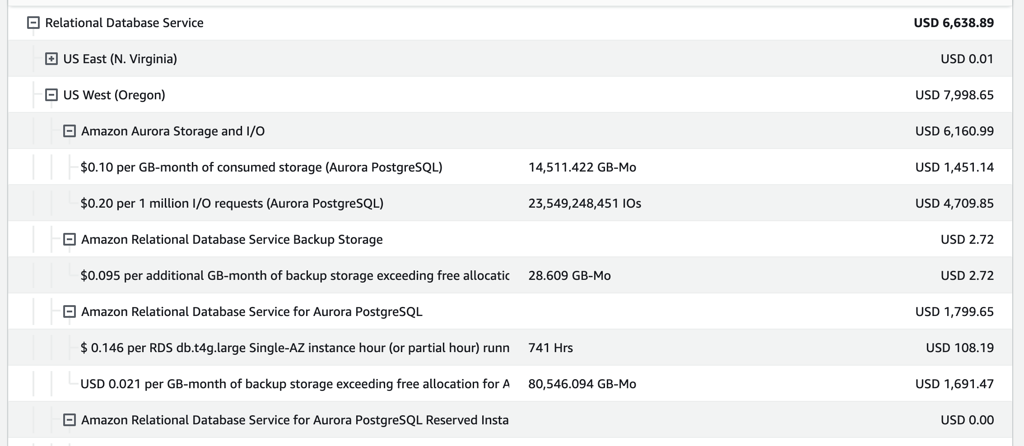
Exemple : Si vous avez 6 160,99 $ de coûts d'E/S sur un total de 7 998,65 $, les coûts d'E/S dépassent 25 %, ce qui fait d'Aurora I/O-Optimized un choix rentable.
Utilisez la section Surveillance du service RDS pour vérifier quel cluster modifier.
Dans Cost Explorer, filtrez par service RDS et regroupez par Dimension = Type d'utilisation pour comparer le pourcentage des coûts d'E/S.
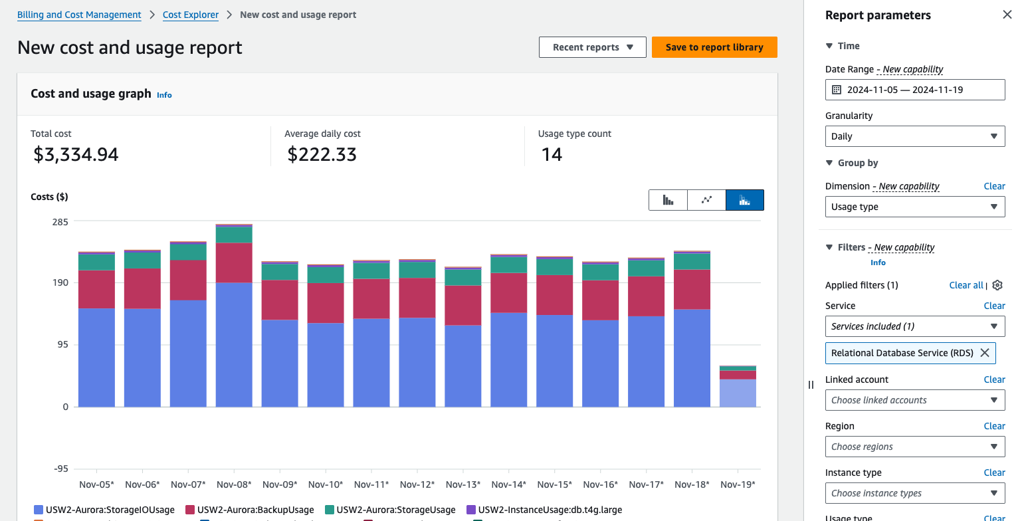
Comment corriger ?
Assurez-vous de basculer uniquement les applications à E/S élevées vers Aurora I/O-Optimized.
Dans la console AWS, accédez à Service RDS, puis sélectionnez la section Bases de données.
Choisissez le cluster Aurora à changer et cliquez sur Modifier.
Sélectionnez Aurora I/O-Optimized, puis cliquez sur Continuer.
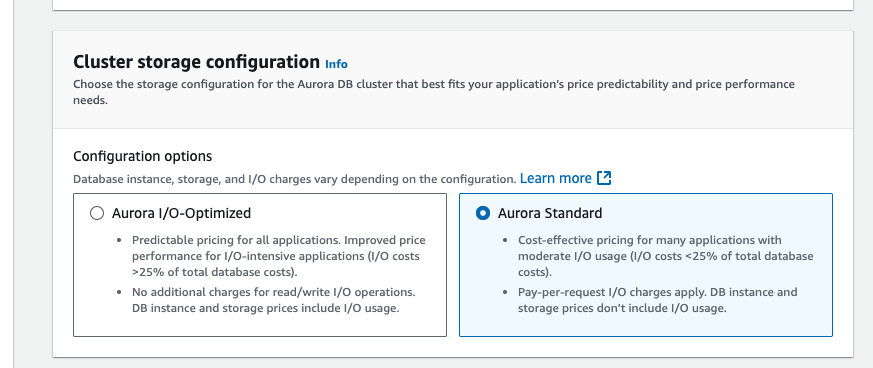
Si la ressource est provisionnée automatiquement via IaC (comme CloudFormation ou Terraform), mettez à jour le code correspondant pour refléter les modifications.
Après quelques jours, examinez les résultats dans Cost Explorer pour confirmer les économies réalisées.
Une façon de réduire les coûts avec ECR consiste à automatiser le nettoyage des images à l'aide de politiques de cycle de vie.
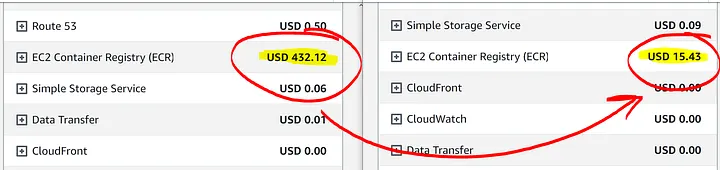
Les sous-titres sont disponibles en anglais, français et espagnol. Cliquez ici pour obtenir la masterclass complète.
Les politiques de cycle de vie Amazon ECR offrent plus de contrôle sur la gestion du cycle de vie des images dans un référentiel privé. Une stratégie de cycle de vie contient une ou plusieurs règles, et chaque règle définit une action pour Amazon ECR. En fonction des critères d'expiration de la politique de cycle de vie, les images peuvent être archivées (30 % d'économies sur 150 To/mois - période minimale de 90 jours) ou expirées (100 % d'économies) en fonction des critères spécifiés dans la politique de cycle de vie dans un délai de 24 heures.
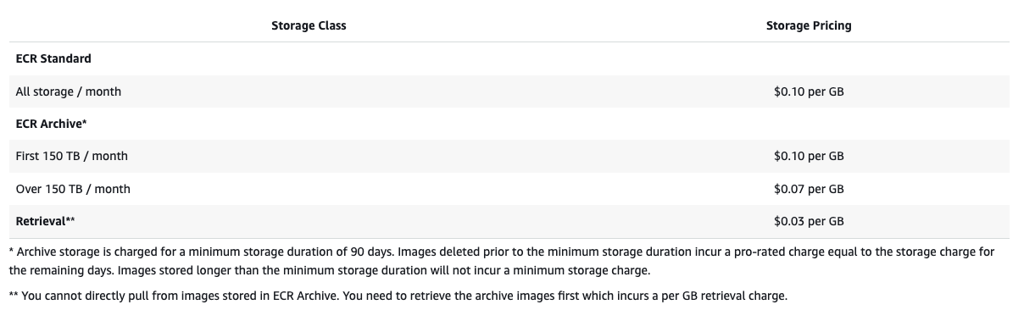
Comment fonctionnent les politiques de cycle de vie
Le diagramme suivant montre le workflow de la stratégie de cycle de vie.

Créez une ou plusieurs règles de test.
Enregistrez les règles de test et exécutez l'aperçu.
L'évaluateur de politique de cycle de vie passe en revue toutes les règles et marque les images affectées par chaque règle.
L'évaluateur de politique de cycle de vie applique ensuite les règles, en fonction de la priorité des règles, et affiche les images du référentiel qui doivent expirer ou être archivées. Un numéro de priorité de règle inférieur signifie une priorité plus élevée. Par exemple, une règle de priorité 1 est prioritaire sur une règle de priorité 2.
Examinez les résultats du test, en vous assurant que les images marquées comme expirées ou archivées correspondent à ce que vous souhaitiez.
Appliquez les règles de test comme politique de cycle de vie pour le référentiel.
Une fois la politique de cycle de vie créée, vous devez vous attendre à ce que les images expirent ou soient archivées dans les 24 heures suivant leur conformité aux critères d'expiration.
Comment identifier ?
Dans le Rapport d'optimisation des coûts , consultez la section ECR_Storage_Classes.
- Dans la console AWS, accédez au service ECR, puis cliquez sur un référentiel ECR. Cliquez sur l'onglet Politique de cycle de vie pour vérifier vos règles et événements existants
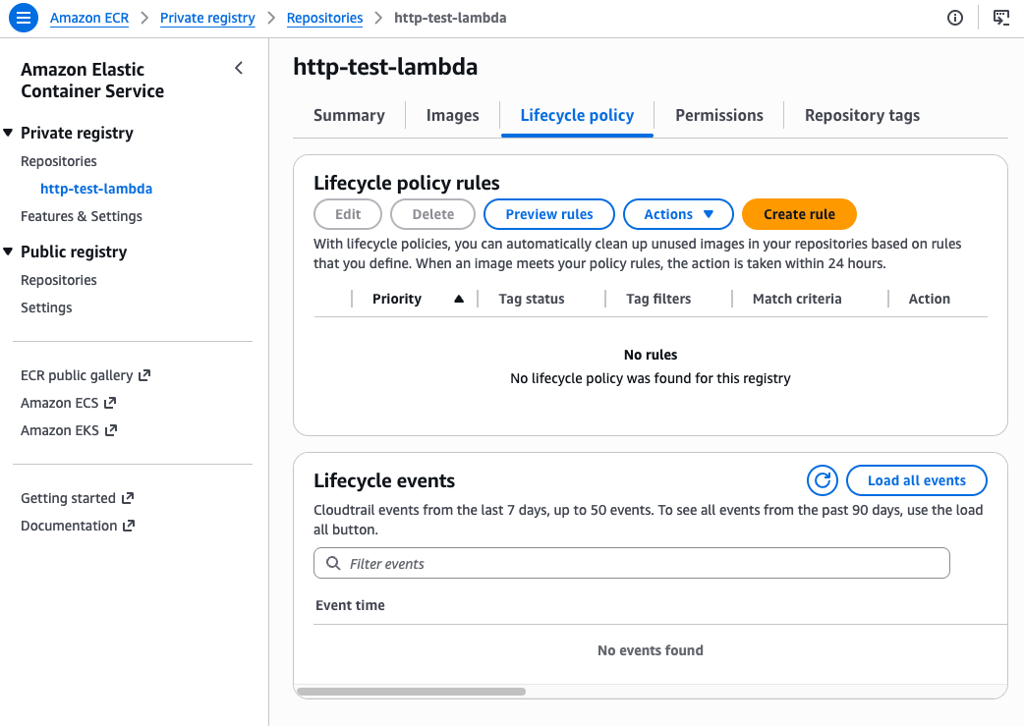
Comment corriger ?
Dans la console AWS, accédez au service ECR, puis cliquez sur un référentiel ECR. Cliquez sur l'onglet Politique de cycle de vie pour créer une règle
- Voir les Exemples de politiques de cycle de vie dans Amazon ECR - Amazon ECR
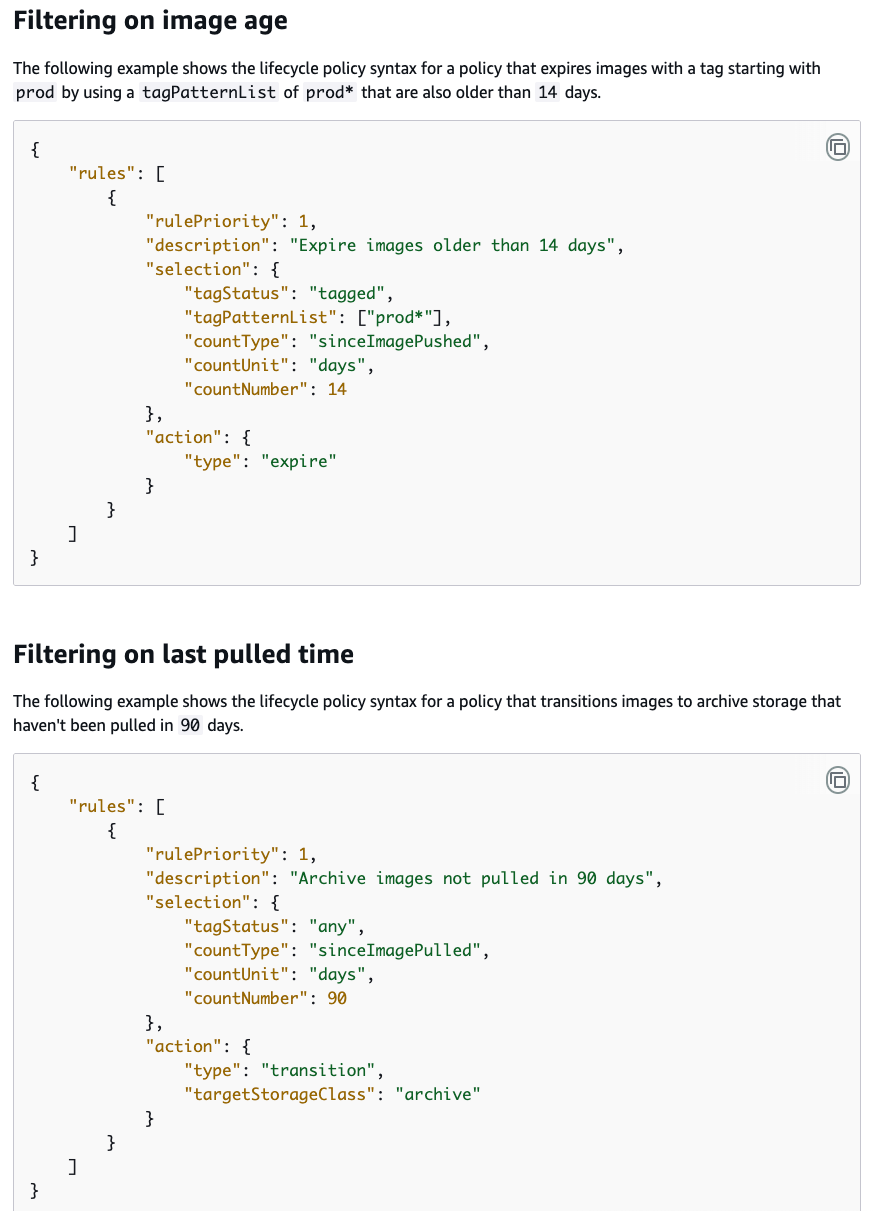
Si la ressource est provisionnée automatiquement via IaC (comme CloudFormation ou Terraform), mettez à jour le code correspondant pour refléter les modifications.
Principales stratégies d'optimisation des coûts :
Définir des politiques de conservation : par défaut, les journaux n'expirent jamais. Modifiez la conservation à 1 jour, 1 semaine ou 30 jours pour éviter les frais de stockage à long terme pour les anciens journaux.
Filtrer les niveaux de journaux : en production, modifiez les niveaux de journalisation de DEBUG à WARN ou ERROR pour éliminer les journaux volumineux et de faible valeur.
Utiliser la classe de journaux d'accès peu fréquent : utilisez la classe de journaux d'accès peu fréquent pour les groupes de journaux rarement consultés, ce qui offre un prix d'ingestion 50 % inférieur à celui de la classe Standard.
Utiliser des filtres d'abonnement : envoyez des données de journaux volumineuses à Kinesis Data Firehose ou S3 pour un stockage moins cher au lieu de les stocker directement dans CloudWatch Logs.
Implémentez des filtres de métriques : au lieu de journaux, extrayez des métriques spécifiques des journaux et utilisez-les pour les alarmes afin d'éviter une ingestion à grande échelle.
Auditer les journaux fournis (vended logs) : optimisez ou désactivez les journaux de flux VPC, les journaux Lambda ou les journaux Route 53 s'ils ne sont pas nécessaires à la conformité en matière de sécurité.
Les sous-titres sont disponibles en anglais, français et espagnol. Cliquez ici pour obtenir la masterclass complète.
La classe de journaux IA a un prix d'ingestion par Go inférieur de 50 % par rapport à la classe de journaux Standard. Cet article de blog explique comment utiliser la nouvelle classe de journaux IA pour les nouveaux groupes de journaux.
Il est important de noter qu'une fois qu'un groupe de journaux est créé, vous ne pouvez pas modifier sa classe existante de Standard à IA ou vice versa. Par conséquent, veillez à n’utiliser la classe de journaux IA que pour une charge de travail qui ne nécessite pas les fonctionnalités avancées fournies par la classe de journaux Standard. Exemples de cas d'utilisation les mieux adaptés à l'accès peu fréquent :
Charges de travail qui ne nécessitent pas de fonctionnalités avancées de classe de journaux standard telles que le format de métrique intégré (EMF), Live Tail, la détection des anomalies dans les journaux et l'analyse des modèles.
Journaux de débogage ou journaux du serveur Web, car ils sont assez détaillés et nécessitent rarement des fonctionnalités avancées.
Appareils Internet des objets (IoT) qui envoient des journaux détaillés qui ne sont généralement consultés qu'à des fins d'analyse forensique après coup.
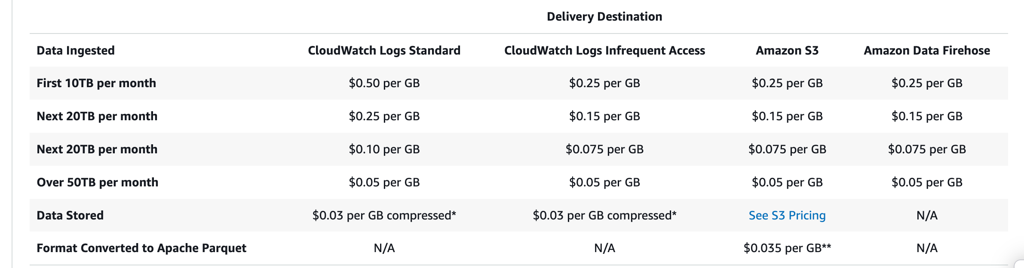
Comment identifier ?
Dans le Rapport d'optimisation des coûts , consultez la section CloudWatch_Storage_Classes.
- Dans la console AWS, accédez au service CloudWatch, puis sélectionnez la section Groupes de journaux. Cliquez sur l'icône Paramètres et ajoutez la colonne Octets stockés. Filtrez les groupes de journaux par Octets stockés pour identifier les groupes de journaux les plus coûteux.
Comment corriger ?
Pour configurer la période de conservation :
Assurez-vous que les journaux ne sont plus nécessaires.
Sélectionnez les groupes de journaux que vous souhaitez modifier.
Cliquez sur Actions > Modifier le paramètre de conservation.
Choisissez la nouvelle période de conservation et cliquez sur Enregistrer.
Pour utiliser la classe de journaux d'accès peu fréquent (IA) :
Créer un nouveau groupe de journaux : dans la console CloudWatch, sélectionnez Groupes de journaux -> Créer un groupe de journaux.
Définir la classe : sous Classe de journal, sélectionnez Accès peu fréquent.
Migrer les données : exportez les anciens journaux vers S3 et supprimez le groupe de journaux Standard d'origine.
Mettre à jour la configuration : mettez à jour vos services AWS (par exemple, EKS, Lambda) pour utiliser le nouveau nom du groupe de journaux.
Pour réduire la quantité de journaux avec l'analyse des modèles CloudWatch Logs :
Utilisez la Détection d'anomalies et analyse de modèles de CloudWatch Logs pour identifier les événements inhabituels et découvrir des tendances et des modèles dans vos journaux. Par exemple
Journaux inutiles : journaux d'erreurs qui indiquent simplement « Erreur » sans aucun contexte ni informations exploitables. Dans une telle situation, vous pouvez mettre à jour vos journaux pour capturer le bon niveau de détail afin de vous donner un aperçu de votre charge de travail.
Journaux inutiles – Dans la figure ci-dessous, vous pouvez voir que les modèles 1 et 2 reflètent le même ensemble de données. Le premier est une instruction print et le second une instruction de journalisation (logger). La suppression de ces journaux qui n'apportent aucune valeur supplémentaire peut vous aider à économiser sur les coûts de journalisation.
Instructions Debug – Dans la figure ci-dessous, le modèle trois montre une instruction Debug. Les instructions de débogage dans une application stable peuvent produire plus de journaux que nécessaire. Vérifiez auprès de vos développeurs si les instructions de débogage dans les journaux de production ajoutent de la valeur à leurs enquêtes en temps réel. Sinon, si elles sont utilisées pour une analyse après coup, la classe IA pourrait être un excellent choix.
Si la ressource est provisionnée automatiquement via IaC (comme CloudFormation ou Terraform), mettez à jour le code correspondant pour refléter les modifications.
Économisez en planifiant
La planification consiste à gérer efficacement votre infrastructure en évoluant automatiquement pour répondre à l'évolution des demandes. Il s'agit d'un outil puissant et rentable pour gérer les modèles de charge de travail. Cela nécessite une compréhension approfondie des modèles de charge de travail et des mesures de performances de votre application.
Présentation
AWS Auto Scaling est une fonctionnalité qui vous permet d'ajuster automatiquement le nombre de ressources utilisées en fonction de conditions prédéfinies ou en réponse à une demande changeante.
L'objectif principal d'Auto Scaling est de garantir que vous disposez du nombre adéquat de ressources disponibles pour gérer la charge de travail actuelle de manière efficace et rentable.
Les sous-titres sont disponibles en anglais, français et espagnol. Cliquez ici pour obtenir la masterclass complète.
Avantages
Évolutivité : Auto Scaling vous aide à monter en charge (scale out : ajouter des ressources) pour gérer une charge accrue et à réduire la capacité (scale in : supprimer des ressources) lorsque la demande diminue.
Haute disponibilité : en remplaçant automatiquement les instances défectueuses, Auto Scaling aide à maintenir la disponibilité de votre application.
Efficacité des coûts : Auto Scaling permet d'optimiser les coûts en garantissant que vous ne payez que pour les ressources dont vous avez besoin. Cela réduit le besoin de surprovisionnement des ressources pour gérer les charges de pointe.
Gestion automatique : Auto Scaling peut être configuré pour gérer automatiquement le cycle de vie de vos ressources, y compris le lancement, la résiliation et la maintenance d'un nombre spécifié d'instances.
Exemple : Couvrir une demande variable
Prenons l'exemple d'une application web simple exécutée sur AWS.
En début et en fin de semaine, l'utilisation de cette application est minimale.
En milieu de semaine, la demande sur l'application augmente considérablement.

Option 1 : ajoutez suffisamment de serveurs pour que l'application dispose toujours de suffisamment de capacité pour répondre à la demande.

Option 2 : Avoir une capacité suffisante pour gérer la demande moyenne sur l'application.

Option 3 : Ajoutez de nouvelles instances à l'application uniquement lorsque cela est nécessaire et résiliez-les lorsqu'elles ne sont plus nécessaires.

Stratégie de mise à l'échelle : mise à l'échelle dynamique
La mise à l'échelle dynamique crée des stratégies de mise à l'échelle de suivi des cibles pour les ressources de votre plan de mise à l'échelle.
L'intention est de fournir une capacité suffisante pour maintenir l'utilisation à la valeur cible spécifiée.

Par exemple : vous pouvez configurer votre plan de mise à l'échelle pour ajuster le nombre de tâches de votre service ECS afin de maintenir l'utilisation du CPU à 75 %.
Lorsque l'utilisation du CPU de votre service dépasse 75 %, votre politique de mise à l'échelle ajoute une autre tâche pour vous aider à faire face à l'augmentation de la charge.

Stratégie de mise à l'échelle : mise à l'échelle prédictive
La mise à l'échelle prédictive utilise l'apprentissage automatique pour analyser la charge de travail historique de chaque ressource et prévoir régulièrement la charge future.
À l’aide des prévisions, la mise à l’échelle prédictive génère des actions de mise à l’échelle planifiées pour garantir que la capacité des ressources est disponible avant que votre application n’en ait besoin.

Par exemple : vous pouvez activer la mise à l'échelle prédictive et configurer votre stratégie de mise à l'échelle pour maintenir l'utilisation moyenne du CPU de votre groupe Auto Scaling à 50 %.
Les prévisions anticipent des pics de trafic tous les jours à 8h00.
Votre plan de mise à l'échelle crée les futures actions de mise à l'échelle planifiées pour garantir que votre groupe Auto Scaling est prêt à gérer ce trafic à l'avance.

Services concernés
Instances EC2
ECS
EKS
RDS
DynamoDB
SQS
Lambda
SageMaker
…
 AWS Auto Scaling
vous permet d'ajuster automatiquement le nombre de ressources utilisées en fonction de conditions prédéfinies ou en réponse à l'évolution de la demande.
AWS Auto Scaling
vous permet d'ajuster automatiquement le nombre de ressources utilisées en fonction de conditions prédéfinies ou en réponse à l'évolution de la demande.
L'objectif principal d'Auto Scaling est de garantir que vous disposez du nombre adéquat de ressources disponibles pour gérer la charge de travail actuelle efficacement et de manière rentable.

Les sous-titres sont disponibles en anglais, français et espagnol. Cliquez ici pour obtenir la masterclass complète.

Amazon EC2 Auto Scaling aide à maintenir la disponibilité des applications et vous permet d'ajouter ou de supprimer automatiquement des instances EC2 à l'aide des politiques de mise à l'échelle que vous définissez.
Mise à l'échelle prédictive : ajuste la capacité en fonction des modèles de demande établis.
Évolutivité dynamique : ajuste la capacité en temps réel pour répondre à l'évolution de la demande.


Un groupe Auto Scaling (ASG) contient un ensemble d'instances EC2 qui sont traitées comme un groupe logique à des fins de mise à l'échelle et de gestion automatiques.

Vous définissez une capacité souhaitée, une capacité minimale et maximale, une configuration de lancement ou un modèle de lancement (recommandé), des politiques de mise à l'échelle, des périodes de refroidissement et un ELB facultatif.
Un ASG peut être intégré à des Elastic Load Balancers (ELB) pour répartir le trafic entrant entre les instances. Le Load Balancer effectue des vérifications de l'état et achemine le trafic uniquement vers des instances saines.

Capacité souhaitée : représente la capacité initiale du groupe Auto Scaling au moment de la création.
Capacité souhaitée : Représente la capacité initiale du groupe Auto Scaling au moment de sa création.
Capacité minimale : représente la taille minimale du groupe.
Capacité minimale : Représente la taille minimale du groupe.
Capacité maximale : représente la taille maximale du groupe.
Comment identifier ?
- Dans la console AWS, accédez au service EC2, puis sélectionnez la section Groupes Auto Scaling.
Comment corriger ?
Dans le tableau de bord Amazon EC2, choisissez Modèles de lancement et spécifiez : un nom, une AMI, un type d'instance, des paramètres réseau, une paire de clés et un stockage.

Accédez à la section Groupes Auto Scaling dans EC2 et démarrez le processus de création.
Choisissez un nom.
Sélectionnez votre modèle de lancement.
Vous pouvez éventuellement sélectionner ou créer un Load Balancer à attacher.
Vous pouvez éventuellement activer les vérifications d'état ELB.

Définir les limites de mise à l'échelle
Sélectionnez la politique de mise à l'échelle par suivi de cible.
Choisissez un type de métrique (utilisation moyenne du CPU, réseau entrant ou sortant moyen, nombre de requêtes ALB par cible, métrique CloudWatch personnalisée).
Choisissez une valeur cible

Si la ressource est provisionnée automatiquement via IaC (comme CloudFormation ou Terraform), mettez à jour le code correspondant pour refléter les modifications.
Des configurations incorrectes peuvent entraîner des inefficacités ou des échecs.
La définition de politiques de mise à l'échelle efficaces nécessite une compréhension approfondie des modèles de charge de travail et des mesures de performances de l'application.
Déterminer la période de refroidissement optimale peut être difficile et peut nécessiter des ajustements itératifs.
ECS Auto Scaling
ECS Auto Scaling vous permet d'augmenter ou diminuer automatiquement le nombre de tâches souhaité dans votre service Amazon ECS.
Amazon ECS publie des métriques CloudWatch avec l'utilisation moyenne du CPU et de la mémoire de votre service.
Utilisez ces métriques pour augmenter le nombre de tâches en cas d'utilisation élevée et le réduire en cas de faible utilisation.


Service Auto Scaling
AWS Auto Scaling surveille vos applications et ajuste automatiquement la capacité pour maintenir des performances stables et prévisibles au coût le plus bas possible.
Configurez facilement la mise à l'échelle des applications pour plusieurs ressources sur plusieurs services en quelques minutes.
Prend en charge la mise à l'échelle pour :
Instances Amazon EC2 et Flottes Spot
Tâches Amazon ECS
Tables Amazon DynamoDB et index
Réplicas Amazon Aurora


 Instances Spot
vous permettent de profiter de la capacité excédentaire dans AWS, en offrant des remises importantes par rapport aux tarifs standard. Au lieu d'une tarification fixe, les instances Spot vous permettent d'utiliser la capacité EC2 inutilisée à un prix variable fixé par AWS.
Instances Spot
vous permettent de profiter de la capacité excédentaire dans AWS, en offrant des remises importantes par rapport aux tarifs standard. Au lieu d'une tarification fixe, les instances Spot vous permettent d'utiliser la capacité EC2 inutilisée à un prix variable fixé par AWS.
Les sous-titres sont disponibles en anglais, français et espagnol. Cliquez ici pour obtenir la masterclass complète.
Présentation des instances Spot
Le prix des instances Spot est variable et déterminé par l'offre et la demande.
Lorsque la demande en ressources informatiques est faible, vous pouvez utiliser ces ressources inutilisées pour une fraction du prix standard.
Le compromis pour cette remise est qu'AWS peut récupérer les instances Spot avec un préavis de deux minutes si la capacité est nécessaire pour les instances à la demande.
Les instances Spot sont mieux adaptées aux charges de travail capables de gérer les interruptions et ne sont pas sensibles au facteur temps, sans état et tolérantes aux pannes.
Si AWS a besoin de récupérer la capacité, votre charge de travail sera interrompue (avec un préavis de 2 minutes).
Cas d'utilisation

Les cas d'utilisation courants des instances Spot incluent :
Des charges de travail qui peuvent être interrompues et n'ont pas besoin d'être terminées dans un délai précis.
Travail qui peut être facilement redémarré ou retraité.
Calcul haute performance et traitement par lots.
Environnements de développement et de test/sandbox.
Applications volumineuses sans état.

Vous pouvez économiser jusqu'à 90 % sur les tarifs à la demande.
Il s’agit d’une option d’achat qui permet aux utilisateurs de profiter de la capacité EC2 inutilisée à un prix bas (déterminé par les tendances à long terme de l’offre et de la demande).
MAIS elle peut être récupérée pour d'autres charges de travail avec un préavis de seulement deux minutes.
De plus, si le prix dépasse votre prix maximum fixé, votre charge de travail sera également interrompue.
Cela signifie que les charges de travail doivent être spécifiquement conçues pour la tolérance aux pannes, même si AWS affirme que les instances Spot sont interrompues moins de 5 % du temps.
Comment identifier ?
Dans la console AWS, accédez au service EC2, puis sélectionnez la section Flottes Spot.
Les Flottes Spot sont des ensembles d'instances, y compris des Instances Spot et éventuellement des Instances à la demande.
Lors du provisionnement d'une flotte Spot, vous pouvez définir une capacité cible pour la flotte, et la demande sera satisfaite s'il existe une capacité disponible.
Atténuez les risques liés aux coûts en fixant un coût horaire maximum pour l'ensemble de la flotte.
Comment corriger ?
Assurez-vous que votre charge de travail est tolérante aux pannes.
Préparez votre charge de travail à redémarrer ou retraiter en cas d'interruption.
Dans la console AWS, accédez au service EC2 et créez une Demande de flotte Spot.
Définir une capacité cible et un coût maximum.
Vous pouvez éventuellement spécifier qu'Amazon EC2 mette en veille prolongée vos instances Spot en cas d'interruption (la mémoire est enregistrée sur le volume EBS racine et rechargée lorsque l'instance reprend).
Si la ressource est provisionnée automatiquement via IaC (comme CloudFormation ou Terraform), mettez à jour le code correspondant pour refléter les modifications.

La tarification des instances est basée sur l'utilisation, ce qui signifie que vous payez à l'heure uniquement lorsque l'instance est allouée et exécutée.
L'arrêt des instances pendant la nuit et le week-end peut permettre d'économiser 66 % par rapport à leur exécution à temps plein.
Cette pratique doit être mise en œuvre dans des environnements Non-Prod et Sandbox.
De nombreux serveurs n’ont pas besoin de fonctionner 24h/24 et 7j/7. Vous pouvez arrêter ces machines en dehors des heures d'ouverture, les mettant dans un état où elles peuvent être opérationnelles en quelques minutes en cas de besoin. Vous ne payez le stockage sur disque que lorsque les instances sont arrêtées.
Les sous-titres sont disponibles en anglais, français et espagnol. Cliquez ici pour obtenir la masterclass complète.
Comment identifier ?
Vous pouvez identifier les instances adaptées à la planification à l'aide des méthodes suivantes :
Dans le Rapport d'optimisation des coûts , consultez la section EC2_Weekend_Shutdown_NonProd.
Dans la console AWS, accédez au service EC2, puis sélectionnez la section Instances.
Comment corriger ?
AWS ne fournit pas de solution directe par instance. Mais vous pouvez trouver plusieurs solutions :
Mise en veille prolongée des instances EC2 en réponse à une alarme CloudWatch | Amazon Web Services
Arrêtez et démarrez les instances Amazon EC2 à intervalles réguliers à l'aide de Lambda
Utilisation du planificateur EventBridge
EventBridge Scheduler vous permet de planifier des millions de tâches pouvant appeler plus de 270 services AWS et plus de 6 000 opérations API.
Créez des planifications à l'aide d'expressions cron et rate pour les modèles récurrents ou configurez des appels ponctuels.
Configurez des fenêtres horaires flexibles pour la livraison, définissez des limites de tentatives et définissez la durée de rétention maximale pour les déclencheurs ayant échoué.

Terraform : Configuration du démarrage/arrêt automatisé pour les instances EC2 à l'aide de Terraform et AWS Lambda

Fondamentalement, ils proposent tous pour la plupart la même solution :
Ajouter les autorisations IAM nécessaires
Créez un lambda, avec code python boto3 - Nous recommandons Hibernate au lieu de Stop. Insérez un filtre par balise.
ec2_filter=[{'Name': 'tag:schedule_ec2_instance', 'Values': ['True']}] ec2.instances.filter(Filters=ec2_filter).hibernate()
Utilisez EventBridge pour déclencher la fonction Lambda en fonction d'une planification CRON.
Étiquetez vos instances EC2 de manière appropriée.
Si la ressource est provisionnée automatiquement via IaC (comme CloudFormation ou Terraform), mettez à jour le code correspondant pour refléter les modifications.

La tarification de la base de données est basée sur l'utilisation, ce qui signifie que vous payez à l'heure uniquement lorsque l'instance RDS est allouée et exécutée.
L'arrêt des instances RDS pendant la nuit et le week-end peut permettre d'économiser 66 % par rapport à leur exécution à plein temps.
Cette pratique doit être mise en œuvre dans des environnements Non-Prod et Sandbox.
De nombreuses bases de données RDS n'ont pas besoin de fonctionner 24h/24 et 7j/7. Vous pouvez arrêter ces instances en dehors des heures d'ouverture, les mettant ainsi dans un état où elles peuvent être opérationnelles en quelques minutes si nécessaire. Vous ne payez que le stockage et les sauvegardes lorsque les instances sont arrêtées.
Les sous-titres sont disponibles en anglais, français et espagnol. Cliquez ici pour obtenir la masterclass complète.
Exceptions pour les Instances Réservées (RI)
Si votre base de données RDS est couverte par une Instance réservée, vous ne souhaiterez peut-être pas l'arrêter sous deux conditions :
Si la RI ne peut pas être transférée à une autre base de données (en raison de différences au niveau de la région, du moteur ou du type d'instance).
Si vous ne pouvez l'arrêter que le week-end (30 % d'économies) et non la nuit (66 % d'économies combinées).
Comment identifier ?
Vous pouvez identifier les instances RDS adaptées à la planification à l'aide des méthodes suivantes :
Dans le Rapport d'optimisation des coûts , consultez la section RDS_Weekend_Shutdown_NonProd.
Dans la console AWS, accédez à Service RDS, puis sélectionnez la section Bases de données.
Comment corriger ?
AWS ne fournit pas de solution directe par instance. Mais ils fournissent une solution architecturale .

Après avoir implémenté cette solution, il vous suffit d'ajouter les balises appropriées à vos instances RDS.
Remarque : Une instance RDS arrêtée démarre automatiquement après 7 jours.
Si la ressource est provisionnée automatiquement via IaC (comme CloudFormation ou Terraform), mettez à jour le code correspondant pour refléter les modifications.

Comprenez les modèles de charge de travail et les mesures de performances de votre application.
Définir des politiques de mise à l'échelle efficaces.
Utilisez le service Auto Scaling pour configurer la mise à l'échelle des applications pour plusieurs ressources sur plusieurs services.
Les sous-titres sont disponibles en anglais, français et espagnol. Cliquez ici pour obtenir la masterclass complète.
Liste des services :
ECS Auto Scaling
Auto Scaling RDS
Mode automatique EKS
Auto Scaling DynamoDB
Métriques SQS
Mise à l'échelle Lambda
Service Auto Scaling
ECS Auto Scaling
ECS Auto Scaling vous permet d'augmenter ou diminuer automatiquement le nombre de tâches souhaité dans votre service Amazon ECS.
Amazon ECS publie des métriques CloudWatch avec l'utilisation moyenne du CPU et de la mémoire de votre service.
Utilisez ces métriques pour augmenter le nombre de tâches en cas d'utilisation élevée et le réduire en cas de faible utilisation.


Service Auto Scaling
AWS Auto Scaling surveille vos applications et ajuste automatiquement la capacité pour maintenir des performances stables et prévisibles au coût le plus bas possible.
Configurez facilement la mise à l'échelle des applications pour plusieurs ressources sur plusieurs services en quelques minutes.
Prend en charge la mise à l'échelle pour :
Instances Amazon EC2 et Flottes Spot
Tâches Amazon ECS
Tables Amazon DynamoDB et index
Réplicas Amazon Aurora


Économisez en investiguant
Optimisez chaque service au maximum de son potentiel !

Journaux de flux VPC
Les journaux de flux VPC sont une fonctionnalité qui vous permet de capturer des informations sur le trafic IP entrant et sortant des interfaces réseau de votre VPC.
Vous pouvez créer un journal de flux pour un VPC, un sous-réseau ou une interface réseau.
Si vous créez un journal de flux pour un sous-réseau ou un VPC, chaque interface réseau de ce sous-réseau ou VPC est surveillée.

Pour créer un journal de flux, vous spécifiez :
La ressource pour laquelle créer le journal de flux,
Le type de trafic à capturer (trafic accepté, trafic rejeté ou tout le trafic),
Les destinations sur lesquelles vous souhaitez publier les données des journaux de flux (CloudWatch Logs, S3 ou Amazon Data Firehose).
Après avoir créé un journal de flux, vous pouvez récupérer et afficher les enregistrements du journal de flux. Les journaux de flux peuvent vous aider dans plusieurs tâches, telles que :
Diagnostic des règles de groupe de sécurité trop restrictives,
Surveillance du trafic qui atteint votre instance,
Déterminer la direction du trafic vers et depuis les interfaces réseau.
Si vous publiez le journal de flux sur CloudWatch Logs, vous pouvez l'interroger à l'aide de Log Insights.

Les sous-titres sont disponibles en anglais, français et espagnol. Cliquez ici pour obtenir la masterclass complète.
Comment identifier ?
Utilisez Log Insights pour trouver des anomalies de coûts. Les journaux de flux VPC peuvent constituer une ressource précieuse pour identifier et résoudre les anomalies de coûts dans votre environnement AWS. Voici quelques exemples :
Ressources inutilisées ou sous-utilisées : vérifiez s'il existe un trafic réseau vers et depuis ces ressources. Dans le cas contraire, elles pourraient être candidates à une suppression ou à un redimensionnement.
Transfert de données excessif : Détectez des volumes élevés de transfert de données entre des zones de disponibilité ou des régions, ce qui peut entraîner des coûts supplémentaires.
Trafic non autorisé ou malveillant : identifiez les modèles de trafic inhabituels qui peuvent indiquer un accès non autorisé ou une activité malveillante, telle que l'exfiltration de données.
Trafic élevé provenant d'adresses IP ou de services spécifiques : identifiez des adresses IP ou des services spécifiques générant une quantité disproportionnée de trafic, ce qui peut indiquer une conception d'application inefficace.
Comment corriger ?
Créez un groupe de journaux de flux VPC et publiez-le sur CloudWatch Logs.
Utilisez les exemples de requêtes fournis par AWS pour étudier le trafic.
Comprenez l'utilisation du trafic de votre charge de travail et trouvez les anomalies.
Contactez le support AWS pour vous aider à comprendre les coûts excessifs.

Les petits comptes AWS ou les comptes orphelins peuvent rester inutilisés, coûtant des milliers de dollars chaque mois sans raison.
La mise hors service des comptes AWS inutilisés est une pratique cruciale pour optimiser les coûts et maintenir la sécurité et l'efficacité au sein de votre organisation AWS.
Les comptes inutilisés peuvent toujours entraîner des frais pour des services tels que AWS Config, qui continue de surveiller et d'enregistrer les configurations même si le compte n'est pas activement utilisé.
Les comptes inutilisés peuvent devenir des cibles d'accès ou d'attaques non autorisés. Leur mise hors service réduit la surface d’attaque potentielle.
Moins de comptes signifie une gestion plus simple, ce qui facilite le suivi et la gestion des comptes actifs restants.
Les sous-titres sont disponibles en anglais, français et espagnol. Cliquez ici pour obtenir la masterclass complète.
Comment identifier ?
Dans la console AWS, accédez à Facturation et gestion des coûts, puis sélectionnez la section Factures.
Vérifiez combien d’argent vous dépensez sur le compte.
Demandez à vos collègues si le compte est toujours utilisé.
Comment corriger ?
- Assurez-vous que le compte n'est plus nécessaire.
- Sauvegardez toute ressource que vous souhaitez conserver et détruisez le reste.
- Dans la console AWS Organizations (compte racine), recherchez le compte et cliquez sur Fermer.
- Tout compte membre que vous fermez affichera le statut SUSPENDED à côté de son nom de compte dans la console AWS Organizations.
- Après 90 jours (période post-clôture), le compte membre sera définitivement supprimé.

L'informatique serverless vous permet de créer et d'exécuter des applications et des services sans gérer de serveurs. Les applications modernes sont de plus en plus construites avec une stratégie serverless d'abord, en donnant la priorité à l'adoption de services serverless.
Les sous-titres sont disponibles en anglais, français et espagnol. Cliquez ici pour obtenir la masterclass complète.
Comment identifier ?
AWS a développé des services serverless pour les trois couches de votre pile :
Calcul : Lambda, Fargate
Intégration d'applications : EventBridge, Step Functions, SQS, SNS, API Gateway, Appsync
Stockage de données : S3, EFS, DynamoDB, RDS Proxy et bases de données/options serverless suivantes : Aurora, Redshift, Neptune, OpenSearch, ElastiCache

Exemple 1 : Lambda VS EC2
Si vous utilisez des instances EC2, vous n'utilisez probablement pas toujours 100 % de la capacité de calcul. De nombreux clients n'utilisent que 10 à 20 % de la capacité disponible à tout moment. Cette moyenne est également affectée par les exigences de haute disponibilité et de reprise après sinistre, qui entraînent souvent des serveurs inactifs en attente de trafic de basculement.
Dans le modèle de calcul AWS Lambda à la demande, vous êtes facturé en fonction du nombre de requêtes et du temps d'exécution de votre code. Cela peut s'avérer plus rentable que d'exécuter des serveurs 24h/24 et 7j/7.

AWS Lambda est idéal pour les charges de travail variables et basées sur des événements pour lesquelles vous souhaitez une surcharge opérationnelle minimale et une rentabilité pour une utilisation intermittente.
Amazon EC2 offre le plus de contrôle et de flexibilité, ce qui le rend adapté aux charges de travail cohérentes à forte demande ou aux applications héritées nécessitant des configurations spécifiques.

Exemple 2 : ElastiCache serverless
|
Fonctionnalité |
Mise en cache serverless |
Clusters auto-conçus |
|
Modèle de tarification |
Paiement à l'utilisation, basé sur les données stockées et les demandes. |
Paiement à l'heure, basé sur l'utilisation du nœud de cache. |
|
Configuration du cache |
Créez un cache avec juste un nom en moins d'une minute. |
Fournit un contrôle précis sur la conception du cluster de cache. |
|
Version ElastiCache prise en charge |
Valkey 7.2 et supérieur, Redis OSS version 7.1 et supérieur, Memcached 1.6.21 et supérieur |
Valkey 7.2 et supérieur, Redis OSS version 4.0 et supérieur, Memcached 1.4 et supérieur |
|
Multi-AZ |
Les données sont répliquées de manière asynchrone sur plusieurs zones de disponibilité pour une disponibilité plus élevée et une latence de lecture améliorée. |
Fournit une option permettant de concevoir le cluster dans une seule zone de disponibilité ou sur plusieurs zones de disponibilité. |
|
Chiffrement en transit et au repos |
Toujours activé. |
Option pour activer ou désactiver. |
|
Global Datastore |
Non pris en charge |
Pris en charge |
|
Hiérarchisation des données |
Non pris en charge |
Pris en charge |
Choisissez la mise en cache serverless si :
Vous créez un cache pour des charges de travail nouvelles ou imprévisibles.
Vous avez un trafic d'applications imprévisible.
Vous recherchez le moyen le plus simple de démarrer avec un cache.
Choisissez de concevoir votre propre cluster ElastiCache si :
Vous exécutez déjà ElastiCache Serverless et souhaitez un contrôle plus précis sur le type de nœud, le nombre de nœuds et l'emplacement.
Vous attendez un trafic applicatif prévisible et souhaitez contrôler les performances, la disponibilité et les coûts.
Vous pouvez prévoir vos besoins en capacité pour contrôler les coûts.
Comment corriger ?
Le passage au serverless sur AWS peut considérablement optimiser les coûts en éliminant le besoin de gérer et de payer la capacité des serveurs inutilisés.
Construisez votre architecture avec une stratégie serverless.
Prédisez l'utilisation et le trafic de votre charge de travail.
Mettez à jour votre infrastructure existante pour tirer parti des services serverless.
Si les ressources sont provisionnées automatiquement via IaC (comme CloudFormation ou Terraform), mettez à jour le code correspondant pour refléter les modifications.

AWS a modifié le modèle de tarification des informations d'identification client Cognito Machine-to-Machine (M2M). Depuis mai 2025, le service n'est plus gratuit.
Les sous-titres sont disponibles en anglais, français et espagnol. Cliquez ici pour obtenir la masterclass complète.
Nouveaux prix :
Tarification de la génération de jetons
|
Demandes de jetons par Mois |
Description |
Gamme Prix |
Nouveau prix |
Prix unitaire AUGMENTÉ |
|---|---|---|---|---|
|
Niveau 1 |
0,00 USD par demande de jeton de flux d'informations d'identification client (M2M) au niveau 1 |
1-250 000 jetons |
2,25 $ pour 1 000 jetons |
0.002250 |
|
Niveau 2 |
0,00 USD par demande de jeton de flux d'informations d'identification client (M2M) au niveau 2 |
250 000 à 5 millions de jetons |
1,5 $ pour 1 000 jetons |
0.001500 |
|
Niveau 3 |
0,00 USD par demande de jeton de flux d'informations d'identification client (M2M) au niveau 3 |
Plus de 5 millions de jetons |
1,125 $ pour 1 000 jetons |
0.001125 |
Tarification des clients d'application
|
Client d'application |
Description |
Plage |
Nouveau prix |
|---|---|---|---|
|
Niveau 1 |
0,00 USD par client d'application de flux d'informations d'identification client, au prorata par seconde, au niveau 1. |
1-100 Clients |
6 $ par client d'application |
|
Niveau 2 |
0,00 USD par client d'application de flux d'informations d'identification client, au prorata par seconde, au niveau 2 |
101-500 Clients |
3 $ par client d'application |
|
Niveau 3 |
0,00 USD par client d'application de flux d'informations d'identification client, au prorata par seconde, au niveau 3 |
500+ clients |
1,5 $ par client d'application |
Comment identifier ?
Dans la console AWS, accédez à la section Factures, sélectionnez mai 2025, puis la section Cognito. Comparez avec le mois précédent.
Dans le Rapport d'optimisation des coûts , consultez la section COGNITO_New_Costs.
Comment corriger ?
Réutilisez les jetons Cognito pour réduire le nombre de demandes de jetons.

Définissez des clés de mise en cache pour minimiser la génération de jetons.

Grâce à la mise en cache des jetons API Gateway, votre application peut évoluer en réponse à des événements supérieurs au quota de taux de requêtes par défaut des points de terminaison Amazon Cognito OAuth. Lire le guide du développeur.
Si la ressource est provisionnée automatiquement via IaC (comme CloudFormation ou Terraform), mettez à jour le code correspondant pour refléter les modifications.

Les tableaux de bord Amazon CloudWatch sont des pages d'accueil personnalisables dans la console CloudWatch. Ils vous permettent de surveiller vos ressources dans une vue unique, même dans différentes régions AWS. Les données métriques sont conservées pendant 15 mois, ce qui vous permet d'analyser les données en temps réel et historiques.
Comment identifier ?
Vous pouvez vérifier les alarmes à l'aide de l'appel API DescribeAlarms.
aws cloudwatch describe-alarms --alarm-names "myalarm"
aws cloudwatch describe-alarms --state INSUFFICIENT_DATA
Utilisez la règle gérée AWS Config « cloudwatch-alarm-action-check » pour vérifier que les alarmes ont au moins une action d'alarme.
Comment corriger ?
Réduire les coûts des tableaux de bord
Des frais s'appliquent lorsque vous dépassez trois tableaux de bord (avec jusqu'à 50 métriques chacun).
Offre gratuite : jusqu'à 3 tableaux de bord pour un maximum de 50 métriques par mois (les appels d'API via la console ne sont pas pris en compte dans l'offre gratuite ; les appels SDK ou CLI le sont).
Supprimez les tableaux de bord inutiles pour rester dans les limites de l'offre gratuite.
Optimisation des alarmes
Vérifier les alarmes inutilisées : les alarmes peuvent persister même après la suppression de la ressource associée. Un bon indicateur est une alarme à l'état INSUFFICIENT_DATA.
Assurez-vous que les alarmes comportent au moins une action d'alarme en utilisant AWS Config.
Activez les alarmes haute résolution uniquement pour les cas d'utilisation critiques.
Types d'alarmes
Alarme métrique : surveille une seule métrique.
Alarme composite : utilise une expression de règle pour évaluer l'état de plusieurs alarmes (états : OK, ALARM, INSUFFICIENT_DATA).
Utilisez l'appel d'API DescribeAlarms pour vérifier l'état de l'alarme et prendre les mesures nécessaires.

Le déplacement d'une base de données de Multi-AZ vers Single-AZ peut réduire considérablement les coûts, car les instances Multi-AZ coûtent généralement environ deux fois plus que les instances Single-AZ pour la même capacité de calcul.
Le Multi-AZ ne devrait être autorisé que pour les comptes de production (prod).
Les comptes Sandbox et NonProd ne doivent utiliser que des instances Single-AZ.
Ces 50 % d'économies sont obtenues parce que vous supprimez l'instance de réplica de secours et les coûts de transfert de données inter-AZ associés.
Les sous-titres sont disponibles en anglais, français et espagnol. Cliquez ici pour obtenir la masterclass complète.
Comment identifier ?
Dans le Rapport d'optimisation des coûts , consultez la section Instances multi-AZ NonProd.
Dans la console AWS, accédez au service RDS > section Bases de données > filtrez par Multi-AZ.
Comment corriger ?
Mettez à jour votre infrastructure en tant que code (IaC) : modifiez la configuration de l'instance de base de données dans vos modèles IaC (par exemple, Terraform, CloudFormation) pour utiliser Single-AZ au lieu de Multi-AZ.
Dans la console AWS, accédez au service RDS, sélectionnez une base de données et cliquez sur Modifier pour supprimer l'instance de secours.

Pourquoi c'est important
Conformité : garantit que les environnements hors production respectent les politiques de réduction des coûts.
Efficacité des coûts : réduit les dépenses inutiles liées aux fonctionnalités à haute disponibilité là où elles ne sont pas nécessaires.
 Classes de stockage à une zone
stockez les données de manière redondante dans une zone de disponibilité (AZ) unique, offrant un prix 47 % inférieur par rapport aux classes de stockage Standard (Multi-AZ). Cette option est idéale pour les charges de travail qui ne nécessitent pas de résilience multi-AZ.
Classes de stockage à une zone
stockez les données de manière redondante dans une zone de disponibilité (AZ) unique, offrant un prix 47 % inférieur par rapport aux classes de stockage Standard (Multi-AZ). Cette option est idéale pour les charges de travail qui ne nécessitent pas de résilience multi-AZ.
L'option régionale (Multi-AZ) n'est autorisée que pour les comptes de production (prod).
Les systèmes de fichiers régionaux offrent les plus hauts niveaux de disponibilité et de durabilité en stockant les données et les métadonnées du système de fichiers de manière redondante dans plusieurs zones de disponibilité géographiquement séparées au sein d'une région. Ils sont conçus pour fournir une disponibilité continue des données, même lorsqu'une ou plusieurs zones de disponibilité d'une région AWS ne sont pas disponibles.
Les comptes Sandbox et NonProd doivent utiliser le stockage One Zone (Single-AZ).
Les systèmes de fichiers à une zone stockent les données de manière redondante dans une seule zone de disponibilité (AZ) et sont idéaux pour les applications qui ne nécessitent pas la disponibilité et la durabilité multi-AZ offertes par les systèmes de fichiers régionaux Amazon EFS. Ils sont conçus pour fournir une disponibilité continue des données au sein d'une seule zone de disponibilité dans une région AWS.
Les systèmes de fichiers à une zone offrent une disponibilité continue au sein d'une seule zone de disponibilité et sont parfaits pour les applications qui n'ont pas besoin de la disponibilité multi-AZ et de la durabilité des systèmes de fichiers régionaux Amazon EFS.
L'utilisation de classes de stockage One Zone peut réduire les coûts jusqu'à 47 % et peut également améliorer les performances, car les données n'ont pas besoin d'être répliquées sur plusieurs zones de disponibilité.
Les sous-titres sont disponibles en anglais, français et espagnol. Cliquez ici pour obtenir la masterclass complète.
Page de tarification EFS : Tarifs EFS
Conseils : Atelier Studio
Comment identifier ?
Dans le Rapport d'optimisation des coûts , consultez la section EFS_MultiAZ_NonProd.
Dans la console AWS, accédez à Amazon EFS > Vérifiez la colonne Zone de disponibilité. Si vous voyez « Régional », cela signifie que le système de fichiers est Multi-AZ.

Comment corriger ?
Pour faire passer un système de fichiers Amazon EFS de multi-AZ (régional) à un seul AZ (une zone), vous ne pouvez pas modifier directement la configuration du système de fichiers existant. Au lieu de cela, vous devez créer un nouveau système de fichiers One Zone et y migrer vos données. Voici comment procéder :
Créer une sauvegarde : avant d'apporter des modifications, assurez-vous de disposer d'une sauvegarde de votre système de fichiers EFS existant. Vous pouvez utiliser AWS Backup pour créer une sauvegarde de votre fichier régional actuel.
Créer un nouveau système de fichiers One Zone : configurez un nouveau système de fichiers EFS avec la classe de stockage One Zone dans la zone de disponibilité souhaitée.
Migrer les données : copiez vos données du système de fichiers régional existant vers le nouveau système de fichiers One Zone. Vous pouvez utiliser AWS DataSync ou d'autres outils de migration de données pour faciliter ce processus.
Mettre à jour les cibles de montage et les configurations client : étant donné que les systèmes de fichiers One Zone ne prennent en charge qu'une seule cible de montage dans la même zone de disponibilité que le système de fichiers, mettez à jour vos instances EC2 ou d'autres clients pour monter le nouveau système de fichiers One Zone au lieu de l'ancien régional.
Tester et changer : après la migration, testez minutieusement le nouveau système de fichiers pour vous assurer que tout fonctionne comme prévu. Une fois confirmé, vous pouvez mettre hors service l'ancien système de fichiers régional s'il n'est plus nécessaire.
Pourquoi c'est important
Conformité : garantit que les environnements hors production respectent les politiques de réduction des coûts.
Efficacité des coûts : réduit les dépenses inutiles liées aux fonctionnalités à haute disponibilité là où elles ne sont pas nécessaires.
Bonus : découvrez les classes de stockage IA et Archive pour économiser encore plus d'argent.
Les clusters Redis à AZ unique exécutent uniquement des nœuds principaux - pas de réplicas, pas de réplication entre AZ - réduisant ainsi le coût du cluster de 50 % par rapport aux configurations multi-AZ.
Cette option est idéale pour les charges de travail qui ne nécessitent pas de basculement automatique, par exemple les environnements Dev/Sandbox.
Le multi-AZ (avec réplicas) ne doit être autorisé que pour les comptes de production (prod).
Comment ça fonctionne
Les clusters Redis Multi-AZ répliquent les données du principal vers un ou plusieurs réplicas dans des zones de disponibilité séparées.
Si le principal échoue, ElastiCache promeut automatiquement un réplica et met à jour le point de terminaison principal, offrant une disponibilité continue, sans perte de connectivité ou de données.
Les comptes Sandbox et NonProd doivent utiliser Single-AZ (pas de réplicas).
Les clusters Single-AZ coûtent une fraction des Multi-AZ et sont idéaux pour les charges de travail de développement/test où les données peuvent être reconstruites ou repeuplées si un nœud est perdu.
Les économies évoluent avec le ratio réplicas/nœuds totaux : un cluster shardé avec 1 principal + 1 réplica par shard économise ~50% lorsque les réplicas sont supprimés ; un cluster non-shardé 1-principal + 2-réplicas économise ~66%.
L'application doit tolérer la perte de cache - sans réplicas, les événements de maintenance AWS, les interruptions AZ ou les pannes de nœuds rendront le cache temporairement indisponible jusqu'à ce que le nœud se rétablisse. Les modèles de cache-aside et les charges de travail qui peuvent revenir à la base de données sont de bons choix.
Comment identifier ?
- Depuis notre Rapport d'optimisation des coûts, consultez la section ElastiCache_MultiAZ_NonProd.
- Dans la console AWS, accédez à Amazon ElastiCache> Caches Redis > vérifiez la colonne Multi-AZ. Si elle affiche « Activé », le cluster possède des réplicas inter-AZ. Tout cluster avec des réplicas > 0 dans un compte non-prod est un candidat.
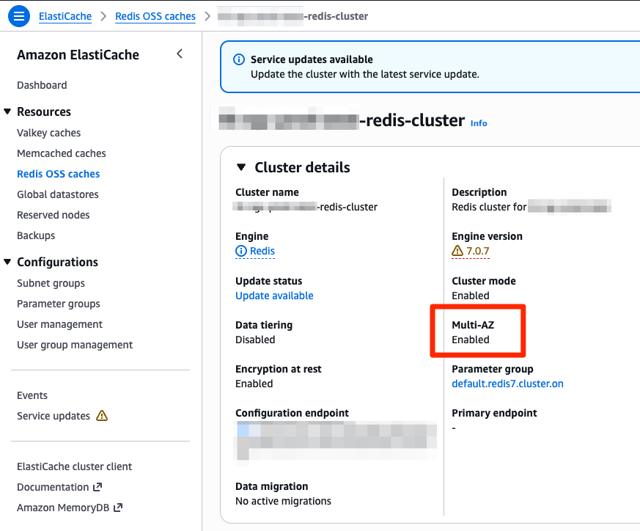
Comment corriger ?
ElastiCache vous permet de réduire le nombre de réplicas et de désactiver Multi-AZ sur place - aucune recréation n'est nécessaire dans la plupart des cas.
Créer une sauvegarde : prenez un instantané manuel du cluster (ElastiCache > Sauvegardes > Créer une sauvegarde) avant d'apporter des modifications.
Désactiver Multi-AZ : Modifiez le groupe de réplication et définissez Multi-AZ sur Désactivé.
Réduire les réplicas à zéro :
Utilisez l'action Modifier de la console
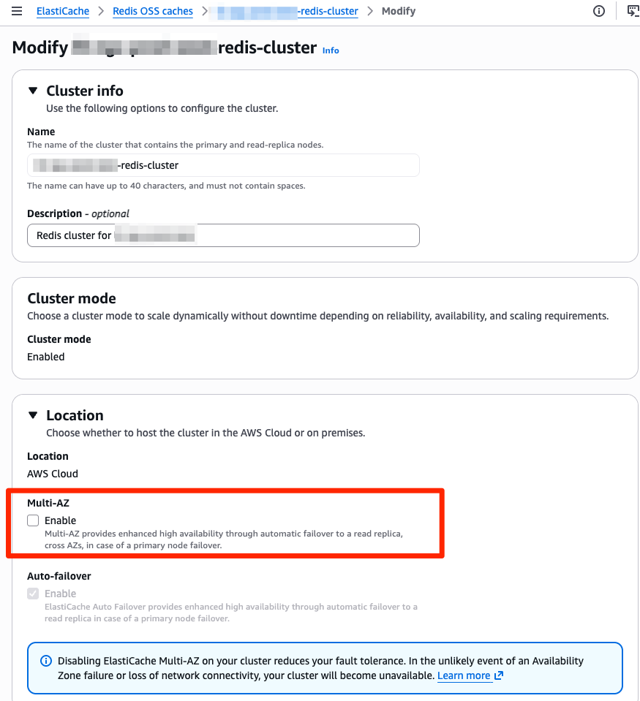
b. Exécutez aws elasticache decrease-replica-count --replication-group-id <id> --new-replica-count 0 --apply-immediately. Pour les clusters partitionnés, cela s’applique uniformément à toutes les partitions.
c. Mettez à jour la configuration Terraform avec les paramètres souhaités, Terraform devrait permettre la mise à jour sur place du cluster
4. Mettre à jour les configurations client : tout client utilisant un point de terminaison de lecteur doit être redirigé vers le point de terminaison principal.
5. Test et changement : validez l'application par rapport au cluster réduit avant de considérer la modification comme terminée.
Si la modification sur place n'est pas prise en charge sur un ancien cluster, créez un nouveau cluster Single-AZ, restaurez à partir d'un instantané, mettez à jour les chaînes de connexion, puis décommissionnez l'ancien.
Pourquoi cela importe
Conformité : garantit que les environnements hors production respectent les politiques de réduction des coûts.
Efficacité des coûts : Réduit les dépenses inutiles sur des fonctionnalités de haute disponibilité là où elles ne sont pas nécessaires.
Bonus : envisagez également de redimensionner les familles de nœuds, les nœuds réservés pour les environnements hors production stables, ou ElastiCache Serverless pour les charges de travail en pics.
L'inférence par lots (batch) de Bedrock traite de grands volumes de prompts de manière asynchrone, à un prix inférieur à celui de l'inférence à la demande. Identifiez les charges de travail à la demande qui peuvent s'exécuter de manière asynchrone : le rapport estime environ 50 % d'économies, mais l'inférence par lots ne convient qu'aux modèles pris en charge et aux charges de travail qui tolèrent des résultats différés. Vérifiez la tarification actuelle du modèle, les exigences de latence et l'adéquation avec l'application avant de migrer.
Comment identifier ?
Vous pouvez identifier les charges de travail Bedrock éligibles à l'inférence par lots à l'aide des méthodes suivantes :
Depuis notre Rapport d'optimisation des coûts, consultez la section Bedrock On-Demand to Batch.
La recommandation identifie le compte et la Région à partir de l'utilisation de tokens en entrée/sortie de Bedrock. Examinez les charges de travail applicatives de ce compte et de cette Région pour trouver les requêtes qui ne nécessitent pas de réponse immédiate (par exemple, traitement de documents, classification, synthèse, évaluations ou génération d'embeddings).
Comment corriger ?
Vérifiez que le modèle et la Région prennent en charge l'inférence par lots (voir les modèles et Régions pris en charge). Elle ne prend pas en charge les modèles provisionnés, l'appel d'outils (tool calling), la sortie structurée ni les charges de travail interactives multi-tours.
Préparez les requêtes au format JSONL requis et chargez les fichiers d'entrée dans S3. Choisissez un emplacement S3 pour les résultats et configurez le rôle de service Bedrock et les autorisations nécessaires.
Dans la console AWS, accédez au service Amazon Bedrock, puis sélectionnez la section Inférence par lots et cliquez sur Créer une tâche. Sélectionnez un modèle pris en charge, choisissez le format d'invocation correspondant (InvokeModel ou Converse), indiquez les emplacements S3 d'entrée et de sortie, puis soumettez la tâche.
Surveillez la tâche et récupérez ses résultats dans S3. Ne basculez l'application vers le traitement par lots qu'après avoir validé la gestion des résultats et le comportement de bout en bout ; conservez l'inférence à la demande pour les requêtes sensibles à la latence.
Mettez à jour la configuration de l'application ou l'infrastructure en tant que code (IaC) pour pérenniser le traitement par lots.
Remarque : les ~50 % d'économies du rapport sont une estimation, pas une garantie. Vérifiez la tarification actuelle du modèle et de la Région choisis avant de migrer. Consultez la documentation AWS sur l'inférence par lots, les modèles et Régions pris en charge et la création d'une tâche batch.
Les sous-titres sont disponibles en anglais, français et espagnol. Cliquez ici pour obtenir la masterclass complète.
Comment identifier ?
- Consultez votre contrat Migration Plan pour voir les termes et conditions. Vous devriez voir un pourcentage de crédit (formule MAP Services), par ex. 20 %, éligible à des services spécifiques, par ex. EC2.
- Balisez vos ressources migrées avec la valeur correcte, par exemple : map-migrated = mig00000000.
- Attendez d'atteindre le seuil minimum, par ex. 20 000.
- Les crédits devraient être automatiquement ajoutés à votre compte.
- Il existe également un montant maximum, par ex. 100K et une durée pour le MAP, par ex. 2 ans.
Comment corriger ?
- Balisez vos ressources directement dans votre outil IaC avec la bonne valeur pour le tag map-migrated.
- Utilisez Tag Editor directement dans la console AWS pour baliser le reste des ressources non balisées.

AWS s'engage à proposer des accords de niveau de service (SLA) pour tous les services payants en disponibilité générale .
Un SLA est un contrat qui décrit le niveau de service qu'un fournisseur s'engage à fournir au client, y compris des mesures telles que le temps de disponibilité, le délai de livraison, le temps de réponse et le temps de résolution. Il précise également les pénalités ou les crédits de service si le prestataire ne respecte pas les normes convenues.
Les crédits de service sont déduits lorsqu'AWS ne respecte pas les normes définies dans le SLA.

Les sous-titres sont disponibles en anglais, français et espagnol. Cliquez ici pour obtenir la masterclass complète.
Un exemple avec Lambda :

10 % de crédits pour les services dont la disponibilité est comprise entre 99 % et 100 %.
|
Pourcentage de disponibilité mensuel |
Temps d'arrêt mensuel |
|---|---|
|
100% |
1 seconde |
|
99.999% |
26,1 secondes |
|
99.99% |
4,3 minutes |
|
99.95% |
21,6 minutes |
|
99.9% |
43,2 minutes |
|
99.0% |
7,2 heures |
|
98.0% |
14,4 heures |
|
95.0% |
36 heures |
Si votre fonction Lambda est indisponible pendant plus de 36 heures par mois, vous pouvez recevoir 100 % de crédits.
Si votre service Route 53 est indisponible pendant 1 seconde, vous pouvez recevoir 10 % de crédits.
Comment identifier ?
Examinez vos services concernés pendant les pannes.
Vérifiez le Tableau de bord d'intégrité des services AWS pour plus de détails sur la disponibilité du service et les incidents.

Comment corriger ?
Pour recevoir des crédits de service, vous devez soumettre une réclamation en ouvrant un dossier dans le centre de support AWS . Pour être éligible, la demande de crédit doit être reçue par AWS avant la fin du deuxième cycle de facturation suivant celui au cours duquel l'incident s'est produit et doit inclure :
Les mots "Demande de crédit SLA" dans la ligne d'objet.
Le cycle de facturation et les régions AWS pour lesquelles vous demandez des crédits de service, ainsi que le Pourcentage de disponibilité mensuel pour cette région AWS pour le cycle de facturation et les dates, heures et disponibilités spécifiques pour chaque intervalle de 5 minutes avec une disponibilité inférieure à 100 % dans cette région AWS tout au long du cycle de facturation ;
Vos journaux de demande qui documentent les erreurs liées à votre panne déclarée (toutes les informations confidentielles ou sensibles contenues dans ces journaux doivent être supprimées ou remplacées par des astérisques).