
Aurora I/O-Optimized offers up to 40% cost savings for I/O-intensive applications where I/O charges exceed 25% of the total Aurora database spend.
There are 2 available configurations:
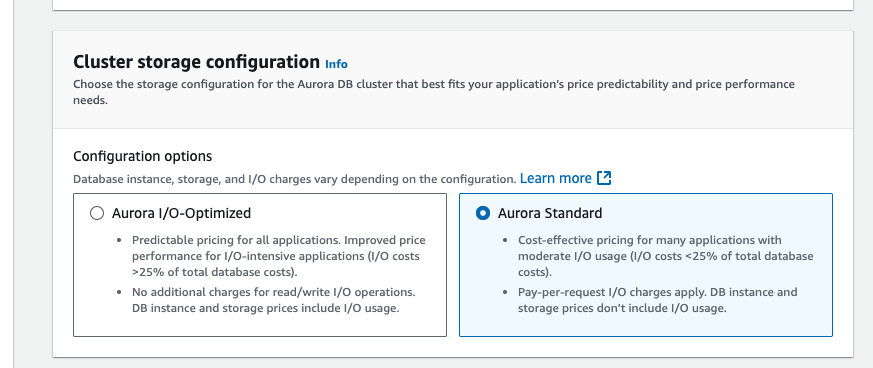
Aurora Standard: Cost-effective for applications with low-to-moderate I/O.
Aurora I/O-Optimized: Ideal for applications with high I/O, providing:
Improved performance
Increased throughput
Reduced latency for demanding workloads
Predictable pricing
Up to 40% cost savings
With Aurora I/O-Optimized, there are zero charges for read and write I/O operations—you only pay for your database instances and storage usage.
Subtitles are available in English, French and Spanish. Click here to get the full masterclass.
How to identify?
From our Cost Optimizations Report , check at Aurora_Storage_Classes section.
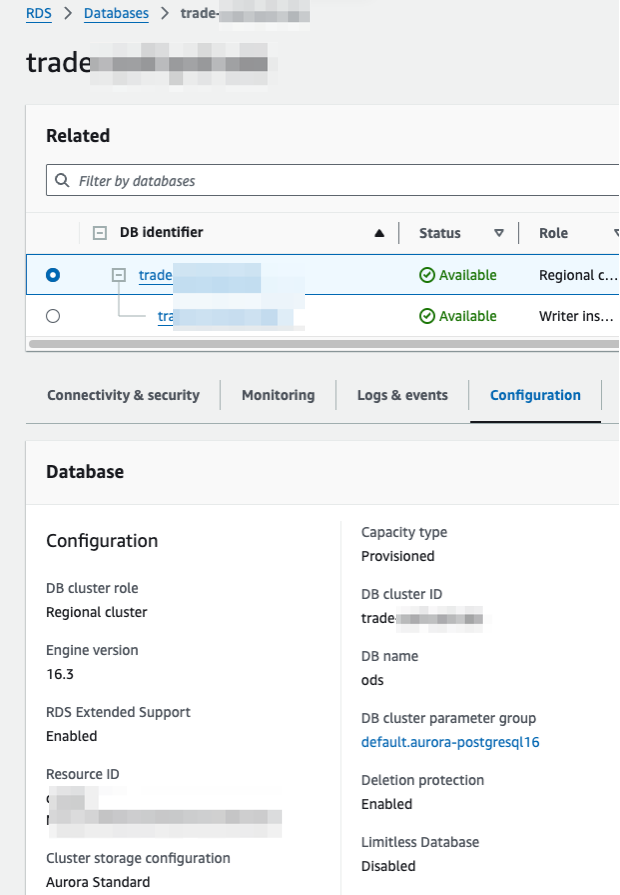
In AWS Console, go to Aurora and RDS service, then navigate to Configuration tab.
Check the Cluster storage configuration
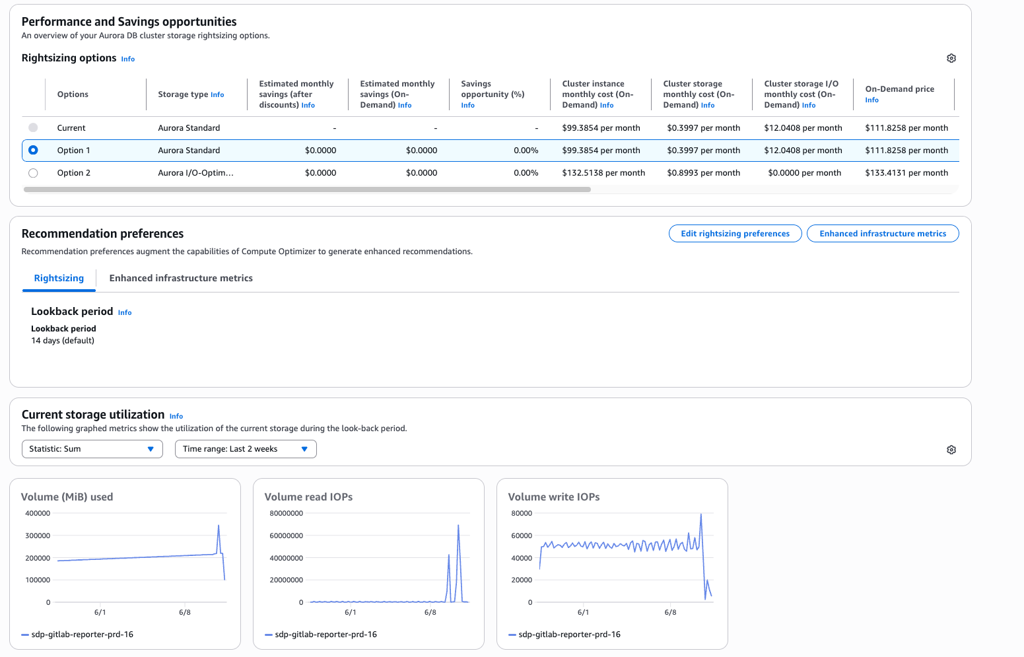
- In AWS Console, go to Compute Optimizer, then select the Aurora and RDS databases section. Click on the Storage section and select your Aurora database to check if it’s optimized or not.
In AWS Console, go to Billing and Cost Management, then select the Bills section. Click on Relational Database Service, then your region. Compare your Amazon Aurora Storage and I/O amount with the rest of the costs.
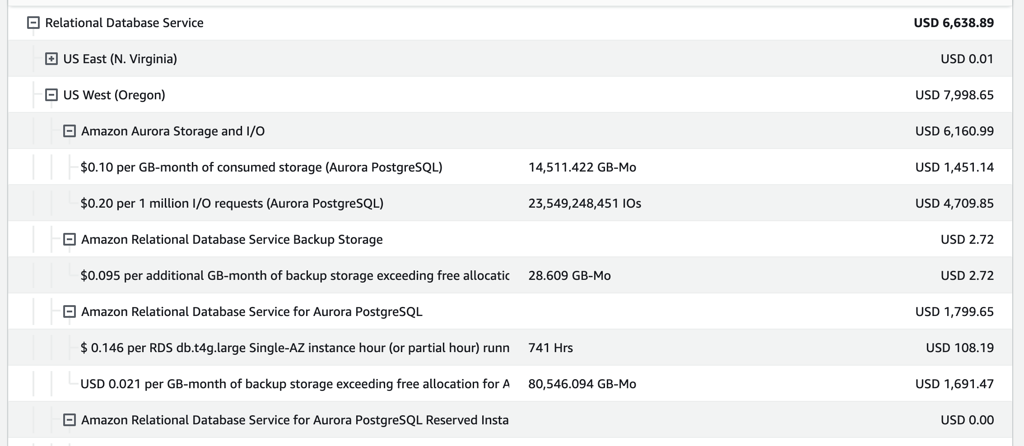
Example: If you have $6,160.99 in I/O costs from a total of $7,998.65, I/O costs exceed 25%, making Aurora I/O-Optimized a cost-effective choice.
Use the Monitoring section of the RDS service to verify which cluster to change.
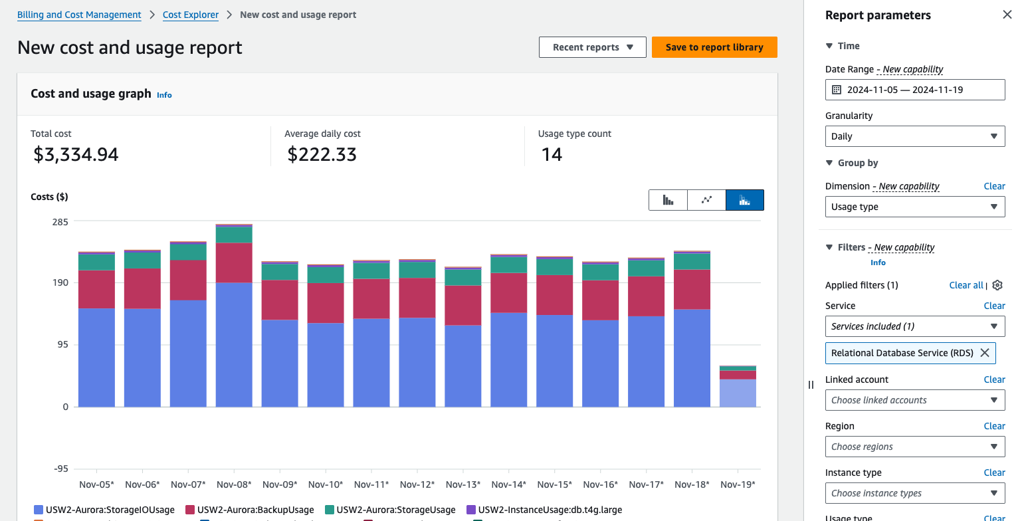
In Cost Explorer, filter by service RDS and group by Dimension = Usage Type to compare the percentage of I/O costs.
How to fix?
Ensure you only switch high I/O applications to Aurora I/O-Optimized.
In AWS Console, go to the RDS service, then select the Databases section.
Choose the Aurora cluster to switch and click Modify.
Select Aurora I/O-Optimized, then click Continue.
If the resource is provisioned automatically via IaC (such as CloudFormation or Terraform), update the corresponding code to reflect the changes.
After a few days, review the results in Cost Explorer to confirm the cost savings.